37
MLB242
User’s Guide MLB242-V1
6.5 Data transfers
For a data transfer to and from a personal computer the MLB242 need a USB cable
connection as supplied with the analyser.
Case 1 – Updating the MLB242
After product registration information about Software upgrades will be available for a
download, see
http://resources.cdrfoodlab.com/registration.php
• MLB242 is switched OFF and connected with power supply and PC by USB cable.
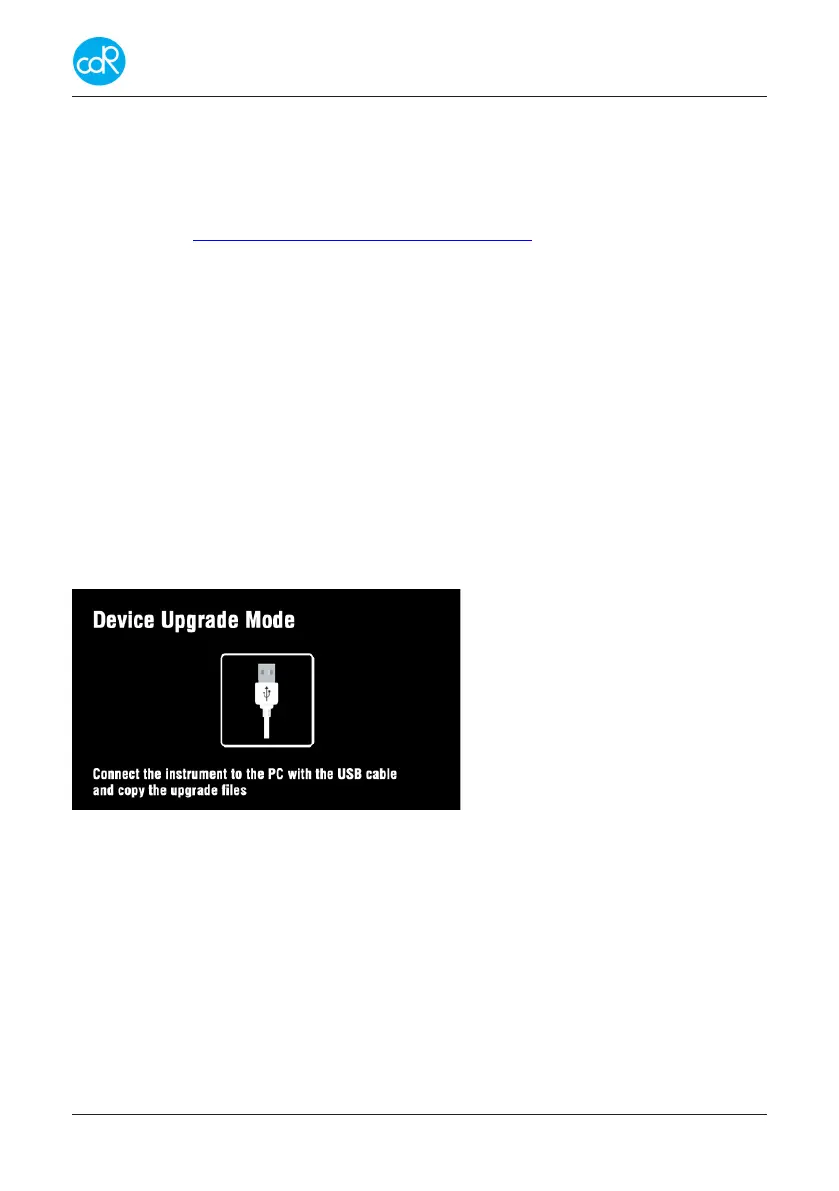
• Press the ON/OFF button for 3 seconds, a dialogue Device Upgrade Mode ap-
pears. Automatically a USB drive JUNIOR (F) is installed on your hard drive shown
by Microsoft Explorer. Open the README.TXTle, the following information is
shown:
Device Upgrade Mode
- To update rmware: copy le.fw into the USB device
- To update reading unit: copy le.ru into the USB device
- To update database: copy le.db into the USB device
- To update GUI: copy le.gui into the USB device
• Proceed as described for updating. The MLB 242 will read the le and the device
will be updated automatically. Watch information on display.
The drive JUNIOR is available as long as the Device Upgrade Mode is on!
Figure 34 Device Upgrade Mode
Case 2 – Data Exportation
• Run MLB242 and connect it with your PC by USB cable as supplied by the analys-
er. Automatically a USB drive JUNIOR (F) is installed on your hard drive shown by
Microsoft Explorer. The produced exportation les will be available in drive JUNIOR
of your hard drive.
Export status produce: DIAG.XML
Results export produce: EXPORT.XML
• Save les as long as the JUNIOR drive is available! After disconnection the JUN-
IOR drive disappears automatically.


 To Next Page