Need help?
Do you have a question about the Carestream CS 8100 and is the answer not in the manual?
Explains special messages used in the guide for warnings and notes.
Lists the different models within the CS 8100 Family.
Lists the different models within the CS 8100 3D Family.
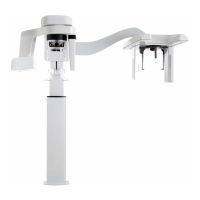
Image showing mobile components of CS 8100SC.
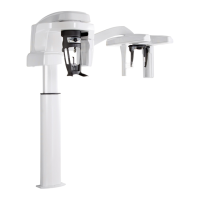
Image showing mobile components of CS 8100SC 3D.
Diagram labeling functional components of the CS 8100SC unit.
Identifies key operational components like arms, headrests, sensors.
Identifies structural and software components like column, indicators, computer.
Diagram labeling functional components of the CS 8100 3D unit.
Identifies key operational components for CS 8100 3D.
Identifies structural and software components for CS 8100 3D.
Image showing sensor locations for CS 8100SC.
Image showing sensor locations for CS 8100SC 3D.
Diagram labeling functional components of the CS 8100 Family head/chin rest.
Identifies positioning panel, knobs, rests, and indicators.
Identifies bite block support, chin rest, grips, and indicators.
Diagram labeling functional components of the CS 8100 3D Family head/chin rest.
Identifies positioning panel, temple supports, and adjustment knob.
Identifies bite block support, chin rest, and hand grips.
Describes the function of the positioning panel.
Diagram of the positioning panel for the CS 8100 Family.
Diagram of the positioning panel for the CS 8100 3D Family.
Identifies Height Adjustment buttons, Ready Indicator LED, and adjustment knobs.
Lists accessories for patient positioning.
Table detailing positioning accessories and their descriptions.
Describes ear cone sheaths and identifies the optional carpus panel.
Identifies the Frankfort positioning indicator.
Explains the function of the X-ray remote control.
Diagram of the X-ray remote control.
Identifies the button to launch image acquisition.
Details minimum computer system requirements for the software.
Lists the software components used by the modality.
Describes the CS Imaging Software interface.
Describes the acquisition interface features.
Explains the purpose of the acquisition interface.
Diagram of the cephalometric acquisition interface.
Identifies information, preview, parameter, and status displays.
Identifies buttons, LEDs, and indicators for interface operation.
Explains the function of the Program Pane.
Diagram of the Program Pane.
Lists available radiological exam types.
Lists available Field of View (FoV) options.
Explains the function of the Patient Pane.
Diagram of the Patient Pane.
Details patient type parameters for image acquisition.
Describes pediatric and adult patient mode settings.
Explains the function of the Parameter Pane.
Diagram of the Parameter Pane.
Identifies exposure setting options (kV, mA).
Identifies buttons for fine-tuning exposure parameters.
Provides steps for powering on the unit.
Describes procedures to increase X-ray tube lifespan.
Outlines steps to configure firewall/network settings.
Provides steps to launch the acquisition interface.
Prerequisites for image acquisition.
Details preparing the unit and setting parameters for acquisition.
Steps for patient preparation and positioning.
Instruction to remove metal objects and wear a lead apron.
Instruction to extend head clamp bars and position ear cones.
Instructions for patient positioning.
Steps to initiate X-ray acquisition using remote control.
Steps after image acquisition and quality check.
Information on radiation compliance and dose viewing.
States compliance with radiation directive.
Prerequisites for image acquisition.
Instruction to position head clamps for frontal AP exam.
Instruction to select PA exam and Field of View options.
Prerequisites for image acquisition.
Instruction to position head clamps for oblique exam.
Instruction to select FoV and access patient pane for oblique.
Lists available patient types.
Steps for patient preparation and positioning.
Instruction to remove metal objects and wear a lead apron.
Instruction to extend head clamp bars.
Instructions for patient positioning.
Instruction to adjust ear cones and retract head clamp bars.
Instruction to position the nasion support.
Steps to initiate X-ray acquisition.
Prerequisites for image acquisition.
Instruction to position head clamps for frontal AP exam.
Instruction to select submento-vertex exam and access patient pane.
Instruction to access the patient pane.
Lists available patient types.
Optional step to adjust parameters.
Steps for patient preparation.
Instructions for patient positioning.
Steps to initiate X-ray acquisition using remote control.
Steps after image acquisition and quality check.
Information on radiation compliance and dose viewing.
States compliance with radiation directive.
Prerequisites for image acquisition.
Instruction to position head clamps for frontal AP exam.
Steps to connect the carpus panel.
Instruction to select FoV for carpus image.
Lists available patient types.
Optional step to adjust parameters.
Steps for patient preparation and positioning.
Instruction to wear a lead apron with thyroid collar for carpus.
Instructions for patient positioning for carpus.
Steps to initiate X-ray acquisition.
Introduction to maintenance activities.
Describes monthly maintenance tasks.
Describes annual maintenance tasks.
Details procedures for controlling image quality.
Instruction to perform image quality tests.
Provides the manufacturer's contact address.
Provides the factory address.
Lists authorized representatives.
 General
| User Interface | Touchscreen |
|---|---|
| Focal Spot Size | 0.5 mm |
| X-Ray Generator Voltage | 60-90 kV |
| X-Ray Generator Current | 2-15 mA |
| Type | Digital Panoramic and Cephalometric System |
| Technology | Digital Imaging |
| Sensor Type | CCD |
| Software | Carestream Imaging Software |
| Power Requirements | 50/60 Hz |
| Cephalometric Scan Time | 3-10 seconds |

 To Next Page