12 | Page
Carlson RT4 User Manual
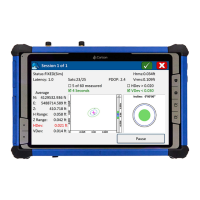
The RT4 has a bright color display and capacive touchscreen with a
diagonal viewing area of 7 inches (178 mm).
Display Sengs
To adjust the display sengs including the text size, brightness, and
orientaon, go to the Acon Center and select All sengs > System >
Display.
Backlight Brightness
There are a few shortcuts to adjust the display backlight brightness.
Open the Acon Center. Tap the percent le (sun icon) to toggle the display
backlight brightness up or down in 25% increments from 0% to 100%. This
same le can be accessed by tapping the baery icon on the desktop. To
simply dim the backlight, tap the Baery saver le. Tap it again to return it
to the previous brightness.
Touchscreen Prole Sengs
To adjust the touchscreen prole, go to the Start menu and select
Touchscreen Proles. Select the touch prole you want the screen
opmized for: Finger and Stylus (default), Finger, Stylus, Wet, or Glove. As
the new prole loads, a progress bar is shown. Do not interrupt the loading
process. You can try dierent proles to see which one works best.
Using the RT4 in Wet Condions
When using the RT4 in wet condions, you must use your nger or the
so-pped stylus that is included on the capacive touchscreen, even
if the Wet touchscreen prole is selected. The hard-pped stylus is not
supported with the Wet touchscreen prole. Third party styli may work
with the RT4 touch screen, however, performance may vary.
Calibraon Tool - Do Not Use
If the Windows 10 screen calibraon tool is used, it may degrade
touchscreen performance.
Display and
Touchscreen
Display and
Touchscreen
Prole Sengs
Display and Touchscreen


 To Next Page