`
4
F32
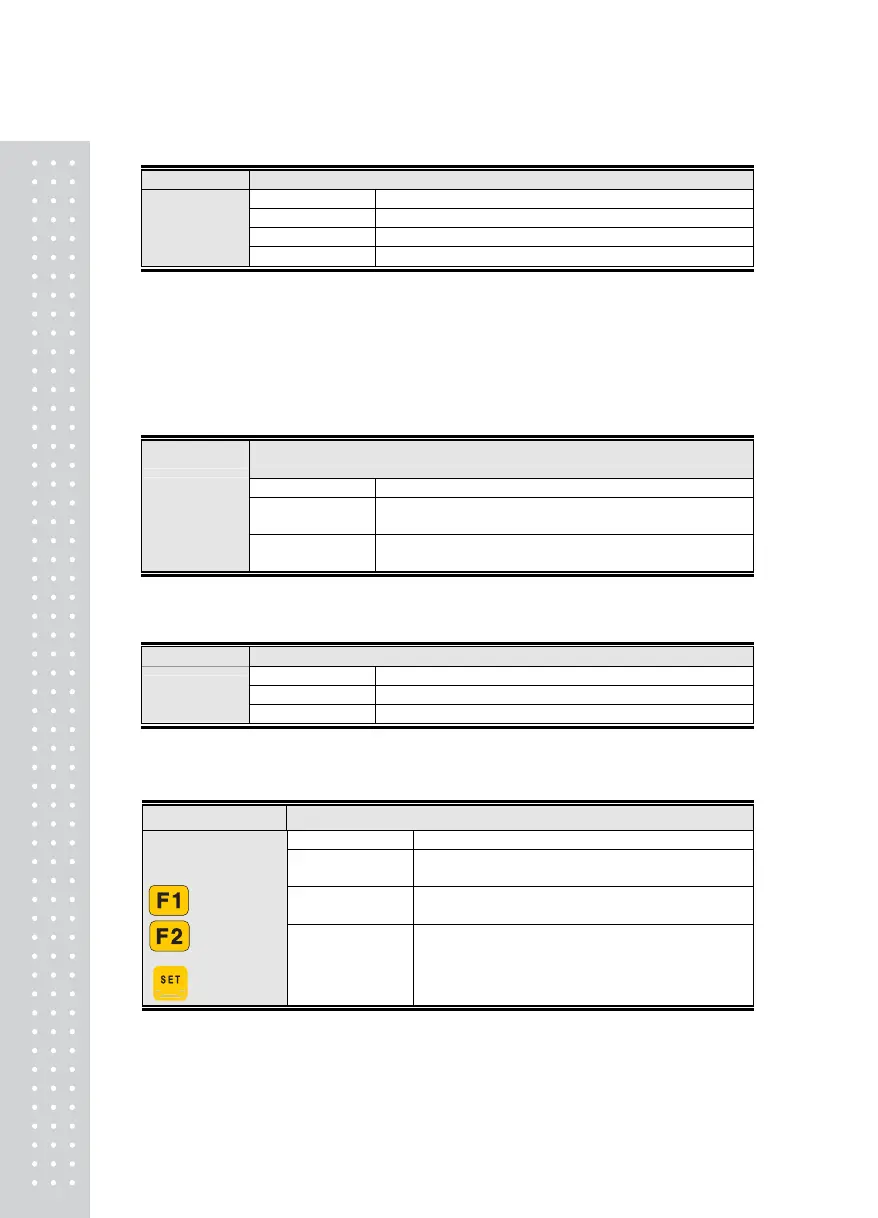
Function Automatic Print Set-up
Display Signification
F32. 0 Manual Print
F32. 1 Automatic Print (Once)
Set-up Range
(0, 1)
F32. 2 Automatic Print (Sequential)
Note 1. At the Automatic Print mode, if the weight is stable, it will be printed without pressing the
Print key.
Note 2. If it is set to Automatic Print (Once), there will be one automatic print-out when the weight is
stable. Clear and place the weight on the scale again, and it will print when the weight is stable.
Note 3. If it is set to Automatic Print (Sequential), there will be automatic print-out when the Stable light
indicating the weight’s stability on scale turns OFF and then turns back ON.
F33
Function
Initialization of the weight number and/or the accumulated value
(Initialization of number measured daily)
Display Signification
F33. 0
Delete Sub-total: After pressing Clear key, enter the sub-total
Delete Total: After pressing Clear key, enter the grand-total
Set-up Range
(0, 1)
F33. 1
After printing sub-total and grand-total, automatic data
initialization
Note 1. Double Key: If other sub-total or total key is pressed within 2 seconds after pressing the Clear key.
F34
Function User Output Message
Display Signification
P00. 0 Do not use
Set-up Range
(0, 1)
P00. 1 Use
Note 1. If F34 is set to 1, the input mode for user output message will be displayed as follows.
User Output Message Input Method
Function Entering User Output Message
Display Signification
P12 - 065
Designate the character corresponding to the ASCII
Code 65 in the 12
th
Data as “A”
P01 - 067
Designate the character corresponding to the ASCII
Code 67 in the 1
st
Data as “C”
Key Used
Number Keys
: Designate Data
: Co-ordinate
Increase
: Co-ordinate
Decrease
: Complete
P18 - 255
At the end of the desired character, enter O to mark
completion.
Note 1. This function is to enter additional information in the print-out format.
(ex. company name, phone number)
Note 2. Available co-ordinates are from 1 to 71. From the 1
st
data to the information right before the end
data designed as 0 is the information to be printed.



 To Next Page