— 5 —
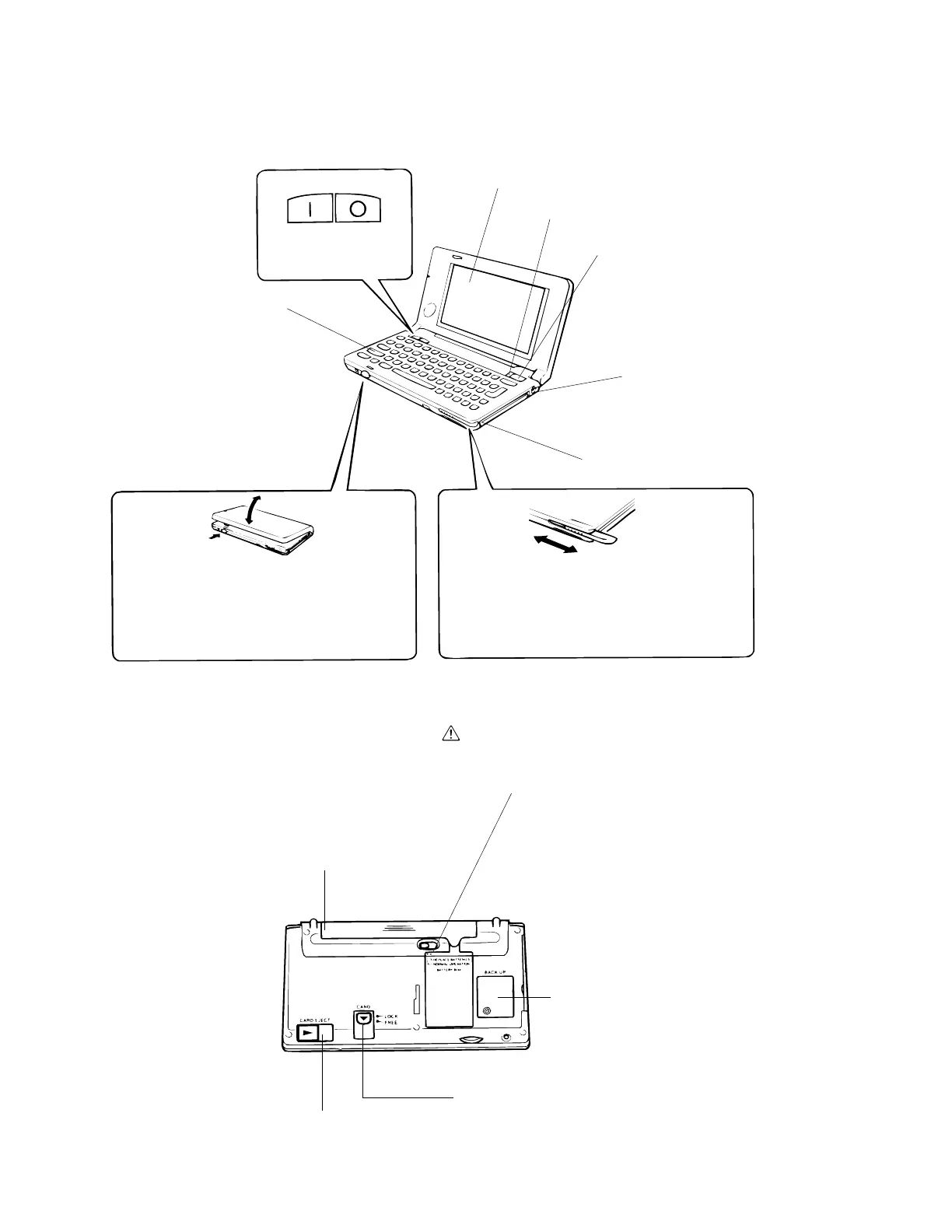
Open: Pressing the latch causes the two
panels to separate slightly, so you can
open them up further by hand.
Close: Press the two panels together until
the latch locks with a click.
To remove: Pull on the part of the stylus
that protrudes from the unit.
To replace: Taking care to orient the stylus
correctly, press it until it clicks into place.
ON OFF
GENERAL GUIDE
• Keyboard
• Power switch
Press to turn power
on and off.
• Touch screen
Displays text data and operational indicators, as well
as on-screen keys and icons that can be operated
using the stylus.
• Reset button
• Backlight button
Press to turn the backlight on and
off. The Backlight turns off auto-
matically if you do not perform any
key or stylus input operation for
some time.
• Data communication jack
For connection of a digital cam-
era or other external equip-
ment.
• Card slot (PC card)
• Stylus
For performing operations on the touch screen.
Take care to avoid damaging or losing the stylus.
• Panel latch
Press to open the panels.
• Main battery holder
Holds main power supply batteries.
• Battery holder release
Slide to release the battery holder when re-
moving it from the A-10/A-11. Both buttons
must be returned to the “NORMAL OPERA-
TION” position for the unit to operate nor-
mally.
• Back-up battery compartment
Holds back-up battery.
• Card lock
Locks a card in the card slot. Unlock
the card when removing it.
• Card eject switch
Slide to eject a card from the
card slot.



 To Next Page