30
USEINSTRUCTION FOR USE
CHARGE THE ROBOT
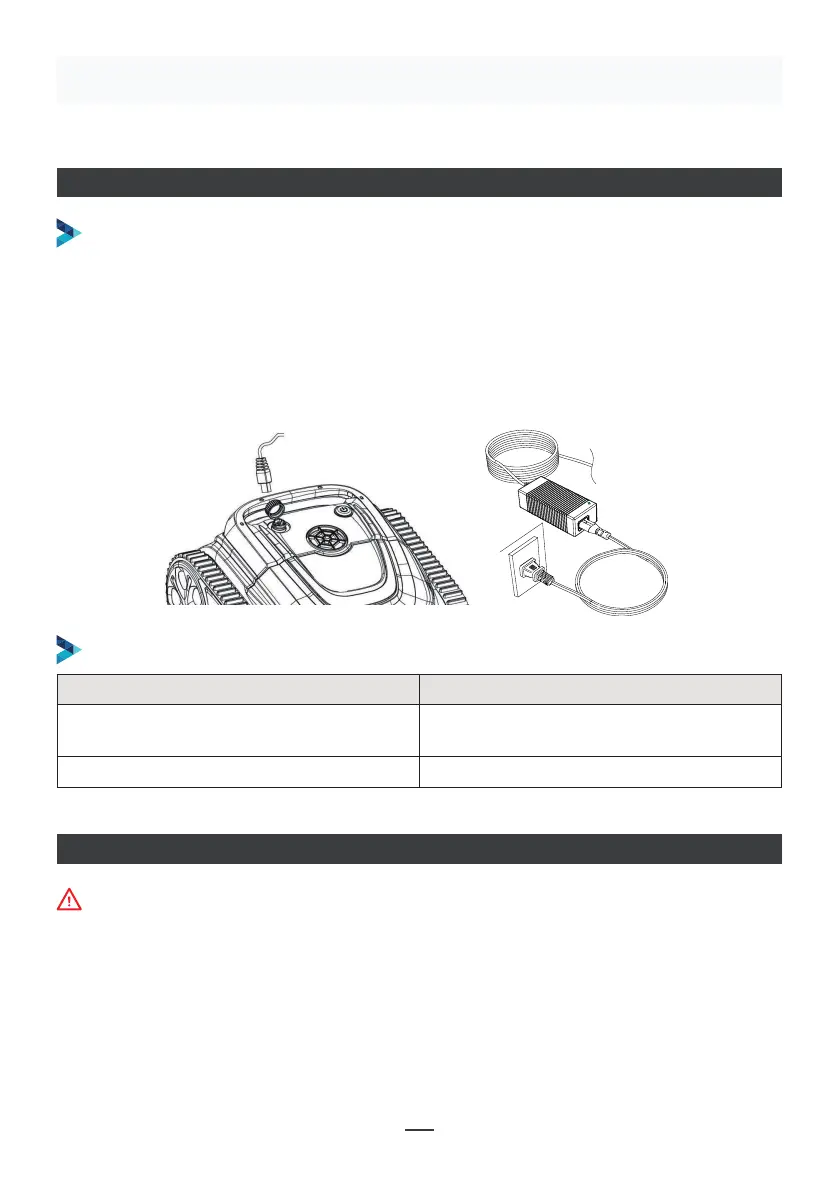
Make sure that the machine is turned o (the indicator lights are completely o). When
charging, please take the machine out of the swimming pool, and place the machine
indoors or in a splash-resistant facility for charging. Unscrew the waterproof cap on the
machine (ensure that the charging port is dry) and connect the charging port with the
charging connector. When the battery charger light is red, indicating that it is charging,
when it turns green, it means that charging is completed.
CHARGING OPERATION
CHARGER INDICATOR
Make sure that the machine is turned off (the indicator lights are
completely off). When charging, please take the machine out of the
swimming pool, and place the machine indoors or in a splash-resistant
facility for charging. Unscrew the waterproof cap on the machine (ensure
that the charging port is dry) and connect the charging port with the
charging connector. When the battery charger light is red, indicating that it
is charging, when it turns green, it means that charging is completed.
4.3.1 Take out the filter basket: Place the cleaner on the shore, open the
cover plate by hand according to the position indicated in the figure (Figure
4-1), and the filter basket is shown in the figure (Figure 4-2).
4.2 Charge the robot
4.3 Clean the filter cartridge
4.2.2 Charger indicator
4.2.1 Charging Operation
LED Indicator Charging state
Green light is always on
Red light is always on Normal charging
plugged or the charging is complete
09
Figure 4-1 Figure 4-2
LED Indicator Charging state
Green light is always on
Waiting for charging, or the battery is not
plugged or the charging is complete
Red light is always on Normal charging
APP CONNECTION
• Download the App:
Method 1: Scan the QR code below (Figure 5-1). After scanning, you can click on the
corresponding store (Apple Store, Android Store) to download the APP (Figure 5-2).
The machine shall be outside the water when connecting the APP


 To Next Page
 Loading...