35
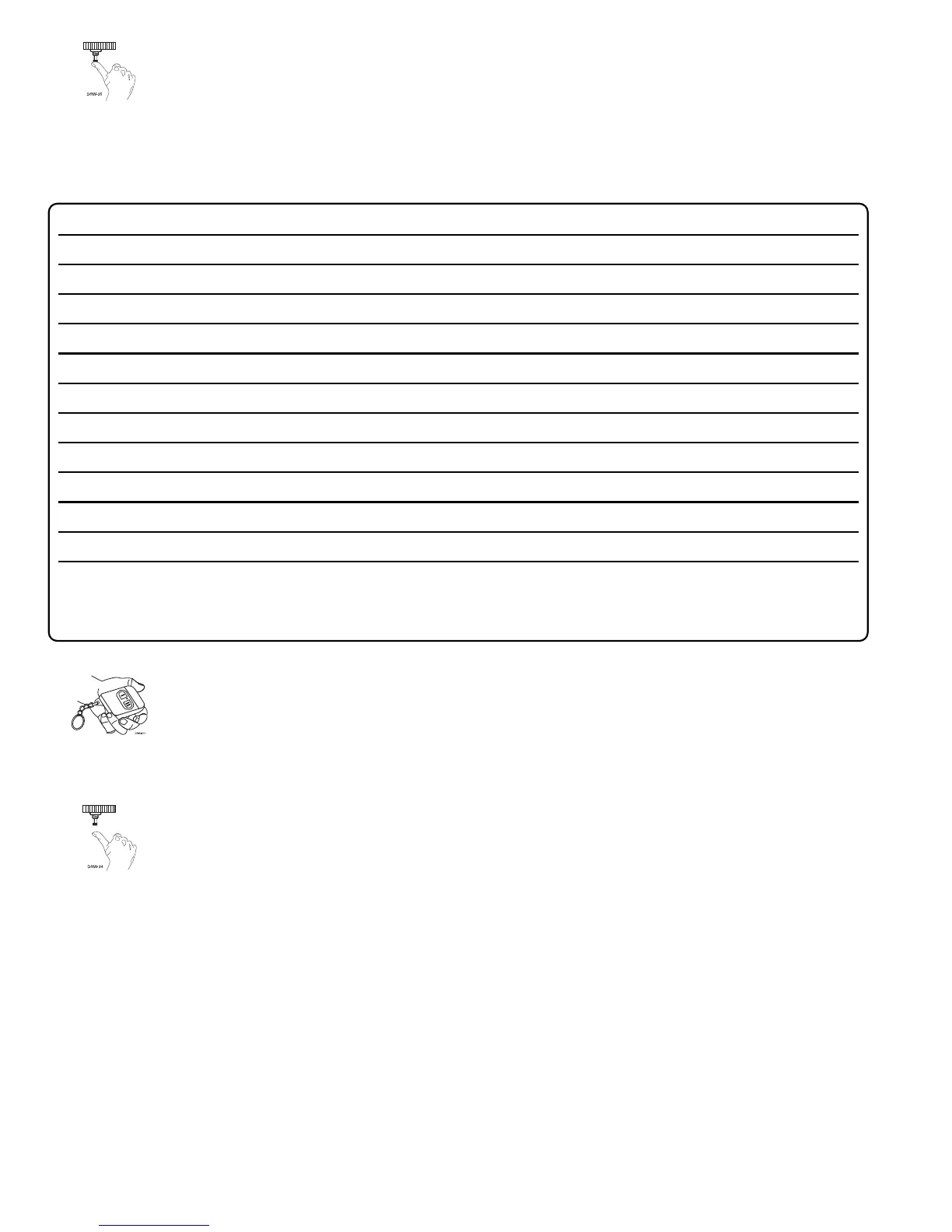
3. Choose. Within 10 seconds, press and release the override switch the number of
times corresponding to the desired channel listed below. Once you have selected the
channel, press the switch once more and hold it. The LED will flash and the siren will
chirp to confirm the selected channel. Do not release the override switch.
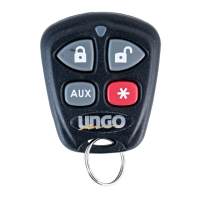
4. Transmit. While holding the override switch, press the button on the remote that
you would like to control the selected receiver channel. The unit will chirp to confirm
that the code has been successfully programmed. It is not possible to teach a remote
button to the system more than once.
5. Release. Once the code is learned, the override switch can be released.
You can advance from programming one channel to another by releasing the override switch and
tapping it to advance channels and then holding it. For instance: You have programmed Channel 1
and you want to program Channel 2. Release the override switch. Press it one time and release it to
advance from Channel 1 to Channel 2. Now, press and hold the override switch. The LED will flash
two times and the horn will honk twice (if connected). As before, do not release it.
If you want to program Channel 3 after programming Channel 1, release the override switch, press
it twice and release it to advance to Channel 3. Then press it once more and hold it. The siren will
chirp three times (if connected) and the LED will flash three times to confirm it is ready to receive the
code from the remote.
CHANNEL NUMBER FUNCTION WIRE COLOR
1 Auto Learn Standard Configuration* (default)
2 Arm only
3 Disarm only
4 Silent Arm/Disarm/Remote Override/Trunk Release RED/WHITE
5 Remote Start
6 Channel 4 VIOLET/BLACK
7 Channel 5 WHITE/BLACK
8 Short Run/Turbo
9 Timer Mode
10 Arm/Disarm/Panic
11 Panic only
12 Delete all remotes
*NOTE: For Auto Learn Configurations, see Remote Configurations section of this guide.



 To Next Page