OPERATING MANUAL
800.749.2761 www.coachcomm.com
57
Adding a Conference
Use the procedures below to add a conference to your X-System conguration. For information on assigning conferences,
see “Assigning New Conferences” on page 51 and “Assigning Conferences to Dry Pair Connections (Wired Port)” on page
68.
1. Open X-Ware and access the Advanced Settings window.
Note: You can add a conference to a “live” system or to an “ofine” system. If you make the change
while ofine, you’ll have to rst open a saved .ccf le to edit.
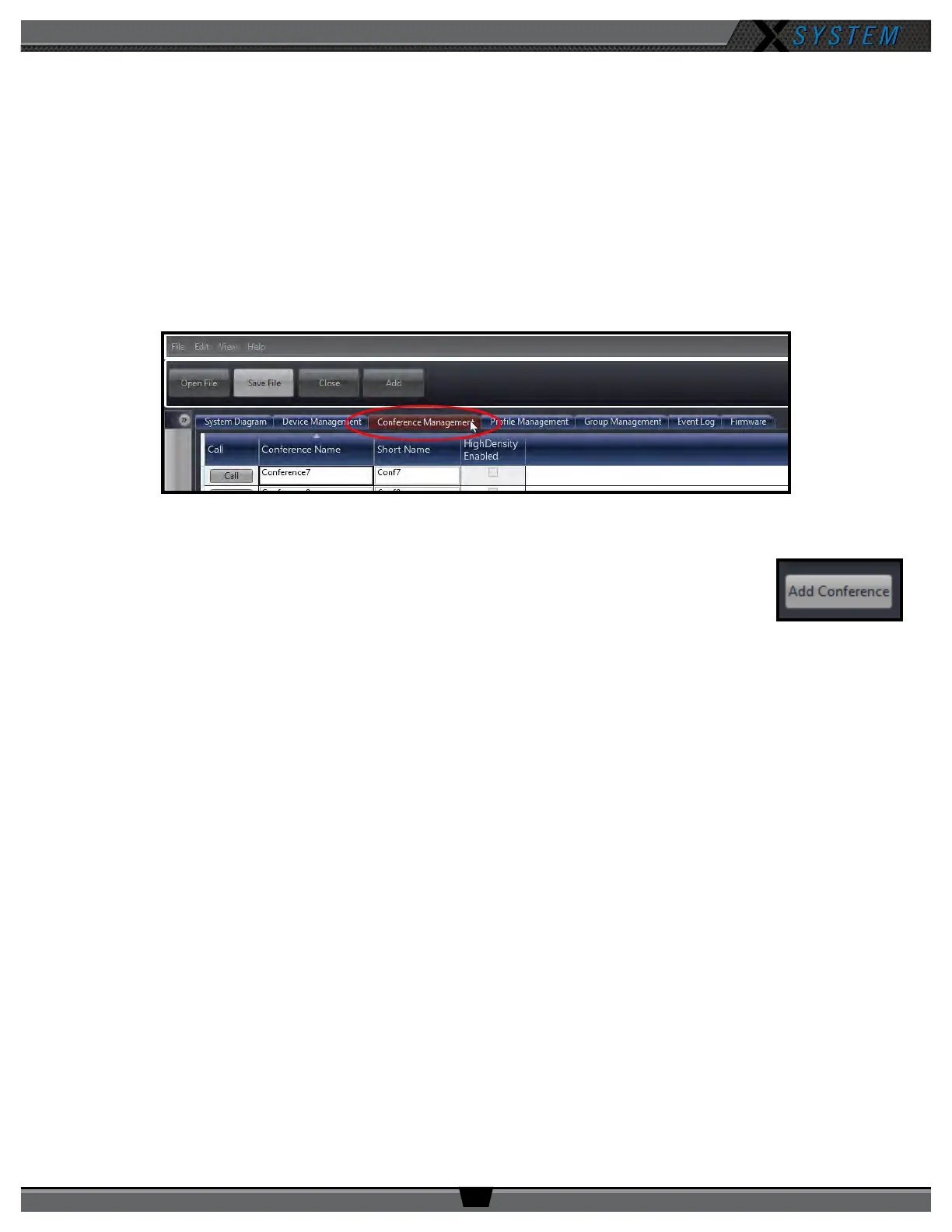
2. Click the
Conference Management
Tab. This tab displays a list of the conferences in the open system
conguration le.
3. Click the
Add Conference
button in the bottom left corner of the screen. A new conference
will appear in the list.
4. Click in the Conference Name column for the new conference, and type a new long name for
the conference. (Limit of 16 characters).
5. Click in the Short Name column, and type a new short name for the conference. (Limit of 8
characters).
6. If you’re editing your .ccf ofine, save the .ccf and load it to your top (master) CU using the procedures detailed on
page 46.
Figure 75: X-Ware Conference Management Tab
Figure 76: Add Conference Button



 To Next Page