OPERATING MANUAL
800.749.2761 www.coachcomm.com
76
Updating Device Firmware
The current rmware package requires connecting devices directly to the PC USB for rmware updates. Update times may
vary by device.
IMPORTANT: Always update your top (master) Control Unit (CU) rst, followed by your bottom (secondary) CU,
then your Radio Transceivers (RTs), and then your Radio Packs (RPs).
IMPORTANT: When updating each CU’s rmware to version 1.9, an additional le upload directly to the CU (via
front panel USB) will be required. Upon clicking “Scan for Devices” in X-Ware’s rmware tab, you
will nd step-by-step instructions for this process.
IMPORTANT: Always follow any specic rmware update instructions delivered with the new release. Firmware
release notes and any separately published update procedures supersede the information provided below.
Prerequisites:
1. Make sure that you have saved a backup copy of your CCF and that the most recent version of X-Ware is installed
on the cart PC. See page 73 for more information about how to update X-Ware.
Firmware Update Procedures:
1. Connect the Radio Transceivers (RTs) to the system.
2. Power on the Control Units, select
Home
or
Away
from the CU’s LCD, and wait for the conguration (CCF) to load.
The empty Home screen will display on the CUs’ LCDs. The RTs’ LEDs will light to indicate that they are receiving
power.
Note: If your system includes a spare RT, you can update it after the rest of the system is updated by
connecting it in place of one of the other RTs or by locally powering it with an external power supply.
You may leave your RTs on the mounting bracket for their rmware update.
3. Verify that all RPs are powered off.
4. On your PC, hold down
the CTRL key and
double-click on the
X-Ware icon. Continue
holding down the CTRL
key until X-Ware’s
Advanced Settings
window opens.
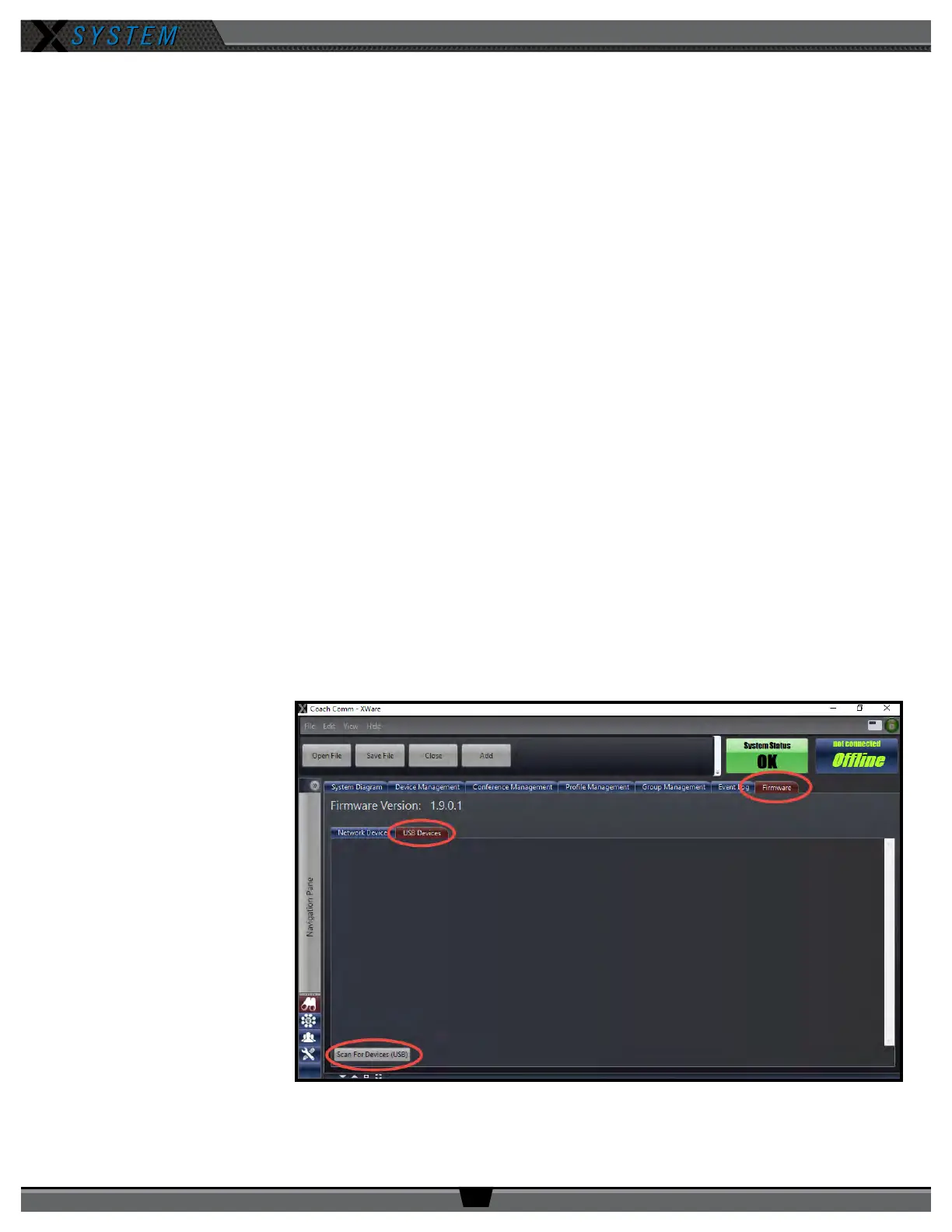
5. Click on the “Firmware”
tab of the advanced
settings window. Then,
click the “USB Devices”
sub-tab.
Figure 105: X-Ware Firmware Tab



 To Next Page