OPERATING MANUAL
800.749.2761 www.coachcomm.com
75
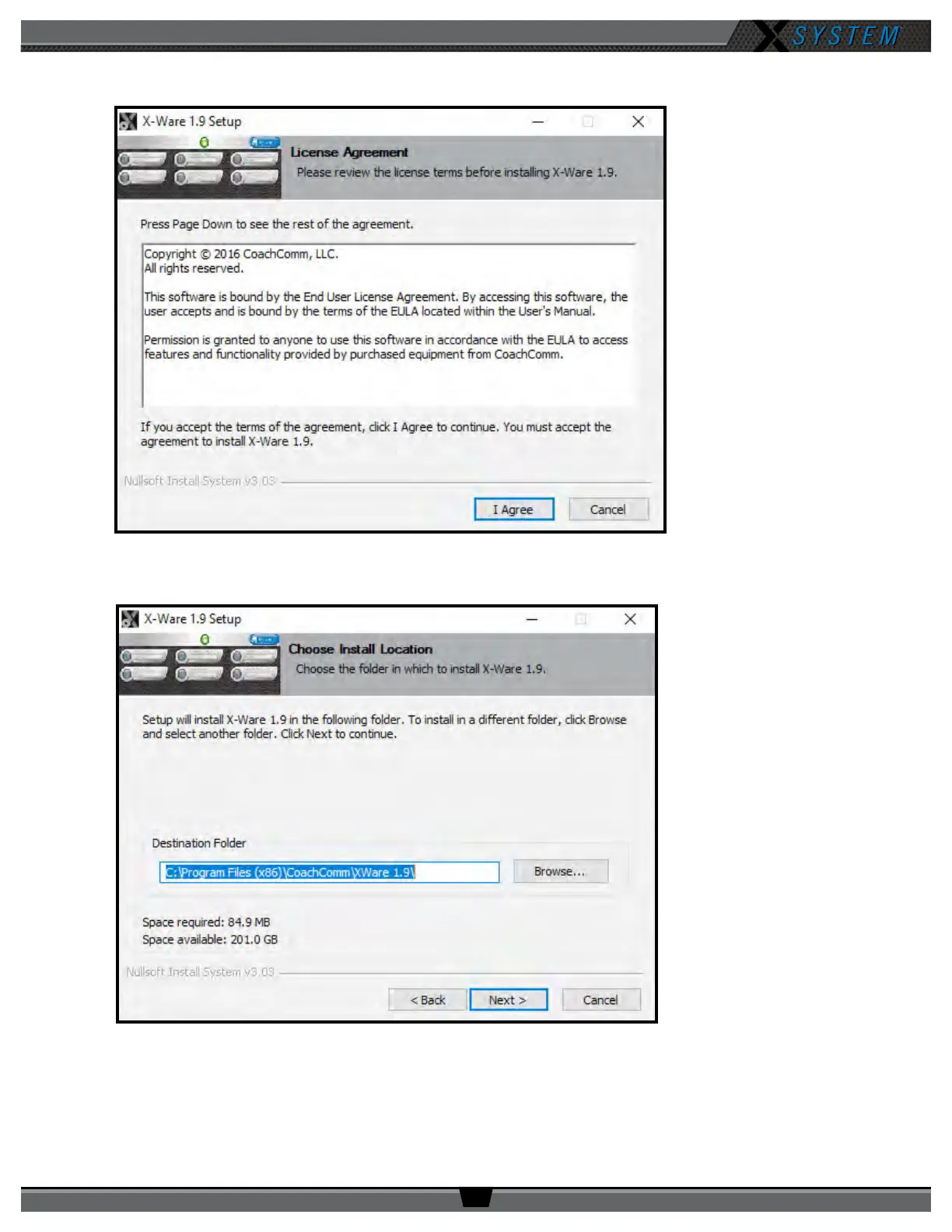
4. On the License Agreement screen, click
I Agree.
5. On “Install Location” screen, click
Next
to install X-Ware into the default destination folder.
6. On the “Start Menu Folder” screen, click
Install
to begin install. Installation process will begin and take only a few
seconds. Click
Close
when complete.
7. An X-Ware icon should have been placed onto the desktop and is ready for use.
Figure 103: License Agreement Screen
Figure 104: Default X-Ware Destination



 To Next Page