OPERATING MANUAL
800.749.2761 www.coachcomm.com
74
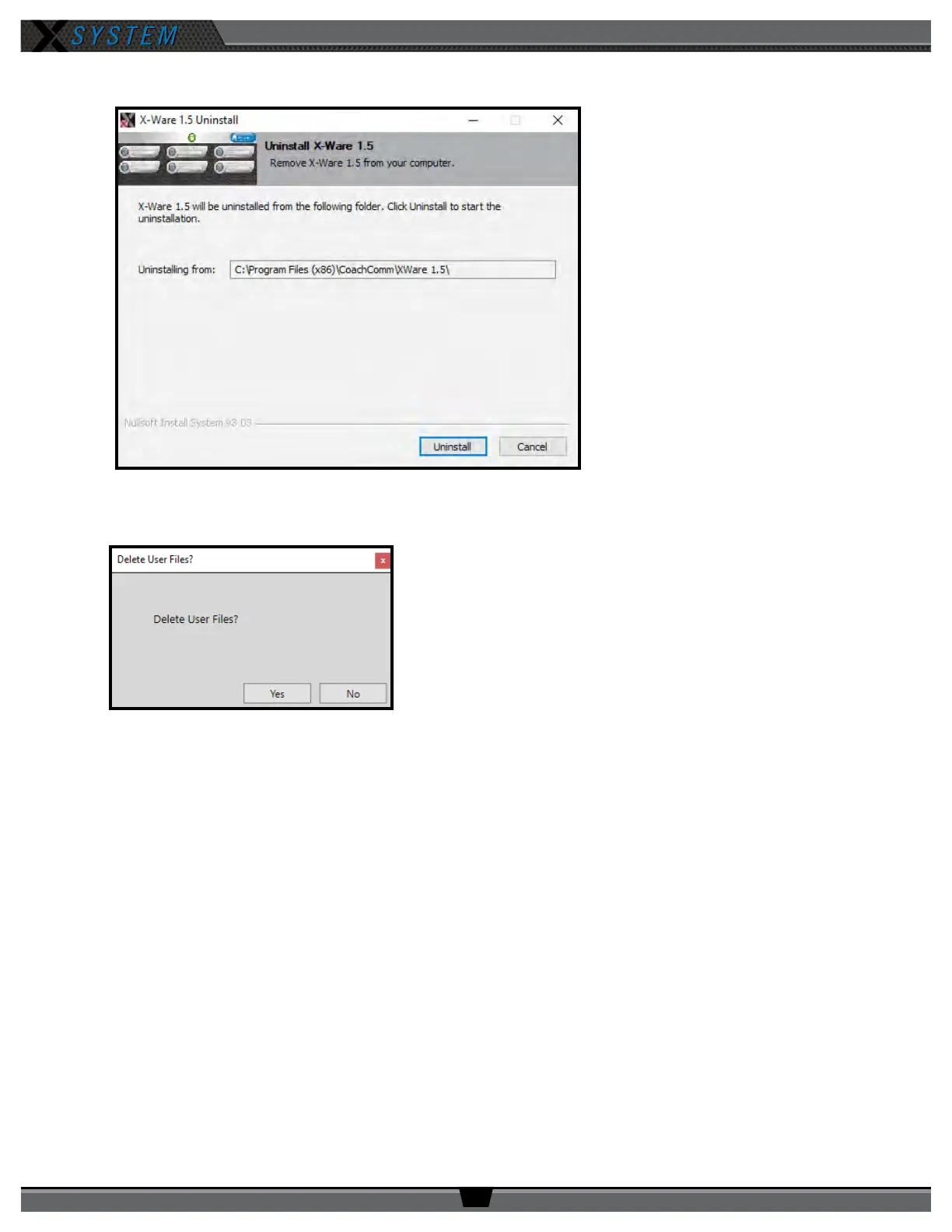
3. Click
Uninstall
to begin process.
4. You will be asked to conrm your decision to “Delete all user les.” Click
Yes
.
5. The uninstall process will complete. Click
Close
. Verify the original X-Ware folder is now empty. If not, delete any
remaining les.
6. Reboot/restart the PC.
Once you’ve uninstalled X-Ware from the cart computer, use the following steps to install an updated version of X-Ware.
1. Download a copy of the latest X-Ware update from the CoachComm website. (You should receive a link to the
exact location in the release announcement).
2. Once it is downloaded (likely to your PC’s “Downloads” folder), save the “XWare_Setup_v#.#” le to a removable
USB drive.
3. Insert your removable USB drive to your cart’s PC, and double-click on the “XWare_Setup_v#.#” le to run it on
the cart PC. An X-Ware installation prompt window will open.
Figure 101: Uninstall Process Screen
Figure 102: Conrm X-Ware Uninstall Screen



 To Next Page