OPERATING MANUAL
800.749.2761 www.coachcomm.com
62
Setting Up Audio Overlay
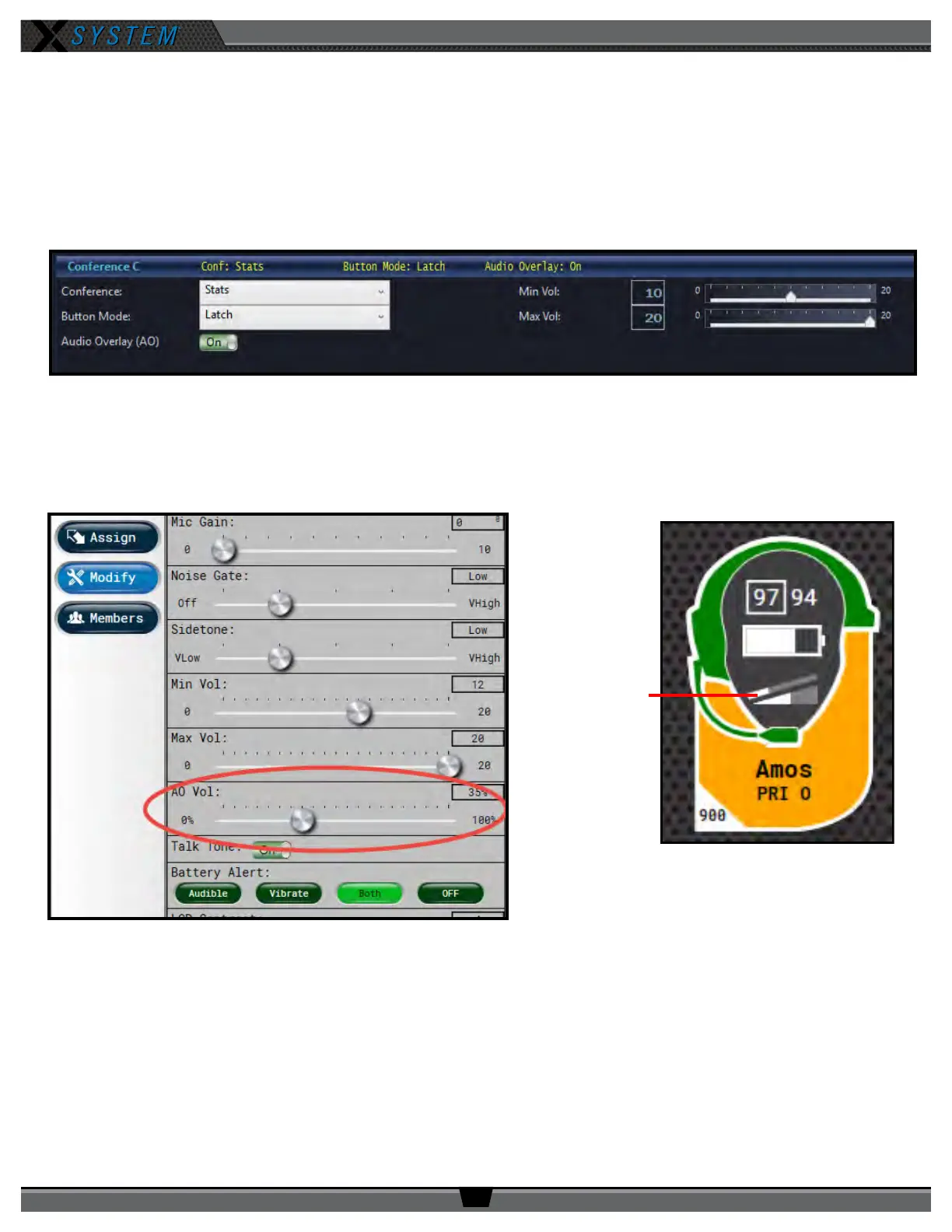
When Audio Overlay is enabled on a Prole’s Conference C, the audio from that Conference will be heard in addition to the
audio of the pack’s active conference (A or B).
Enable this feature beside
Audio Overlay (AO)
on the relevant Prole’s detail view (Conference C only). Conrm your
change on the prompt that displays. In addition, if you’re editing your .ccf ofine, save the .ccf and load it to your top
(master) CU using the procedures detailed on page 46.
When Audio Overlay is enabled on a prole, the
AO Volume
eld becomes available on the Game Day Interface (Prole
Screen > Modify Settings view). This setting determines the overlaid audio’s volume as a percentage of the overall RP
volume. AO volume is also indicated on the RP Icon above the volume ramp.
Figure 85: Audio Overlay Toggle on Prole Detail View
Figure 86: AO Volume Setting on Prole Screen
Figure 87: AO Volume Indicator on RP Icon
Audio Overlay
Volume Indicator



 To Next Page