OPERATING MANUAL
800.749.2761 www.coachcomm.com
61
6. Open the drop-down color pickers in the Color and Text Color elds, and choose a color to represent the group
(see Figure 83). This color choice appears on the RP Icons (X-Ware’s Home screen) for proles with the group
assignment.
Note: Clicking on the color picker’s
Advanced
tab opens an alternate window where more advanced
color options are available. If desired, you may enter hexadecimal color values for an exact color
match to your school colors.
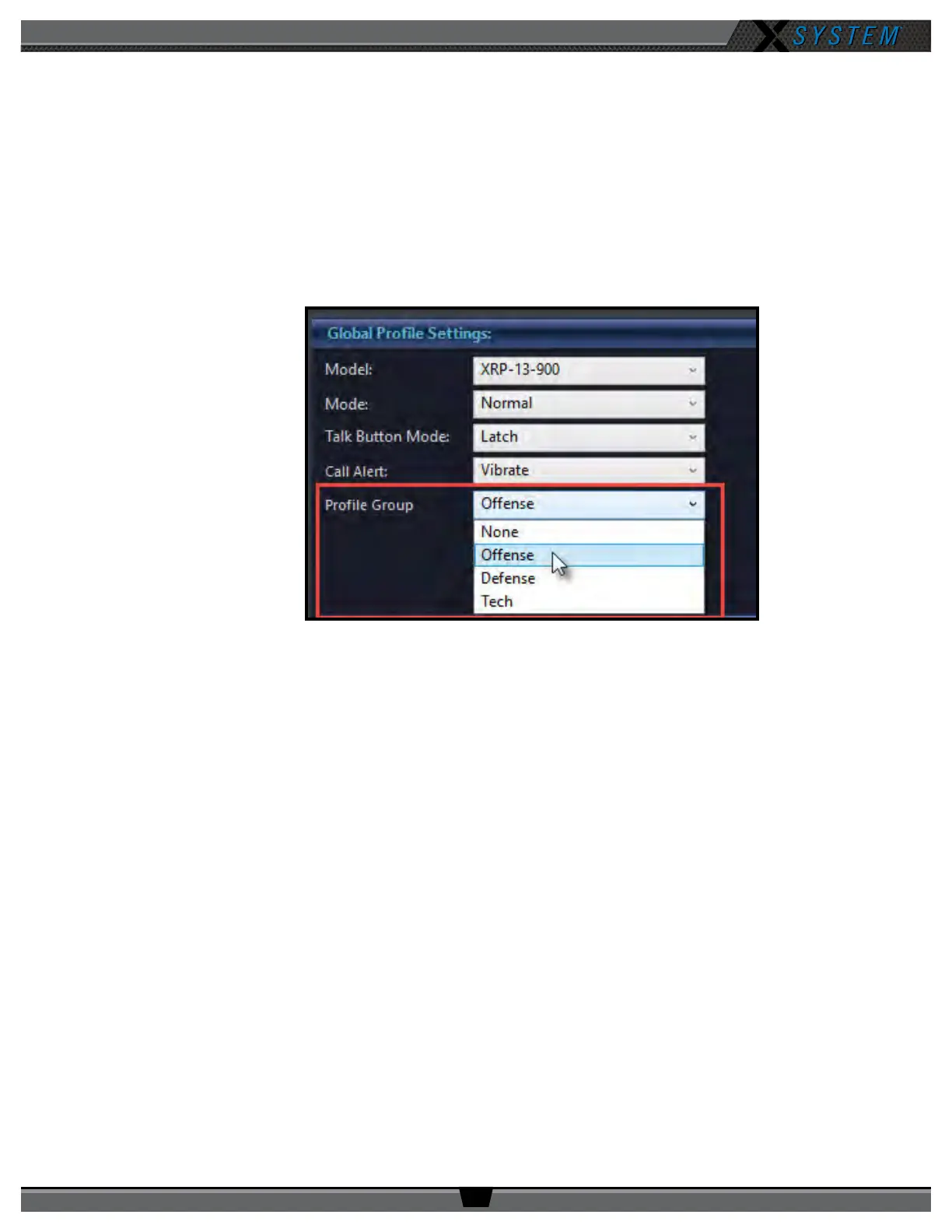
7. To associate proles with any group, select them from the All Proles list on the left-hand column, then use the
arrow button to place the selected proles into the right-hand “In this group” column. You may also open the
prole’s detail view and edit the Prole Group eld (in the Global Prole Settings section). See Figure 84.
8. If you’re editing your .ccf ofine, save the .ccf and load it to your top (master) CU using the procedures detailed on
page 46.
Figure 84: Prole Group Selection - Prole Detail View



 To Next Page