Chapter 4: Configuration
98-143082-D To control data connections from web interface (BGAN) 37
To control data connections from web interface (BGAN)
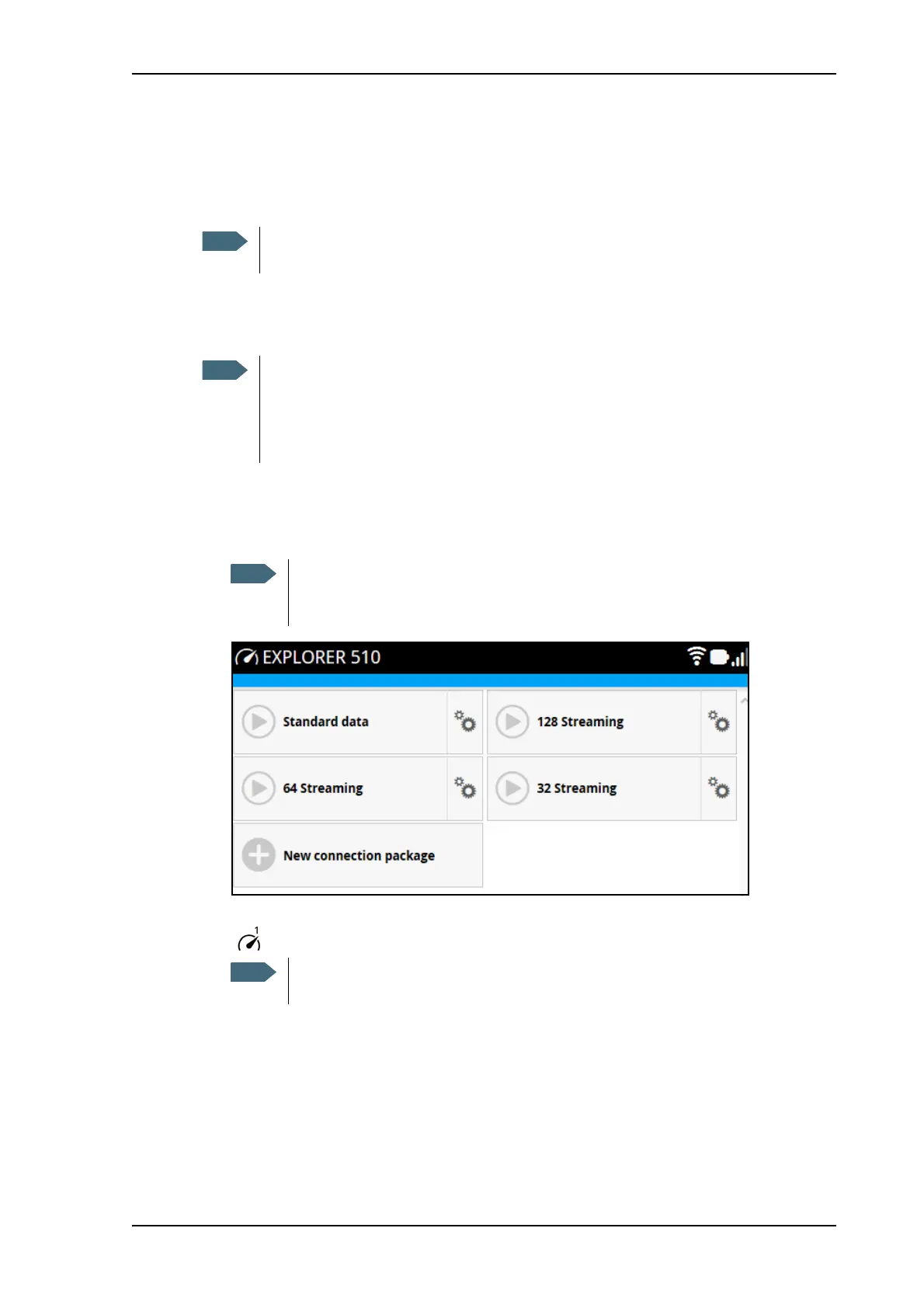
The startup page of the web interface is used to start and stop data connections and to set up
the data connections.
To start and stop data connections
To start and stop data connections on your EXPLORER 510, do as follows:
1. In the opening page, locate the connection package you want to start.
2. Click
to start the connection. The connections icon at the bottom of the page shows
when a BGAN data connection package is running.
3. Click
to stop the connection.
If the connection fails, the connection tile shows an exclamation mark
and an error
message. The error message is also shown in the data log, see Data log on page 42.
If you are using the EXPLORER Cellular Modem instead of the BGAN network, see
Optional: To set up cellular network for data on page 76.
By default, if you want to use a data connection, you must manually start it from the
EXPLORER Connect app or from the web interface. However, you can set up the
EXPLORER 510 to automatically connect to the Internet when you connect
equipment to the WLAN interface. See To set up the connection mode (step 4. on
page 56).
The icons for starting and stopping connections are only active if the
terminal is ready and registered on the BGAN network. Otherwise you cannot
start data connections.
Once a Streaming connection is started, the connection will run until you stop it.
You will be charged for the time you are connected.



 To Next Page