Chapter 4: Configuration
98-143082-D Optional: To set up cellular network for data 76
Optional: To set up cellular network for data
The EXPLORER 510 is a BGAN terminal by default. However, if you are within coverage of a
cellular network, you may want to acquire an EXPLORER Cellular Modem as an alternative to
the BGAN network. Note that you need a separate SIM card for the cellular network, the
EXPLORER 510 SIM card can only be used for the BGAN network.
To enable the EXPLORER 510 to use the cellular network, do as follows:
1. Acquire an EXPLORER Cellular Modem from Cobham SATCOM.
2. Connect your computer to the EXPLORER 510 using the WLAN interface.
3. Access the web interface.
4. Under Control panel > Terminal settings, select one of the following at Mode:
• Cellular only
• Cellular modem if available at power-up, or
• User selection.
For details on Cellular/BGAN network selection, see Mode (select network) on page 54.
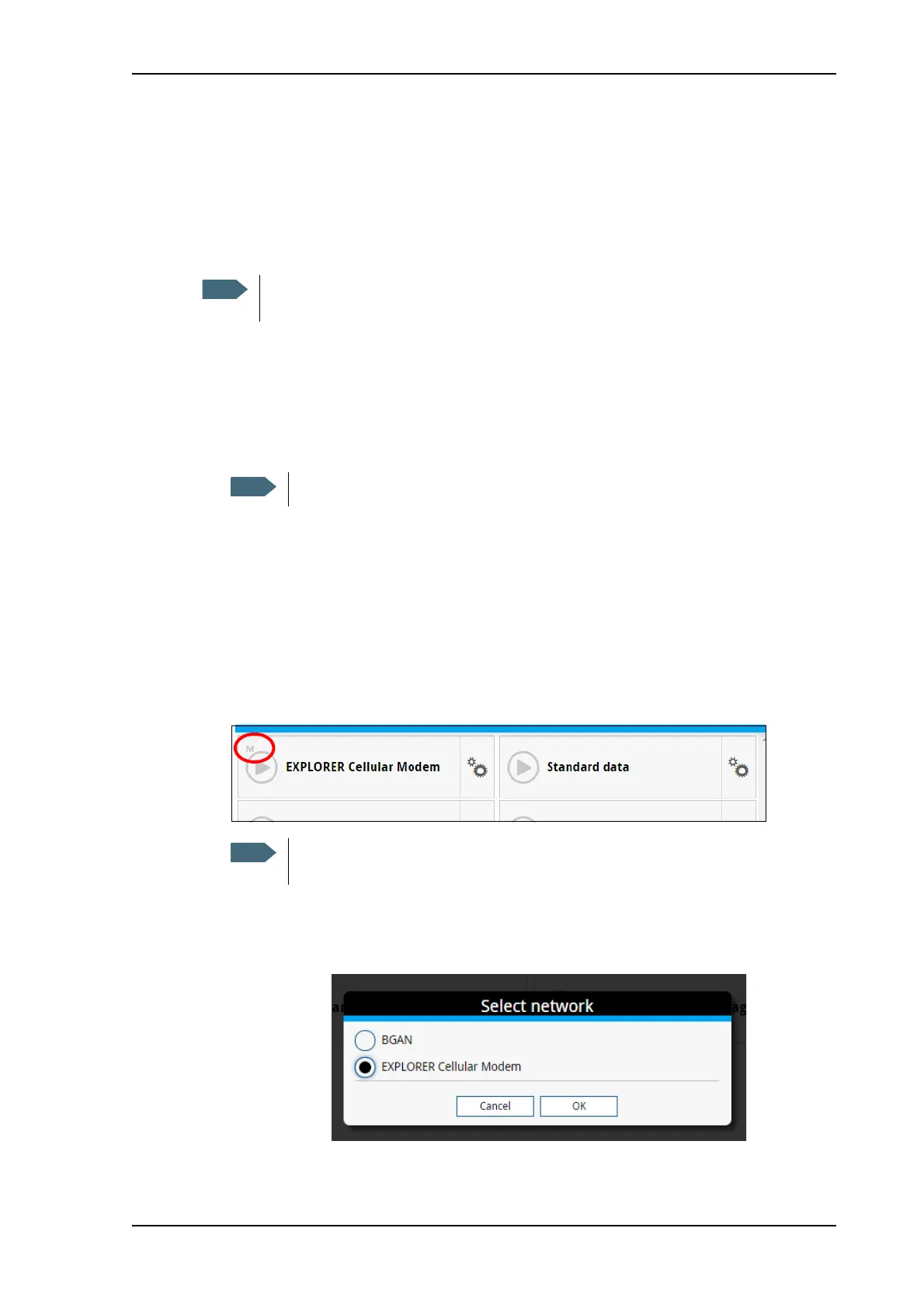
5. When the modem is connected to the USB interface, the Dashboard of the web interface
shows a new tile with the cellular connection. The “M” on the tile for the cellular modem
indicates that it is a cellular modem and not a BGAN connection.
6. If you have selected User selection in step 4. above, you must first select the cellular
network. Click the tile with the cellular modem, or click the signal strength icon
in the
top right corner of the web interface. Then select EXPLORER Cellular Modem and click OK.
The EXPLORER 510 does not provide automatic switch-over between BGAN and
cellular network, so you have to select the network you want to use.
The USB interface must be enabled. See USB interface setup on page 45.
If you have selected Cellular modem if available at power-up, you have to
restart the terminal before the cellular connection can be activated.



 To Next Page