Chapter 5: Maintenance and troubleshooting
98-143082-D Restore the settings of the EXPLORER 510 82
Restore the settings of the EXPLORER 510
The EXPLORER 510 has a Reset button that has three functions: To restore all settings to
factory settings, to restore WLAN settings only and to put the EXPLORER 510 into safe mode
for recovery software upload.
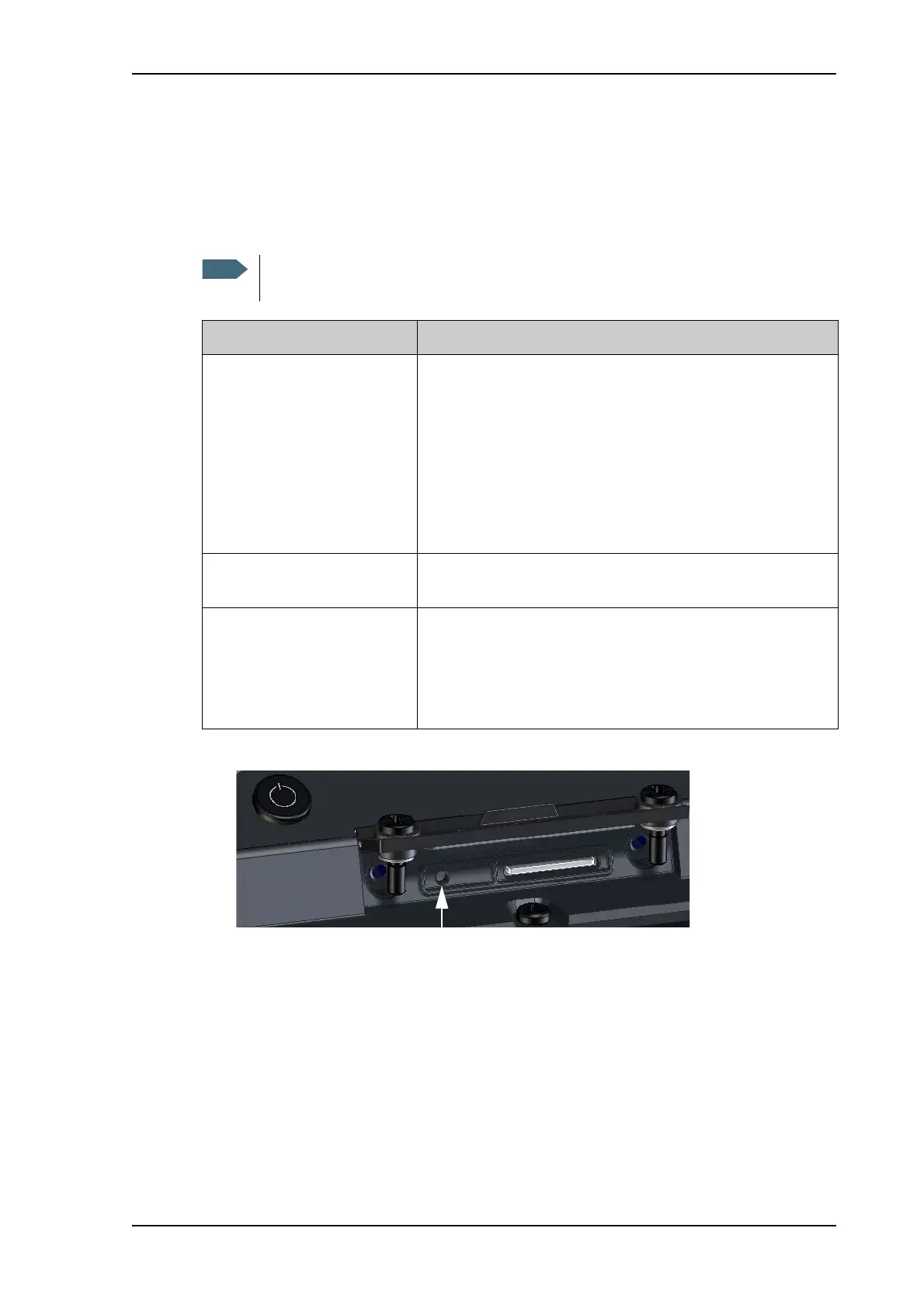
The Reset button is located inside the small hole next to the SIM slot.
Do as follows:
1. Loosen the two screws holding the SIM cover.
2. Lift the cover.
3. Use a pointed device to push the Reset button.
4. Close the cover and tighten the two screws carefully.
This is important in order to maintain the IP grade of the EXPLORER 510.
You can set up in the web interface which functions should apply to the Reset button.
See Reset button on page 75.
Action Function
Push and hold the Reset
button for 2-10 seconds
WLAN settings are restored to default. The WLAN LED lights
yellow.
Default WLAN settings:
• Broadcast SSID: EXPLORER510
• Encryption standard: WPA2-AES
• Encryption key: serial number of the EXPLORER 510
•Region: Other, i.e. the most restrictive setting
Push and hold the Reset
button for > 10 seconds
The EXPLORER 510 restores factory settings and restarts the
system. All changes to the configuration are lost.
While the EXPLORER 510 is
booting, push and hold the
Reset button
The EXPLORER 510 enters safe mode. Both LEDs are flashing
blue.
In safe mode the EXPLORER 510 is ready for a recovery
software upload (see Recovery software update on
page 81).



 To Next Page