Appendix 3: Operation
98-143082-D Status of the EXPLORER 510 29
Status of the EXPLORER 510
• EXPLORER Connect app: Select Dashboard to see status information
• Web interface: If the screen for the web interface is large enough, it shows a status field
at the bottom of the page or in the right side of the page. If not, click
to show the status
page. Click
again to return to the previous page.
The Status page shows information such as terminal status, network status, position status and
ongoing communication.
Tracking and location reporting
The EXPLORER 510 can be used for tracking purposes. You can set up the terminal to report its
position to a server at certain time intervals.
To use the tracking feature you must either set up a tracking server or get a tracking solution
from your service provider. The EXPLORER 510 must be set up to match this server. For
information how to set up the EXPLORER 510, see To set up tracking and location
reporting on page 60. Once set up on both sides, the EXPLORER 510 will send position reports
to the server as specified.
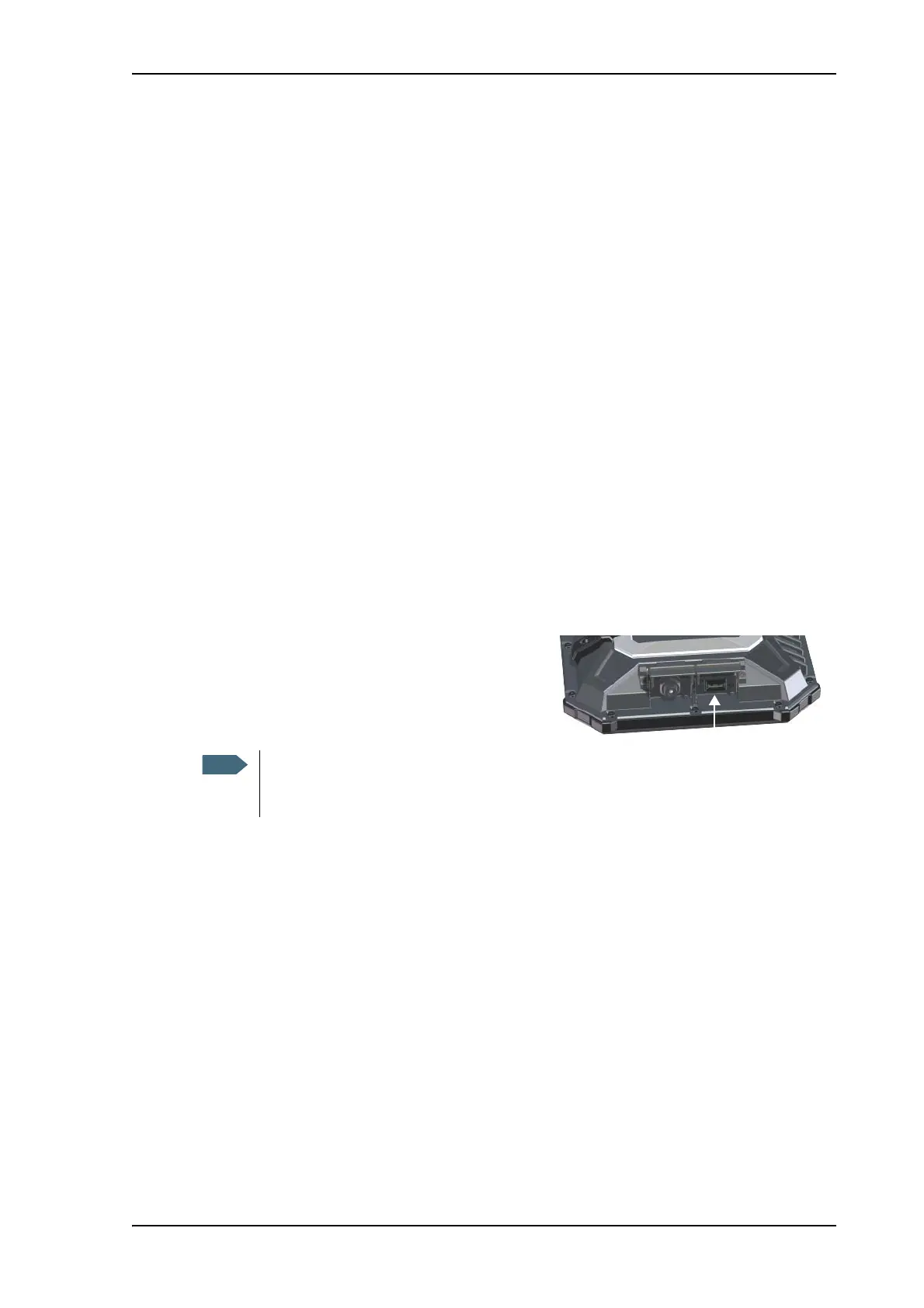
To charge your smartphone
To charge your smartphone, connect it to the
USB interface on the EXPLORER 510. The
connector is a standard USB A connector.
There are two levels of charge current, 0.5 A or 1.0 A. Use the EXPLORER Connect app
or the web interface to select the charge current for your device. See USB interface
setup. The default charge current is 1.0 A.



 To Next Page