Chapter 4: Configuration
98-143082-D To set up the interfaces 45
You can find the serial number under Control panel > Support > About or on the label
on the EXPLORER 510.
10. Click Save.
• A line through a greyed-out WLAN icon means the interface is disabled.
• A blue WLAN icon means the interface is enabled.
For a description of how to set up the local network parameters, see Internet and LAN
connection modes on page 55 and Advanced LAN on page 62.
USB interface setup
Note that the USB interface is a Host interface, primarily used for charging smartphones and
for recovery software upload.
To configure the USB interface, do as follows:
1. In the Control panel
, click the USB icon at the top of the page.
2. To enable the USB interface, select Enable (USB is enabled by default from the factory).
3. Select the Charge current.
Select 0.5 A or 1.0 A, depending on the specifications for the device you are going to
connect.
4. Click Save.
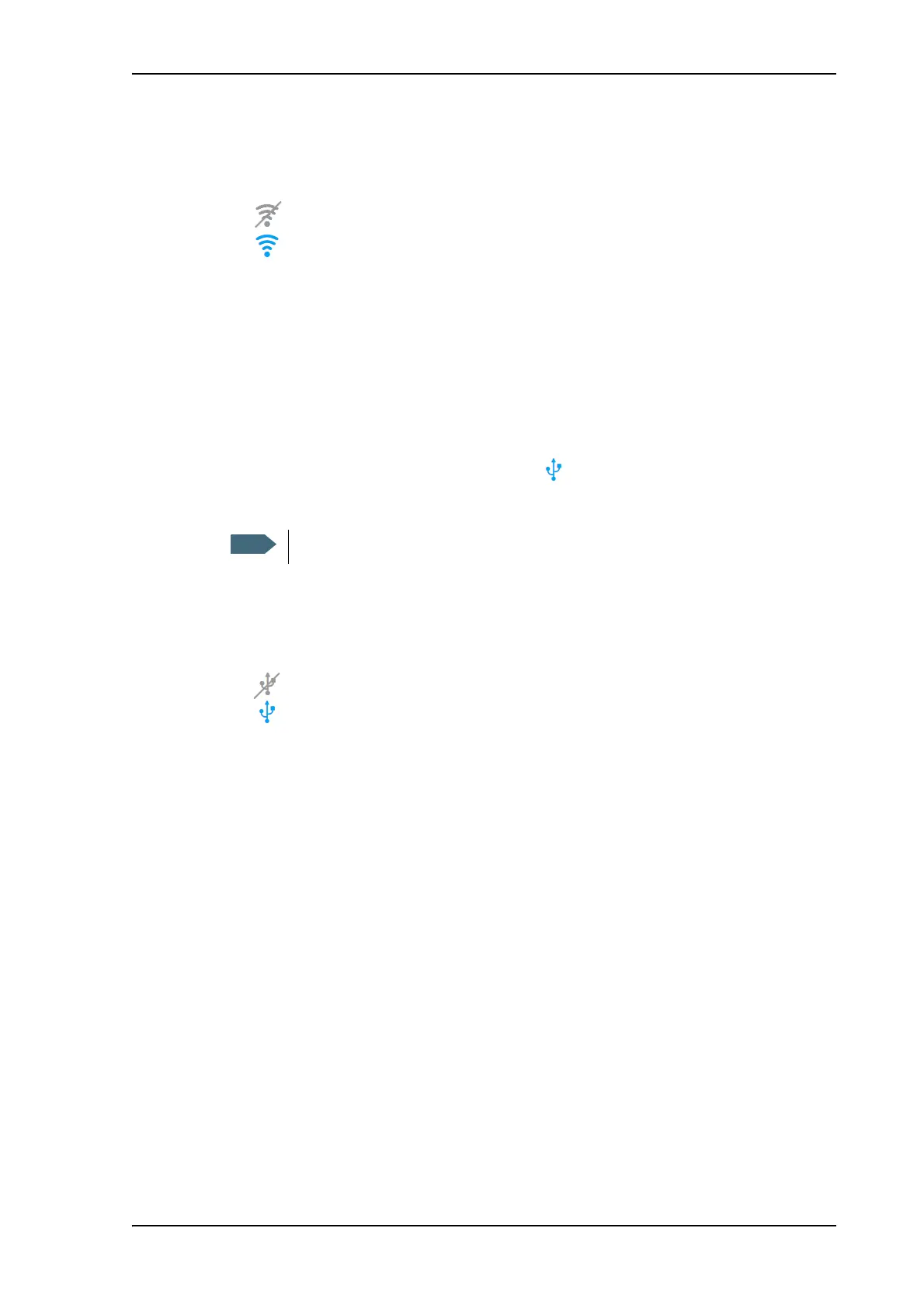
• A line through a greyed-out USB icon means the interface is disabled.
• A blue USB icon means the interface is enabled.
It may take some seconds to enable and disable the interface.



 To Next Page