Operation
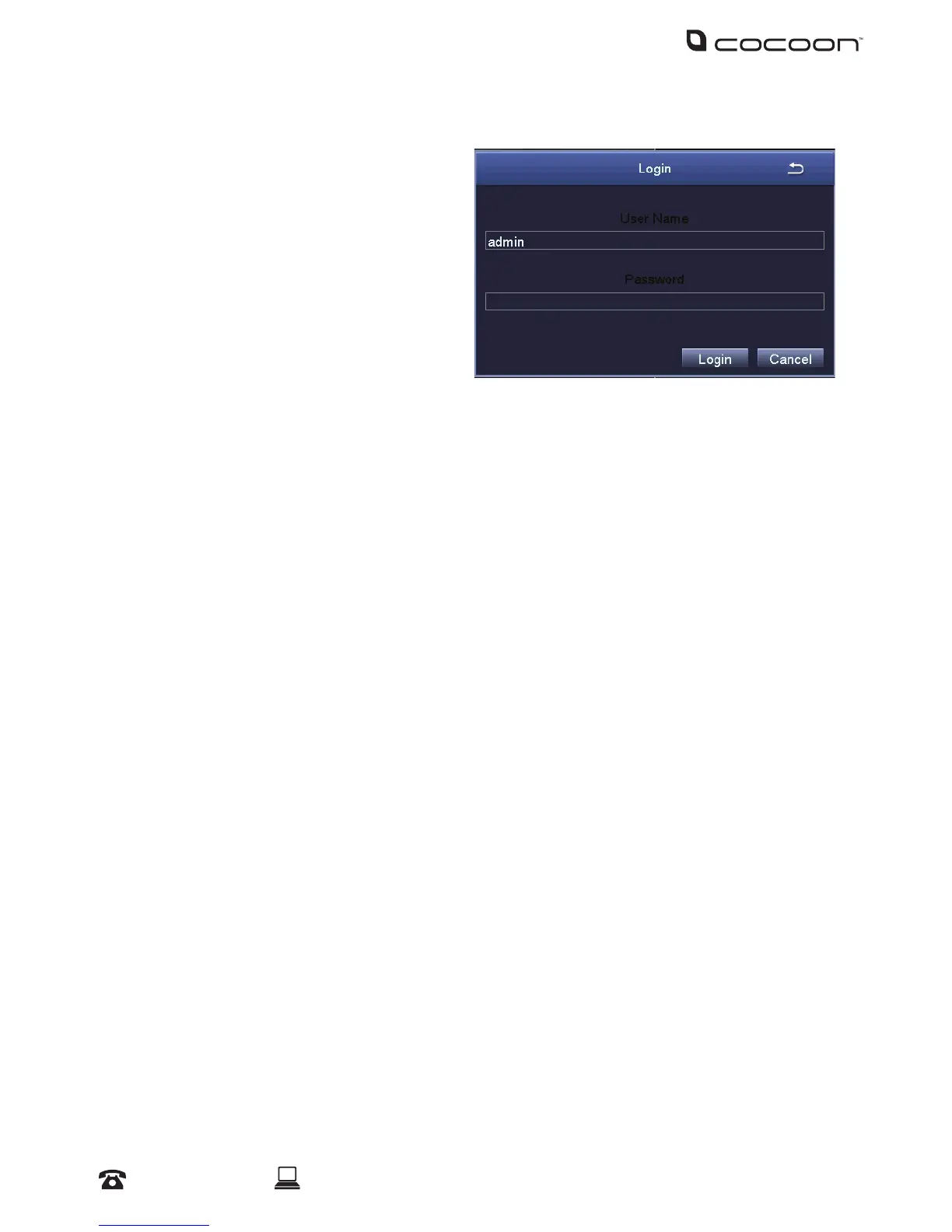
3.5 Logging in and setting ‘Admin’ password
Logging in
1. Using the mouse, input your user name.
If this is your rst use, leave user name as
‘admin’
2. Using the mouse, input your password. If
this is your rst use, leave password blank
3. Press ‘Login’
Setting a password for ‘Admin’
For security, it is highly recommended to set a password for the administrator account.
1. From the main menu, select ‘Setup’, then ‘Users’
2. Double-click on the ‘admin’ account to open the ‘Change Password’ popup
3. Using the mouse, input your desired password in the ‘New Password’ eld
4. Input your password again in the ‘Conrm Password’ eld
5. Press ‘Ok’. Your new password has now been set
NOTE: The ‘Admin’ account cannot be removed. Please ensure that a secure password is set. Keep your
password safe at all times. If you wish, you may use the space provided below to write your password,
then keep this manual in a secure location.
User Name: Admin Password: ________________
User Name: ________________ Password: ________________
3.6 Navigating the DVR Menus
The way to navigate the DVR menu is by using the mouse. The mouse operates in much the same
way as on your computer. Left-click to make selections and choose options. Right-click operates as
a cancel or previous menu button
NOTE: This manual assumes the user has connected the mouse to control the DVR unit.
Any standard wired USB mouse will work with the DVR unit


 To Next Page