DVR Menu
4.2.4 Schedule
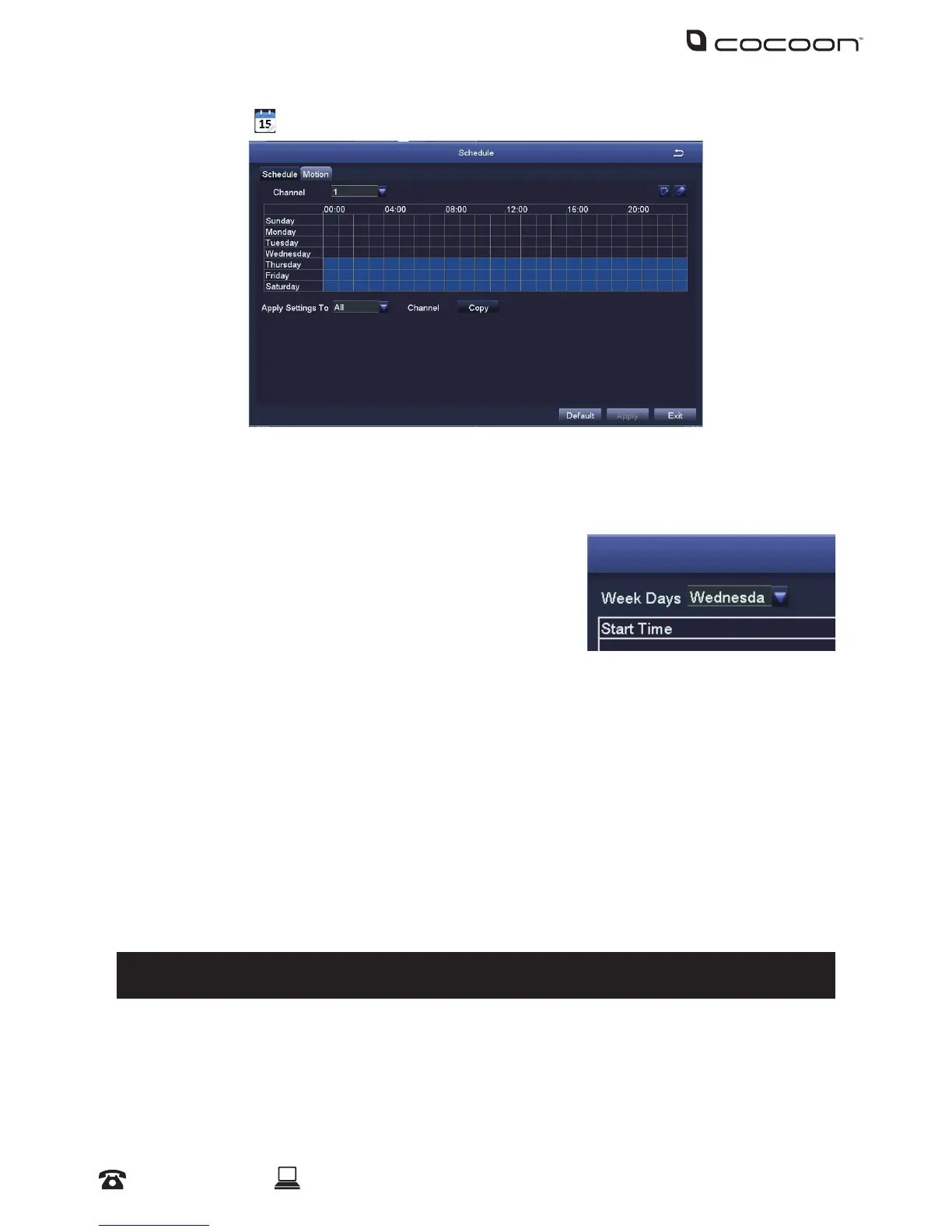
Allows manual record and motion record to be scheduled
To set an active record time, follow these steps:
a. Select ‘Schedule’ for manual recording or ‘Motion’ for motion recording schedule settings
b. Double-click an area on the graph where you would
like to schedule recording
c. Ensure that the correct day is shown on the top left
corner
d. Select ‘Add’, then use the dropdown menu to set a
start and end time
e. Once set, press the tick button to add the time to the schedule
f. To copy the schedule between days, use the dropdown menu at the top right corner to
select a day, then press ‘Copy’
g. Press ‘Ok’ when complete
h. To copy the schedule between cameras, use the dropdown menu at the bottom of the
schedule screen to select a camera, then select ‘Copy’
i. To save settings, press ‘Apply’
NOTE: Time selected will be highlighted in blue blocks
Tip - You can select time blocks using the icons located on the top right hand corner


 To Next Page