DVR Menu
4.2.7 Users
Congure all user settings using the following steps. Your Cocoon Home Security System is able to
limit specic MAC addresses for additional security.
Adding a new user:
a. Press the ‘Add’ button at the bottom of the User Management submenu
b. Set the User Name as desired, then input the desired password
c. Select between Normal and Advanced user type:
Normal: Allows remote login and local log in to view cameras
Advanced: Allows full access to view cameras, search logs, le management, except for
being able to shut down the DVR
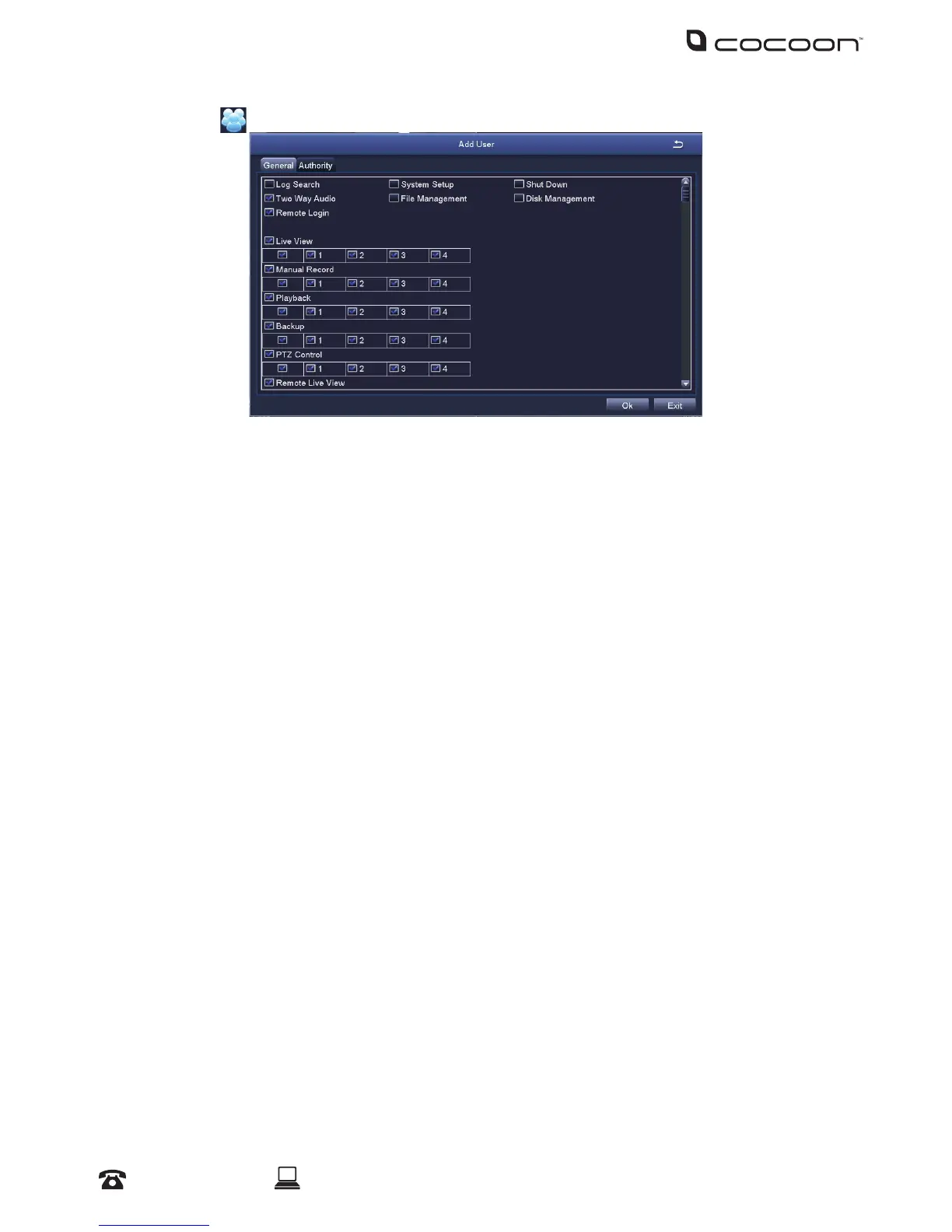
For more specic settings, such as being able to shutdown the DVR, select the ‘Authority’
tab and congure access control for each camera and feature
d. Optional: Bind the user to a specic MAC address by enabling ‘Binding PC MAC Address’
and entering the MAC address below
e. Press ‘OK’ to add new user
Deleting a user:
Whilst logged into your DVR’s admin account, highlight an existing user by clicking on the user
with the mouse. Press the ‘Delete’ button and then press ‘OK’ to conrm.
Changing a user’s password:
Whilst logged into the user’s account, highlight an existing user by clicking on the user with
the mouse. Press the ‘Change Password’ button and enter the old password, as well as your new
password. Press ‘OK’ to conrm.


 To Next Page