Party500_V1013_EN.PDF http://www.codelight.com
15
Press S1 [Save Step], you can save in two ways:
1. If what you want to save is the last step, press S1 [Save to Last] to save the step at the end
of the program;
2. Use the Flash buttons, together with page button if it is over 10 steps, to select step Number
to save as a Chase step of that Playback program. For example, you have edited 4 steps. If
you press a Flash button whose Number is larger than 4, the step will be saved as the 5th
step; If you press Playback button 3, the previous step saved in button 3 will be replaced. If
the led of 10 Flash buttons are on, switch the page by Playback Page, then use the Flash
buttons to save.
If you want to add a moving effect into one step, please press S4, operation details please refer to
the chapters above. When a chase step have added an moving effect, the item of Effect display
Yes;
Repeat the operation of the manual control, new Effect creation and Step Saving;
After finished all the Chase steps, press Edit Playback and exit to “Live Mode” to run the
Playback.
Finally, press Clear to exit manual state.
When you save Chase, only two Effects, running simultaneously will be saved in each step.
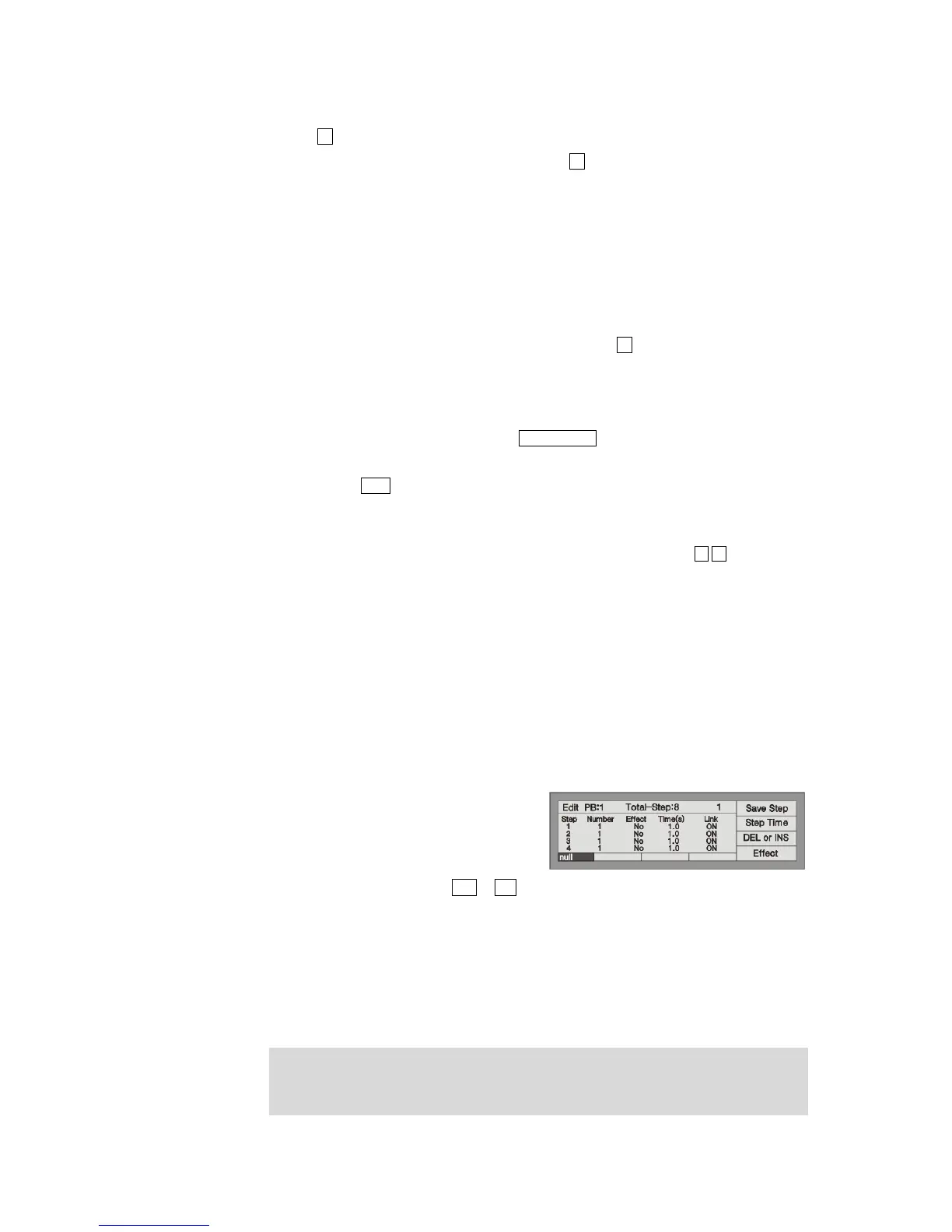
Only 4 Chase steps can be seen on the LCD screen, switch to look over other steps by .
All fixtures must be selected when saved.
6.4.2. Chase Parameter
When edit Chase step, you can adjust Link mode and independent time of the chase step.
6.4.2.1. Link Mode
When you programming Chase, you may notice there is a “Link” entry on the LCD screen, which
shows the link mode of each Chase step. “Link =
ON” means the console will run the new Chase
step after finish the present step; While
“Link=OFF” means the present step will pause
after finish, and you need to press Go+ or Go- to run the next step.
When programming Chase, every chase step will automatically endue with a default Link=ON. You
can change the Link mode by pressing the relevant Flash button of the chase step.
6.4.2.2. Change the Independent Time of Chase Step
Each Chase contains 3 independent times as followed:
1. Fade in --- the step time which spend on the HTP Fade in.
2. LTP Fade in --- all of the time which use in LTP Fade in.
3. LTP Wait --- the time between the beginning of a step and the beginning of an LTP Fade in.


 To Next Page