Using Your DataMan 360
This section provides information on the installation process of the DataMan Setup Tool, troubleshooting Ethernet
connection issues, tuning, image filtering, as well as reader training and package detection.
Installing DataMan Software and Connecting the Reader
Follow the steps below to install and connect your reader to the DataMan Setup Tool:
1. Check the DataMan Release Notes for a full list of system requirements.
2. Download the DataMan Setup Tool from http://www.cognex.com/support/dataman and follow the on-screen
steps.
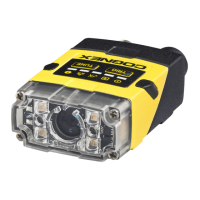
3. Connect the DataMan 360 Series reader to your PC.
4. Launch the DataMan Setup Tool and click Refresh.
Detected readers will appear under COM ports or Network devices, or both.
5. Select a reader from the list and click Connect.
WARNING: Do not stare into beam when adding, removing, or changing cables. Cognex recommends to unpower
the reader any time you make physical changes to it.
Follow the steps below to connect your reader to power and network:
CAUTION: I/O wiring or adjustments to I/O devices should be performed when the reader is not receiving power.
CAUTION: The Ethernet cable shield must be grounded at the far end. Whatever this cable is plugged into (usually
a switch or router) should have a grounded Ethernet connector. A digital voltmeter should be used to validate the
grounding. If the far end device is not grounded, a ground wire should be added in compliance with local electrical
codes.
1. Connect the I/O+RS232+24V cable to your reader.
2. For a network connection, connect your reader, through an Ethernet cable, to your network.
3. Connect the cable to a 24V power supply.
Troubleshooting an Ethernet Connection
Based on your network configuration, the DataMan Setup Tool may not be able to communicate with the reader and it
will not appear in the list of Network devices.
1. First, check your Ethernet connection with the reader and click Refresh in the DataMan Setup Tool.
2. Next, scan the Enable DHCP code in the Reader Configuration Codes document available from the Start menu.
This might allow the reader to acquire a suitable IP address from a DHCP server on your subnet.
If the reader still does not appear, you can use either the Add Device or Force Network Settings options in the
DataMan Setup Tool.
For more information, see the DataMan Setup Tool Reference Manual.
You can also use the RS-232 connection to configure the reader with parameters that allow it to communicate over your
Ethernet network.
44
Using Your DataMan 360



 To Next Page