Version 1.03 83 Global Scanning UK Ltd © 2017
No Copy output.
• The printer with the correct iPF# that is selected must be on-line and ready to print.
o Try searching for the available printers.
Testing connectivity
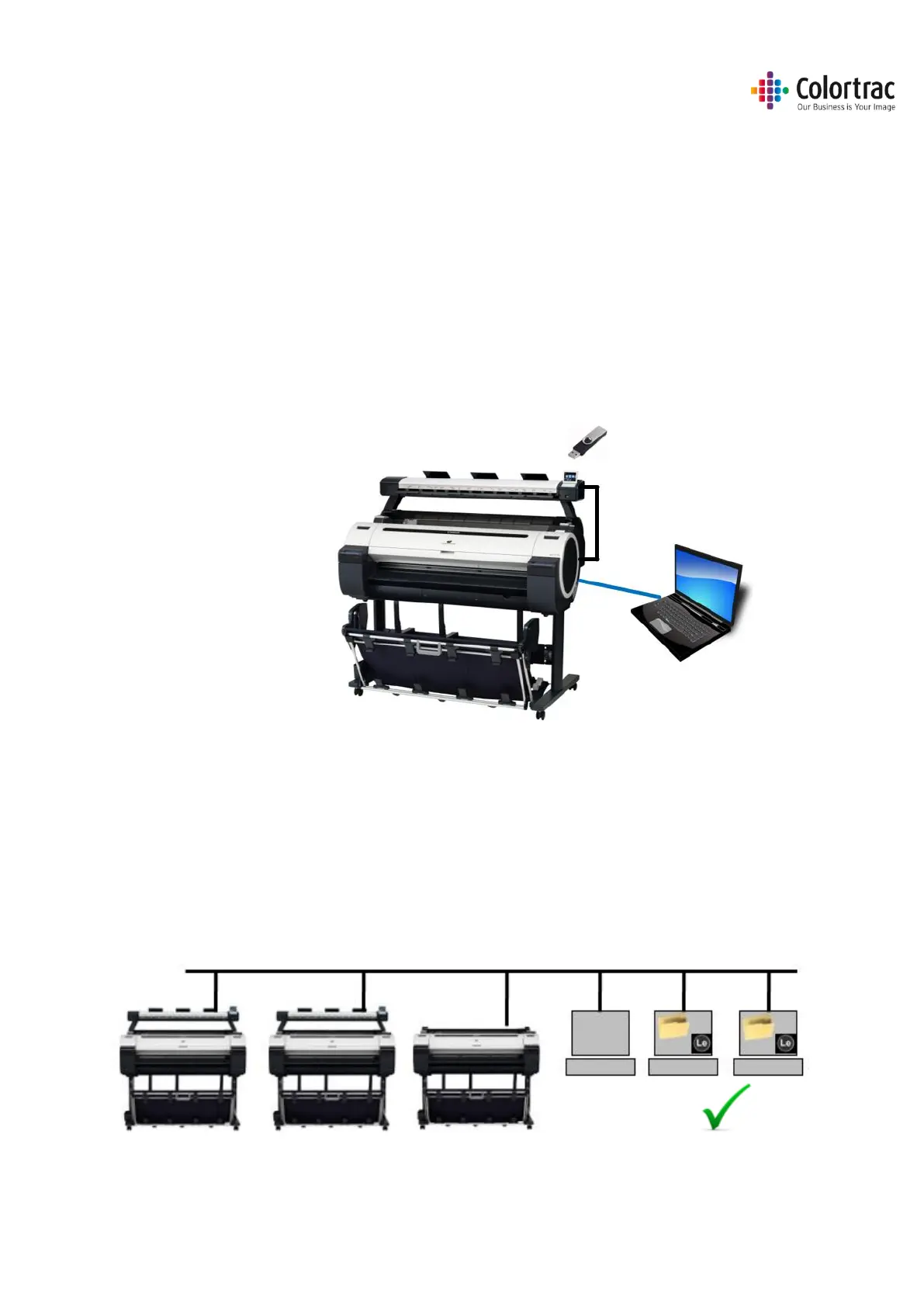
• If you are still having problems with the Scan to PC or Copy functions, eliminate the scanner and
ScanApp Le as the cause of the issue by testing using a direct Ethernet connection. This is
intended as a diagnostic step only and not recommended as the permanent configuration.
• Copy - connect an Ethernet cable between the Scanner and the printer using static IP addresses
as below.
• Scan to PC - connect an Ethernet cable between the Scanner and the PC using static IP addresses
as below. Ensure the PC is not also connected to another wireless network.
• If this is working, the scanner and ScanApp Le are working as expected. If the system does not
work correctly when connected via the local network using the desired IP addresses (Static or
DHCP), then the problem lies with the network configuration. For further information regarding
network configurations, please contact your local network administrator.
Supported Configurations
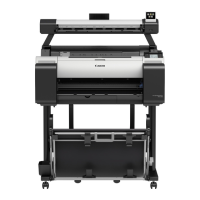
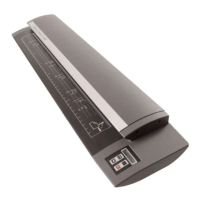
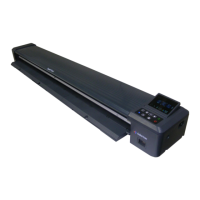
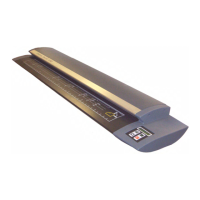
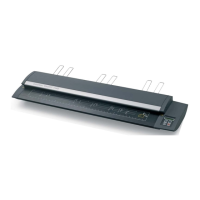
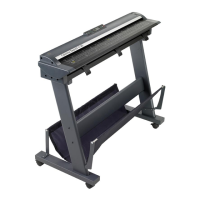
• Multiple L24e or L36e scanners, PCs running the ScanApp Le and iPF67x/77x printers are
supported on a single network.



 To Next Page