Operation Instructions
5-2
Select the Sub-item of the Patient Parameters Setting Window:
Press the right key of arrow keys group to select the five options settings of [Register], [General], [Print],
[Net] and [System]. Press the up and down key of arrow keys group to set a submenu.
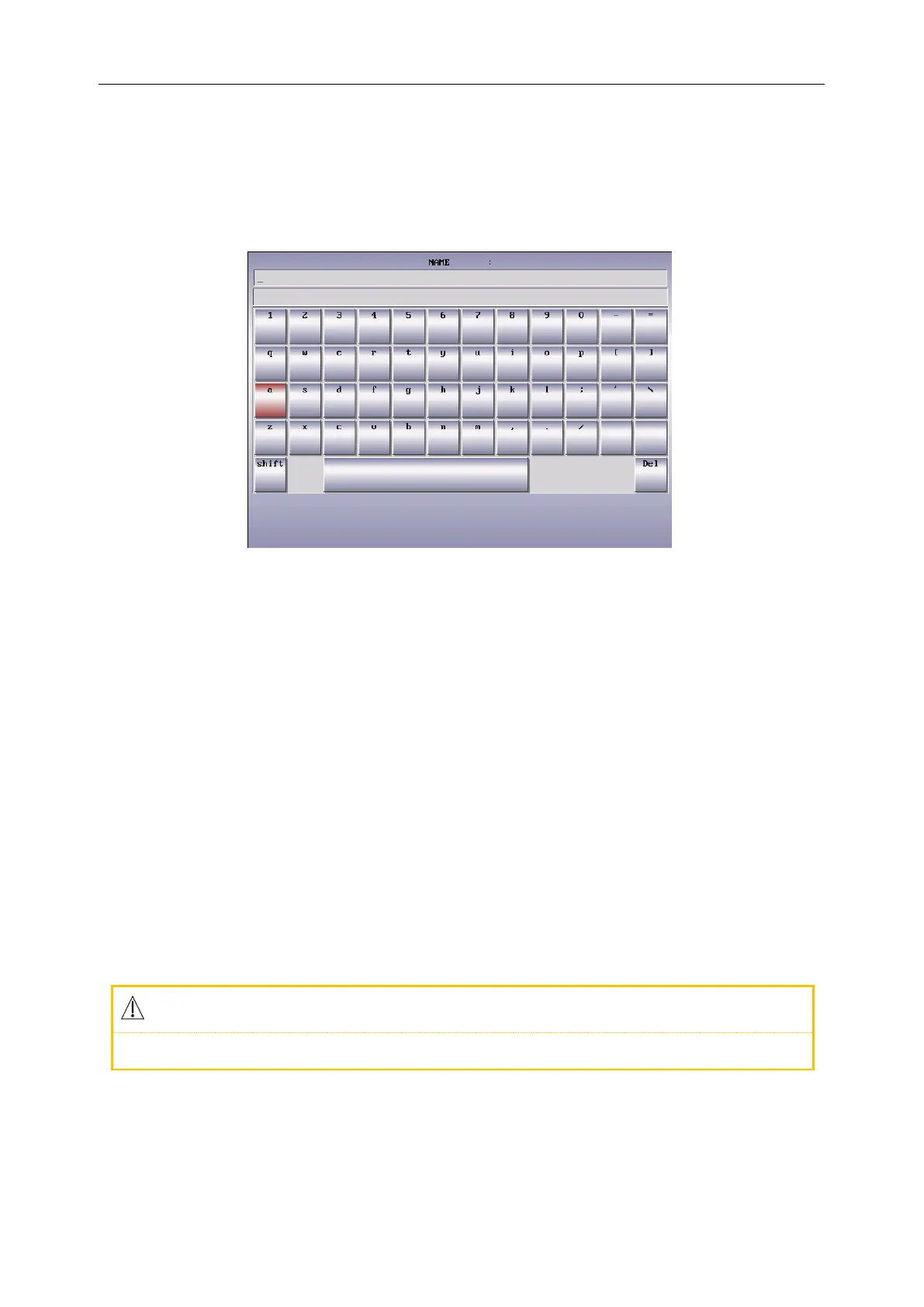
1) Input the Characters
Input the patient information in the [Register] setting interface:
Figure 5-2 Character Input Interface
The first inputting Method:
Press MENU key to enter Register Setting item
Press the down arrow key to move the cursor to [Name], then press the left or right key of the
arrow keys group to enter the editing window.
Press [-] or [=] to search characters, press the combination keys to select corresponding characters,
then press PRINT/STOP key to confirm the selection. To delete the input information, press the
RECALL key. Press MENU key to back to the upper menu
In the editing window, press [MODE] to switch capital or lower case letters.
Press MENU key to back to the previous menu
Edit the age, height, weight, hospital, blood pressure, hospital, doctor or other items in the [Register]
setting window, the ways of parameters setting and characters input are same as described above.
The second inputting Method:
For age, height, weight, blood pressure setting, press the number keys on the keyboard to set up.
In the recording process, the patient information can not be modified.
[Name]: Patient‟s Name (within 20 characters)
[Sex]: Sex of the Patient (Male/Female)
[Age]: Patient‟s Age (Range: 0~99)



 To Next Page