Compact Scaler Switcher
Comm-Tec S.r.l. 12 www.comm-tec.it
2) Auto Switching
Press AUTO button to enable or disable auto-switching mode. Note that auto switching
mode only works in full screen mode.
When in auto mode, the switcher will switch according to the following rules:
➢ The switcher will switch to the available active inputs with the priority: 1-HDMI > 2-
HDMI > 3-HDMI > 3-DP > 4-HDMI > 4-USB-C. When input source and output window
are connected, the corresponding LEDs illuminate blue.
➢ New input: The switcher will automatically select the new input once detecting a new
input.
➢ Reboot: If power is restored to the switcher, it will automatically reconnect the input
before powered off.
➢ In auto mode, the input source also can be switched by the manual switching steps, but
not exit auto mode.
➢ When full screen mode is switched into multi-view mode, the auto mode will not exit.
4.6. Switching Status Inquiry
In the Multi-view mode (Window A, B, C and D LED illuminate blue).
Operation: Windows#
Example:
Pre
ss and hold Windows B button at least 3 seconds (Window A, C and D LED go out, and
then the corresponding input source LED will illuminate blue). After 3 seconds, Window A,
B, C and D LED illuminate blue.
4.7. Audio Control
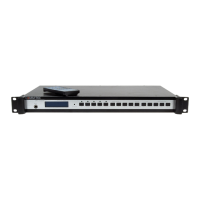
By default, the HDMI and HDBT output audio
follows the video source in the full screen
mode, but in the Multi-view mode, the output
audio is from the 1-HDMI input. The audio
source can be changed by pressing the
SOURCE button.
Press the volume knob to select microphone or source audio control. Rotate the
knob to increase or decrease the volume of the selected audio. Press and hold the
knob at least 3 seconds to mute the selected audio, rotate the knob to unmute.


 To Next Page