4-2
Compro IP55 / 60 / 70 Network Camera
Accessing via PC Web Browser
User can check the current condition of the monitored area via Internet Explorer which comes with all
Windows-based computer system. Please refer to the following steps to watch live view on WebVUer:
1. Open the Internet Explorer.
2. Enter the camera’s IP address. (192.168.0.x)
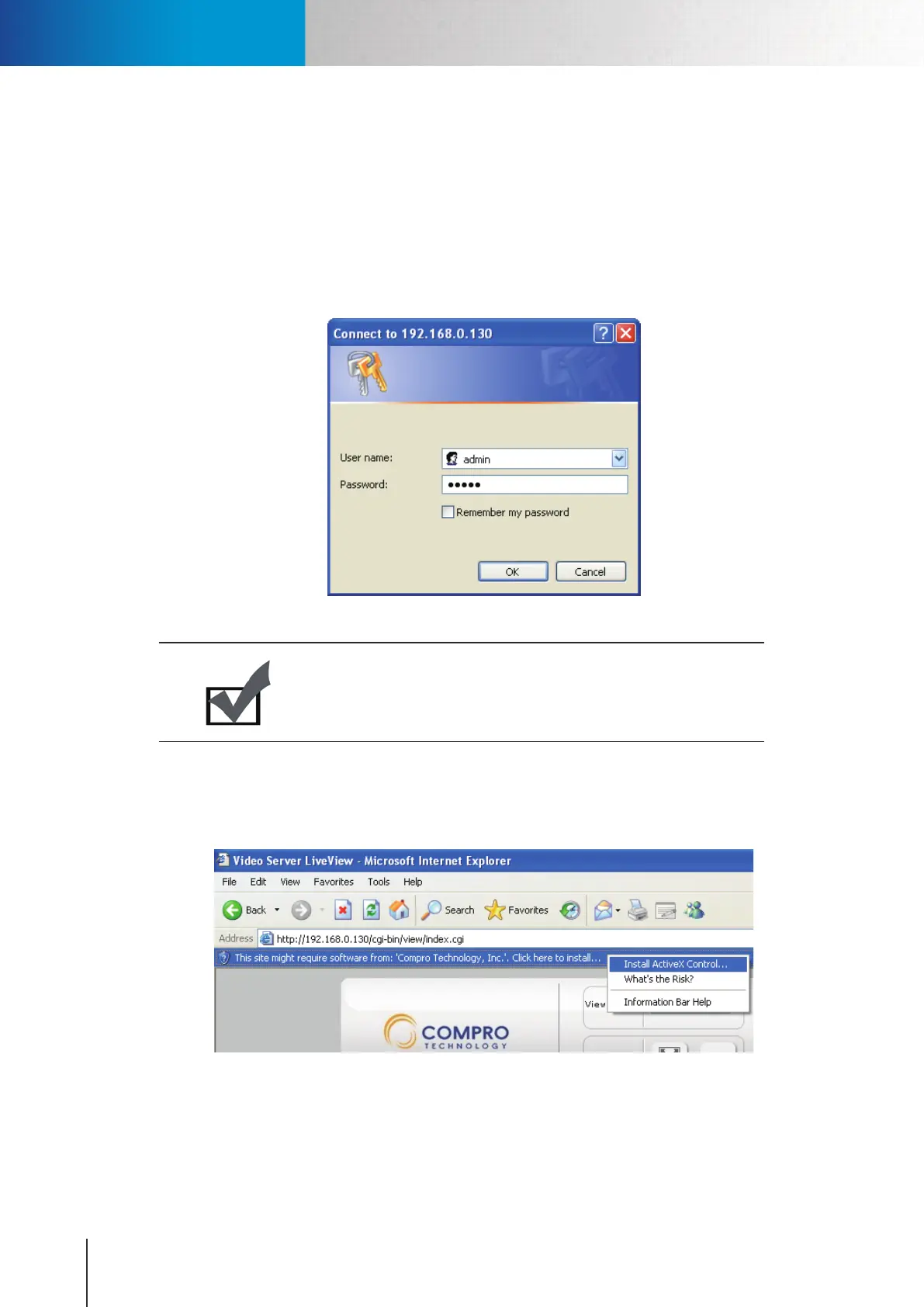
3. Adialogboxthatrequesttheusernameandpasswordappears;enterthevalidusernameand
passwordforyourIPcamera,andthenpressOK.Thedefaultusernameandpasswordis“admin.”
Figure 4-2. Login dialog box
Note:
If you forget your user name and password, you need to reset your
camera factory default settings (see Troubleshooting chapter).
4. After valid user name and password are entered, Internet Explorer will display a message to warn
userabouttheinstallationofthesoftwarefrom“Comprotechnology,Inc.”Pleaseclickonthewarning
message and choose to install the ActiveX.
Figure 4-3. Installing Compro ActiveX
Accessing via PC Web Browser


 To Next Page