4-7
Chapter 4: Accessing Camera
Accessing via Seedonk IM Client
If you have installed the Seedonk IM client, you can also access your network camera through the easy-to-
use Seedonk IM. Its intuitive instant-messenger-like interface lets your conveniently control, view, and share
camerasovertheInternet.IfyouhavenotinstalledtheSeedonkIMclient,youcandownloaditfrom"http://
web.seedonk.com/download.html."HavingdownloadedtheSeedonkIM,runtheapplicationandfollowon-
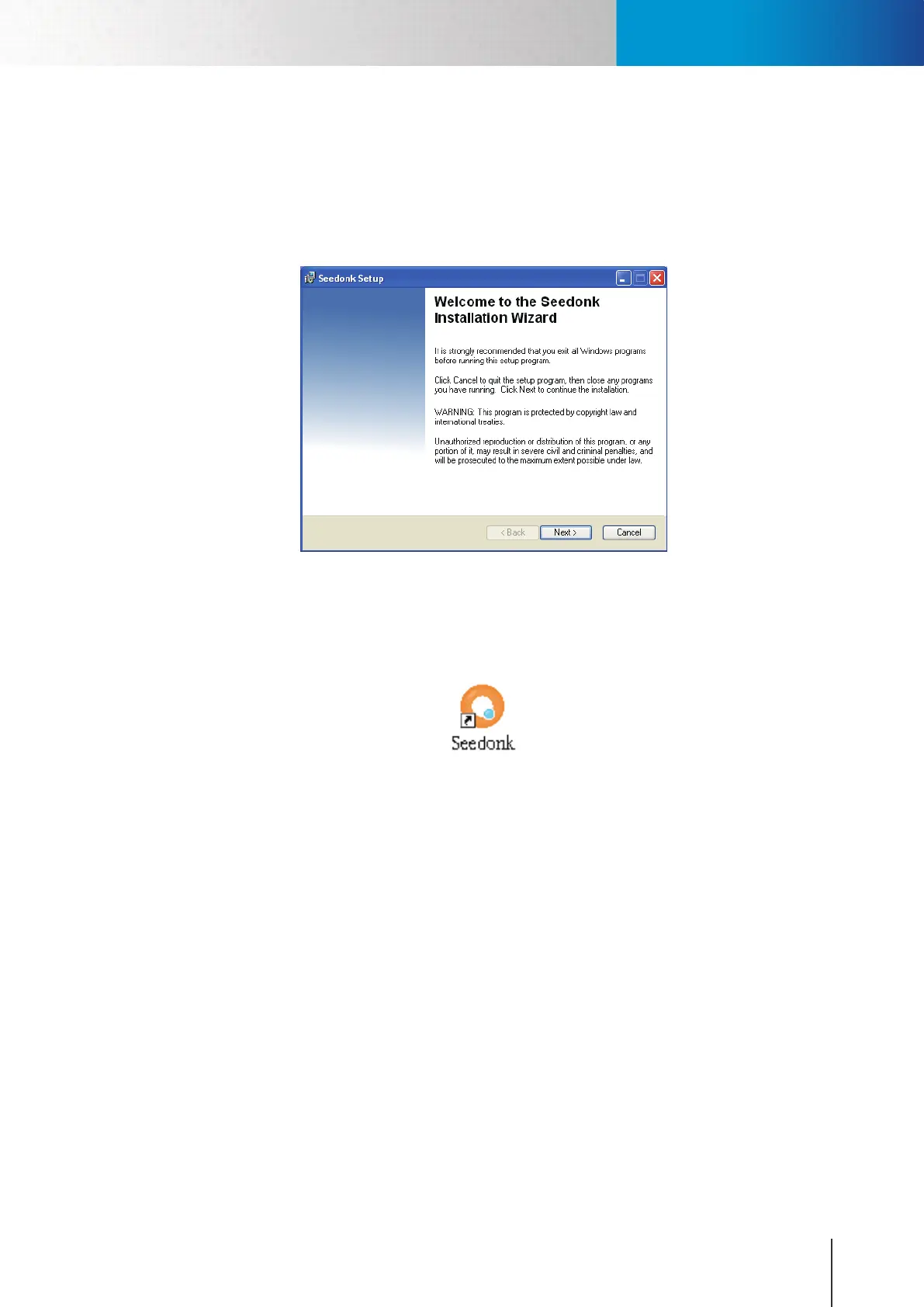
screen instruction to complete its installation.
Figure 4-8. Installing Seedonk IM
To access your camera using Seedonk IM client, double-click on the Seedonk icon on your windows desktop,
and then enter the user name and password of your Seedonk account to log in to the service (If you do not
haveaSeedonkaccount,goto"http://www.seedonk.com/cxs/register.do?from=register"andcontinuewith
account registration).
ThefollowinggureshowsasuccessfullogintoSeedonkIMplatform.Youwillndyourcameraunder"My
Cameras".Double-clickonanyon-linecameratoviewitslivevideo.ForcompleteuserguideofSeedonkIM,
visit"http://web.seedonk.com/support.html".
Accessing via Seedonk IM Client


 To Next Page