9-1Reconguring Your Device & Cabling Check
Chapter 9: Troubleshooting
Chapter 9: Troubleshooting
During the course of installation, you may encounter various issues in regard to the usage of either the
camera or the ComproView software. The following section contains some troubleshooting procedures to
help you solve the problems.
Reconguring Your Device
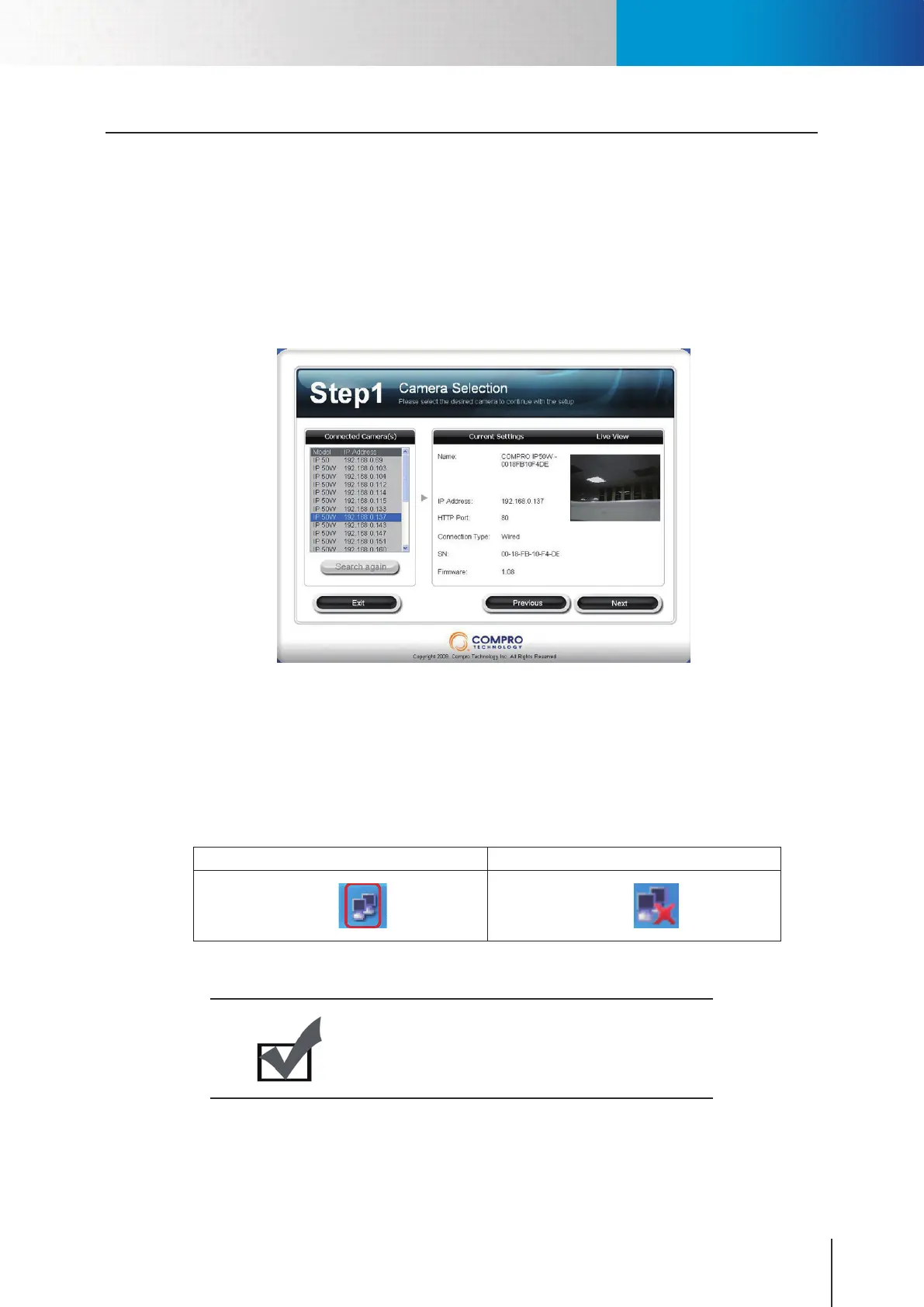
Anytime you need to re-congure your IP camera, you can simply double-click on the iWizard icon (or tap
Start > Programs > ComproView > iWizard) to open the iWizard conguration tool. During the conguration,
the iWizard will automatically scan for all of the available Compro IP surveillance products installed on your
LAN network (even if they are not on the same subnet). The scanning generally takes around 1 minute to
complete, and once the scanning completes, you will see the available IP cameras populating the list.
Figure 9-1. Camera selection
Cabling Check
If you didn't see your IP camera on the connected device list in iWizard, go through the following steps to
check your cabling.
1. Check that the IP camera has been connected to the LAN network and has been powered on for over
1 minute.
2. Check if your computer has a successful connection to the network.
Computer is connected Computer is not connected
Table 9-1. Windows network connection
Note:
You can check the status of your router connection by
logging onto your router's maintenance page.


 To Next Page