3.1 Using the Supplied Mouse
A USB Mouse is supplied to navigate the on-screen menus. Plug the mouse into an available USB port on the
front or back of the DVR.
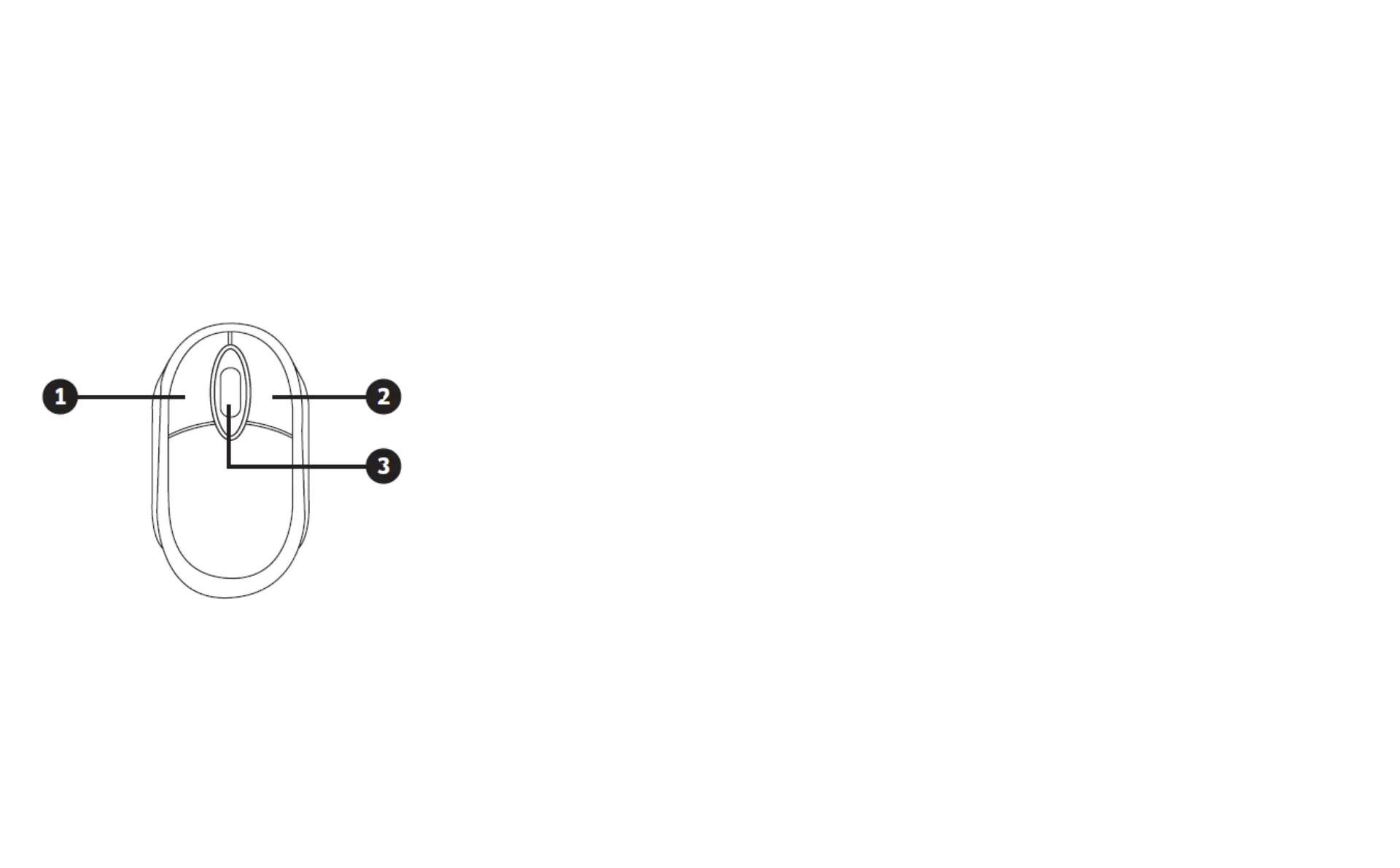
1. Left Button:
Click to select menu options.
During live viewing in split-screen view, double-click on a channel to view it in full-screen. Double-click the
channel again to return to split-screen viewing.
Click on a channel on Live Viewing screen to open Camera Quick Toolbar.
Click and hold to drag sliders and scales on menu mode
2. Right Button:
Click once to open the Taskbar on the Live Viewing screen. In menus, click to go back / close menus.
3. Scroll Wheel:
In menus, scroll to move up / down through the menu content.
While hovering over the volume control wheel, scroll to turn system volume up / down.
Chapter 3 DVR Common Operations


 To Next Page