6.1 General Controls
When you are setting up your system there are a few processes that are common throughout
that are worth remembering:
1. Wherever you see the Setup symbol means you are able to make further adjustments to
this feature by clicking on the symbol.
2. To make a change in settings active, in most menus, you will need to click on the Apply button.
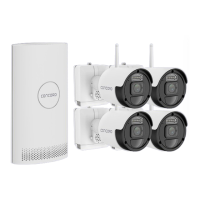
3. Many settings can be changed in the main menu of a feature by ticking a selection box or
selecting a drop down menu next to the relevant channel. So if you don’t have anything else to
change you can make it quickly and simply in this menu.
4. To exit a menu and go back to the previous menu simply click on the right mouse button.
5. Some menus will not have an Apply button to make them active, in these menus your selection will be made active when you exit the menu using the right
click button on the mouse.
6. Whenever you set a feature such as Motion Detect or PIR Detect you need to make sure that it is scheduled to operate through the Record / Record
Schedule.
7. The Copy button can be used to apply all settings to the other cameras on all days or specific days.


 To Next Page