17
3-2-3. SETUP-LIVE-CAMERA NAME
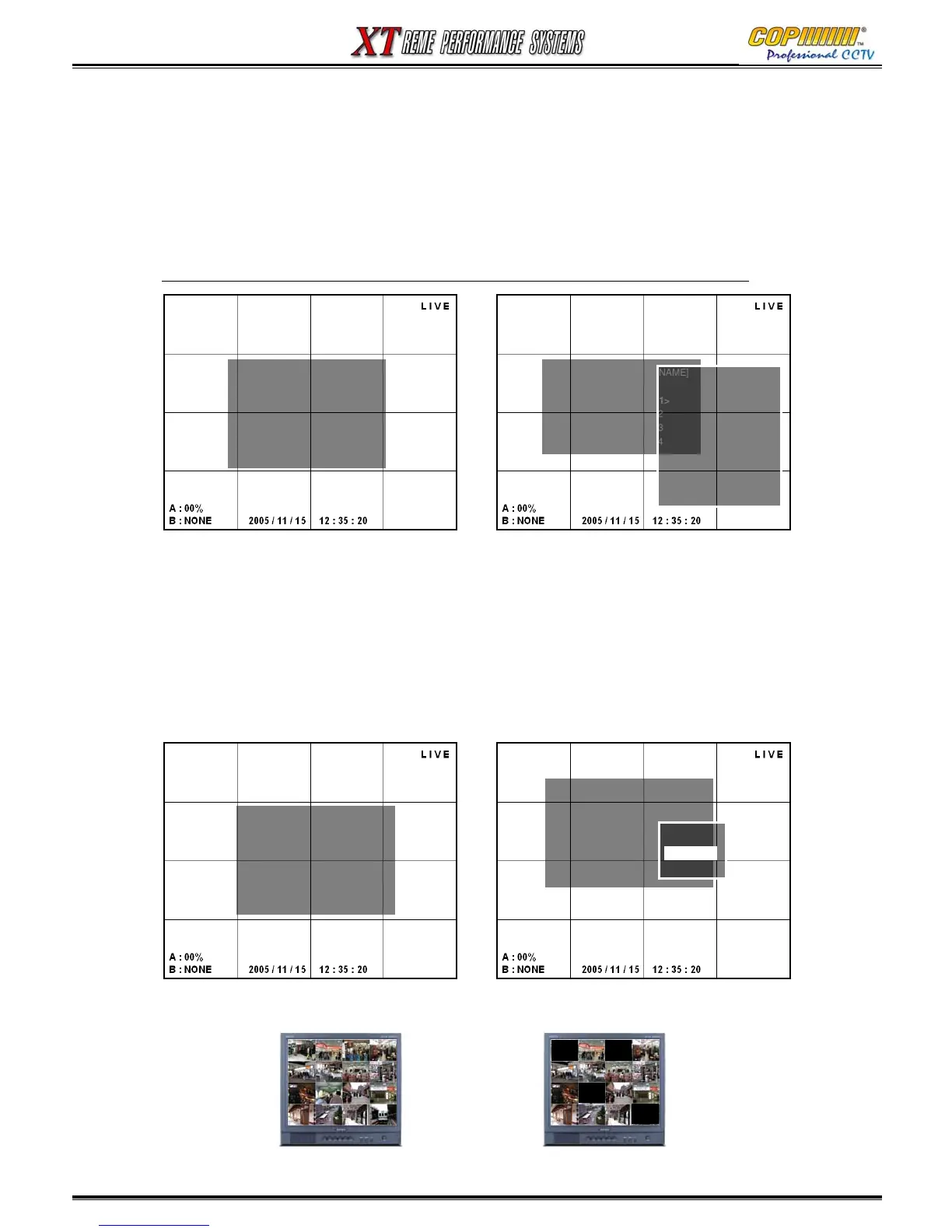
1) Select [CAMERA NAME] by using (▲)(▼) buttons and press [ENTER] button to enter the Sub-Menu.
2) Move the cursor with the (▲)(▼)(◀)(▶) buttons and Press the [ENTER] button when the [NAME] of
the channel to be changed is highlighted. The TEXT INPUT MATRIX will appear.
3) Move the cursor to the desired letters using the (▲)(▼)(◀)(▶) buttons and press the [ENTER] button
to select each letter in turn. Press [MENU] button to exit the Matrix.
★The Camera Name will only appear when that channel is shown in Full Screen.
3-2-4. SETUP-LIVE-CAMERA STATUS
To “Hide” a camera from the live display, [HIDE] must be selected. (Recording is not affected.)
1) Select [CAMERA STATUS] using (▲)(▼) buttons and press [ENTER] button to enter the Sub-Menu.
2) Use Cursor (▲)(▼)(◀)(▶) buttons to highlight ‘STATUS’ for the camera to be Hidden, and press the
[ENTER] button to display the options. Select [HIDE] for the camera to be Hidden (Covert) and press
the enter button to select.
3) Press [MENU] button to exit the Sub-Menus.
Example: Cameras 1, 3, 10 & 16 have been setup as HIDE
[SETUP-LIVE-CAMERA NAME]
NUMBER NAME
CAMERA 01 <CAM 01>
CAMERA 02 CAM 02
CAMERA 03 CAM 03
CAMERA 04 CAM 04
[TEXT INPUT DIALOG]
A B C D E F G H I J
K L M N O P Q R S T
U V W X Y Z ←
a b c d e f g h I j
k l m n o p q r s t
u v w x y z . ~ / :
0 1 2 3 4 5 6 7 8 9
_ - SPACE
--------
[SETUP-LIVE-CAMERA STATUS]
NUMBER STATUS
CAMERA 01 <- SHOW>
CAMERA 02 - SHOW
CAMERA 03 - SHOW
CAMERA 04 - SHOW
STATUS
-SHOW
-HIDE
-SHOW
<BEFORE HIDE IS APPLIED> <AFTER HIDE IS APPLIED>
3. SETUP
[SETUP-LIVE]
-<SEQUENCE DWELL(FULL)>
- CAMERA NAME
- CAMERA STATUS
- CAMERA COLOR
- PTZF PROTOCOL
- PTZF ID
[SETUP-LIVE]
-<SEQUENCE DWELL(FULL)>
- CAMERA NAME
- CAMERA STATUS
- CAMERA COLOR
- PTZF PROTOCOL
- PTZF ID



 To Next Page