18
3-2-5. SETUP-LIVE-CAMERA COLOR
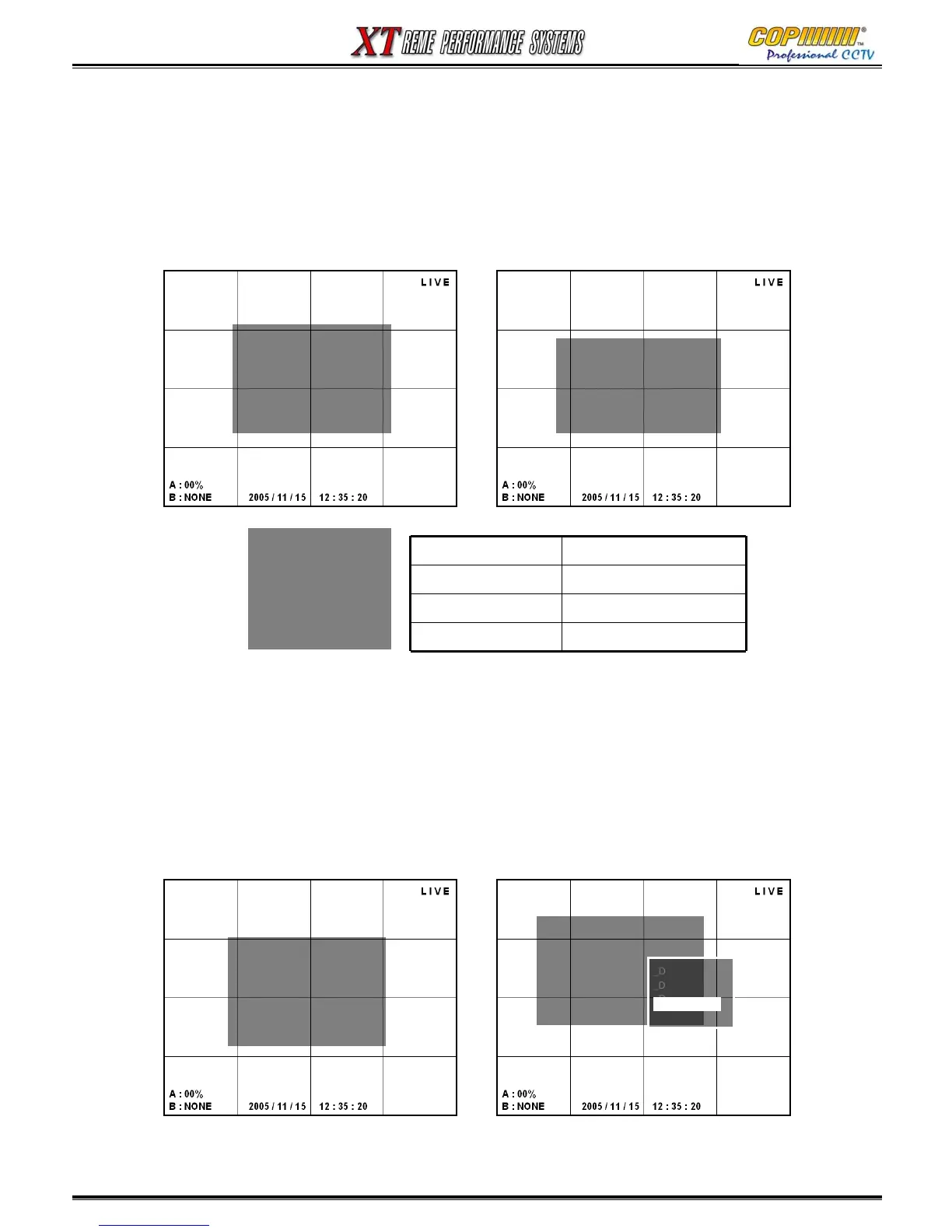
This Sub-Menu is to adjust the Colour, Contrast and Brightness of each Camera Channel.
1) Select [CAMERA COLOR] by using (▲)(▼) buttons and press [ENTER] button to enter the Sub-Menu.
2) Use the Cursor (▲)(▼)(◀)(▶) and [ENTER] Buttons to enter the Colour Adjustment window.
3) Use the (▲)(▼) buttons to select the parameter to change and use the (◀)(▶) to adjust the value.
4) Once the desired image is achieved, press the [ENTER] button to save the changes.
5) Press the [MENU] button to exit the Sub-Menus.
3-2-6. SETUP-LIVE-PTZ PROTOCOL
To control a PTZ or Speed Dome Camera using the RS485 output from the DVR, a compatible
Telemetry Protocol must be selected.
1) Select [PTZ PROTOCOL] by using (▲)(▼) buttons and press [ENTER] button to enter the Sub-Menu.
2) Press the [ENTER] button on ‘PTZF’ next to the camera to be controlled. The list of available
Telemetry Protocols will appear.
3) Highlight the desired protocol by using the (▲)(▼) buttons and press the [ENTER] button to select.
4) Press the [MENU] button to exit the Sub-Menus.
Note: The PTZ control from this DVR is performed in “Steps”, for fine control, please use a “Joystick”.
[SETUP-LIVE-CAMERA COLOR]
NUMBER COLOR
CAMERA 01 <DEFAULT>
CAMERA 02 DEFAULT
CAMERA 03 DEFAULT
CAMERA 04 DEFAULT
CH : 01
BRIGHT : 0
CONTRAST : 0
COLOR : 0
DEFAULT
- : < + : >
BRIGHT MAX. ±125 adjustable
CONTRAST MAX. ±125 adjustable
COLOR MAX. ±125 adjustable
DEFAULT Back to the default value
[SETUP-LIVE-PTZF PROTOCOL]
NUMBER PTZF
CAMERA 01 <-PELCO_D>
CAMERA 02 -PELCO_D
CAMERA 03 -PELCO_D
CAMERA 04 -PELCO_D
PROTOCOL
- PELCO_D
- CNB_102
- SK2171
- CNB_102
3. SETUP
[SETUP-LIVE]
-<SEQUENCE DWELL(FULL)>
- CAMERA NAME
- CAMERA STATUS
- CAMERA COLOR
- PTZF PROTOCOL
- PTZF ID
[SETUP-LIVE]
-<SEQUENCE DWELL(FULL)>
- CAMERA NAME
- CAMERA STATUS
- CAMERA COLOR
- PTZF PROTOCOL
- PTZF ID



 To Next Page