24
CraftBot 3
6. NAVIGATE THE BUILD PLATE
AND THE EXTRUDERS
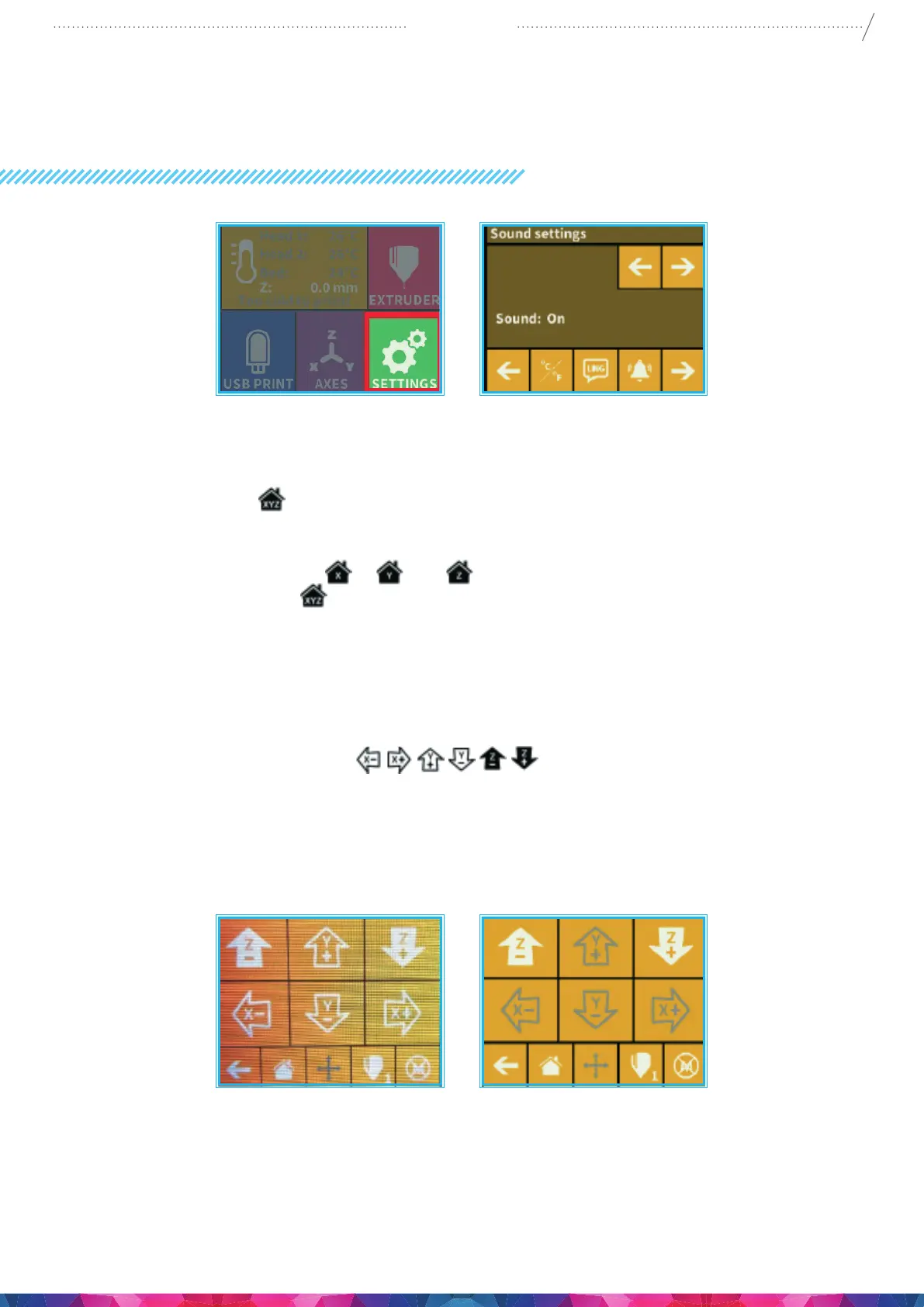
Select the AXES on the menu.
The rst “grey” button will, of course, return you to the main menu.
• The small house icon indicates the „home” position of the extruders which is this location the
front corners of the build plate.
• You can reset the extruders and the build plate to the “home” or “zero” position. You can either
set each axis one at a time (X
, Y or Z ), or do all three of them at once by touching the
appropriate Home button
. If the individual house icons are white, then this means that the
motors of each highlighted icon are engaged.
• To disengage the motors, click on the icon in the far right bottom corner (M with an X through it),
and you will see all of the house icons turn grey. The motors have now been disengaged and you
can freely move the extruders by hand if you wish to do so.
• The directional button to the right of the “home” button can be used to move along the X, Y or Z axis
using the motors. After clicking on this button you will be redirected to another display in which you
will see six dirent arrow buttons
. Note that this option can only be used if
all of the motors are already activated and the house icons are all white. If the house icons are grey,
then nothing will happen. In this case, after clicking on the direction button, you will see all of the
arrows in the color grey. To activate the motors, return to the “home” icon and home in; the house
icons will now turn white and you can go on to the direction display and move the extruders and
bed as you see t.


 To Next Page