30
CraftBot 3
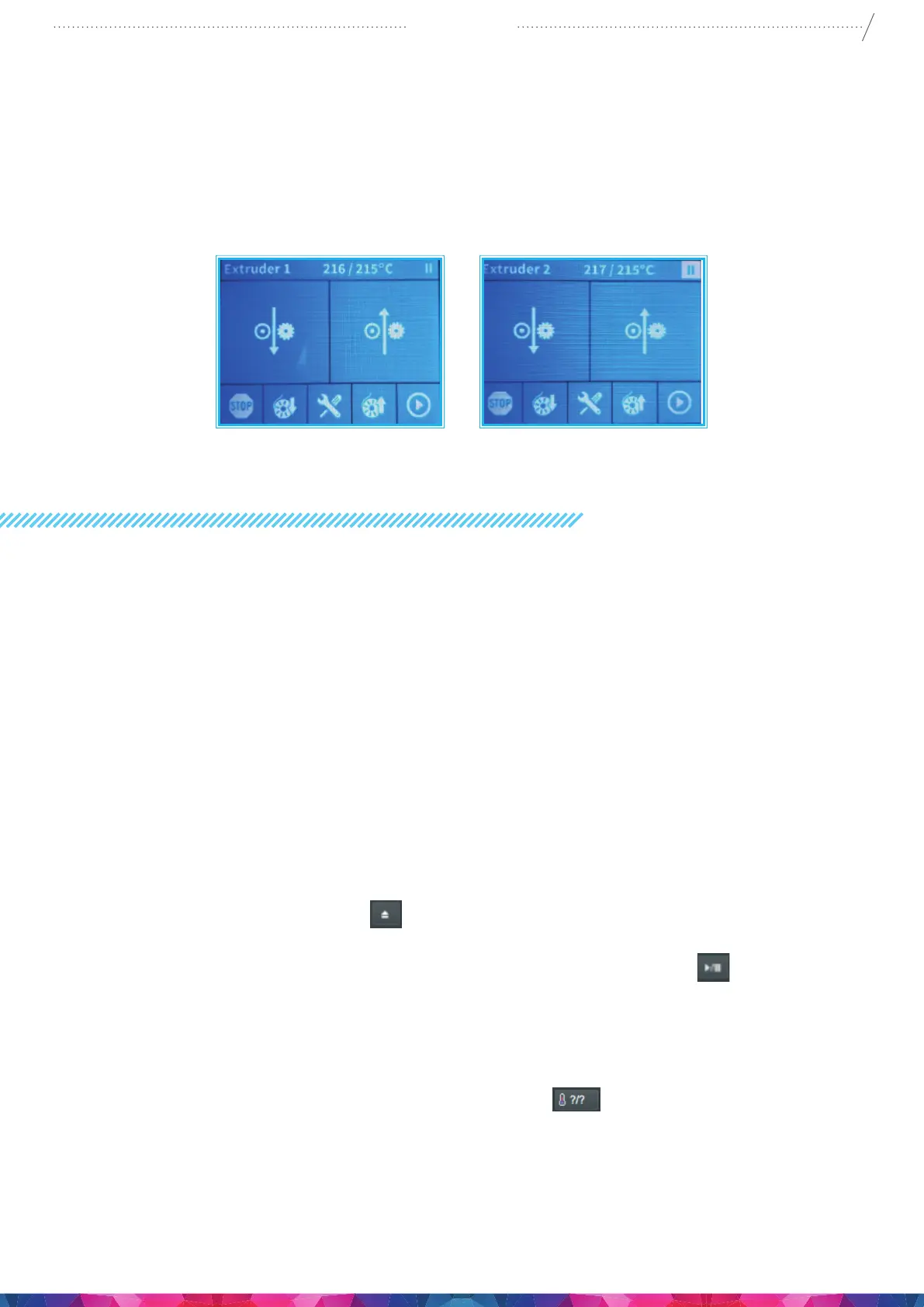
7.4.3. PAUSE MENU
In Pause menu users can change lament, continue printing or terminate the printing project. Pushing
the Play button will continue the printing. For lament change use the Extrude/Reverse functions or the
preprogrammed Load/Unload options. For terminating the printing select “STOP”. CraftBot will ask for a
conrmation. If you pressed the stop button accidentally, you can press the back button to continue the
printing process..
8. MOBILE APPLICATION
8.1.USINGCRAFTWARETOCONVERT3DDESIGNINTOPRINTINGCOMMANDS
1. To Installing the CraftBot app and connecting to CraftBot 3
• Download the CraftBot app from the App Store or Play Store and open it.
• Make sure that your CraftBot 3 printer is switched on and connected.
• The app will search for your CraftBot 3 in its reach (if there are more, it will nd all your
printers and you can select your CraftBot 3 to connect to from the list)
• Select and connect to the printer and you will be directed to the main screen.
2. To Uploading a gcode to the USB placed in the CraftBot 3
• Select one of the gcodes on the main screen or select the gcode le saved on your mobile
device
• Conrm the le selection – upload
• Once 100 % of the les has been transferred, close
3. Initiating printing via the CraftBot app
• Select “Print” on the main menu
• Select one of the gcode les and uploaded onto the USB storage in the CraftBot 3
• Conrm the Gcode le you want to print from selection in the play/pause button.
• You can track the progress of printing on screen
• Printing can be stopped or paused
• Once 100 % of the les has been transferred, close
4. Changing the CraftBot 3’s heat settings via the Craftprint application
• From the icons in the main menu select “Heat Settings”
• You can choose between settings for PLA, ABS, PET or you can set the head and bed
temperature settings according to the printing model needs.
App Settings Users can specify how the heat and unit setup information is displayed (Celsius/Fahrenheit,
Metric/Domestic)


 To Next Page