17
CraftBot 3
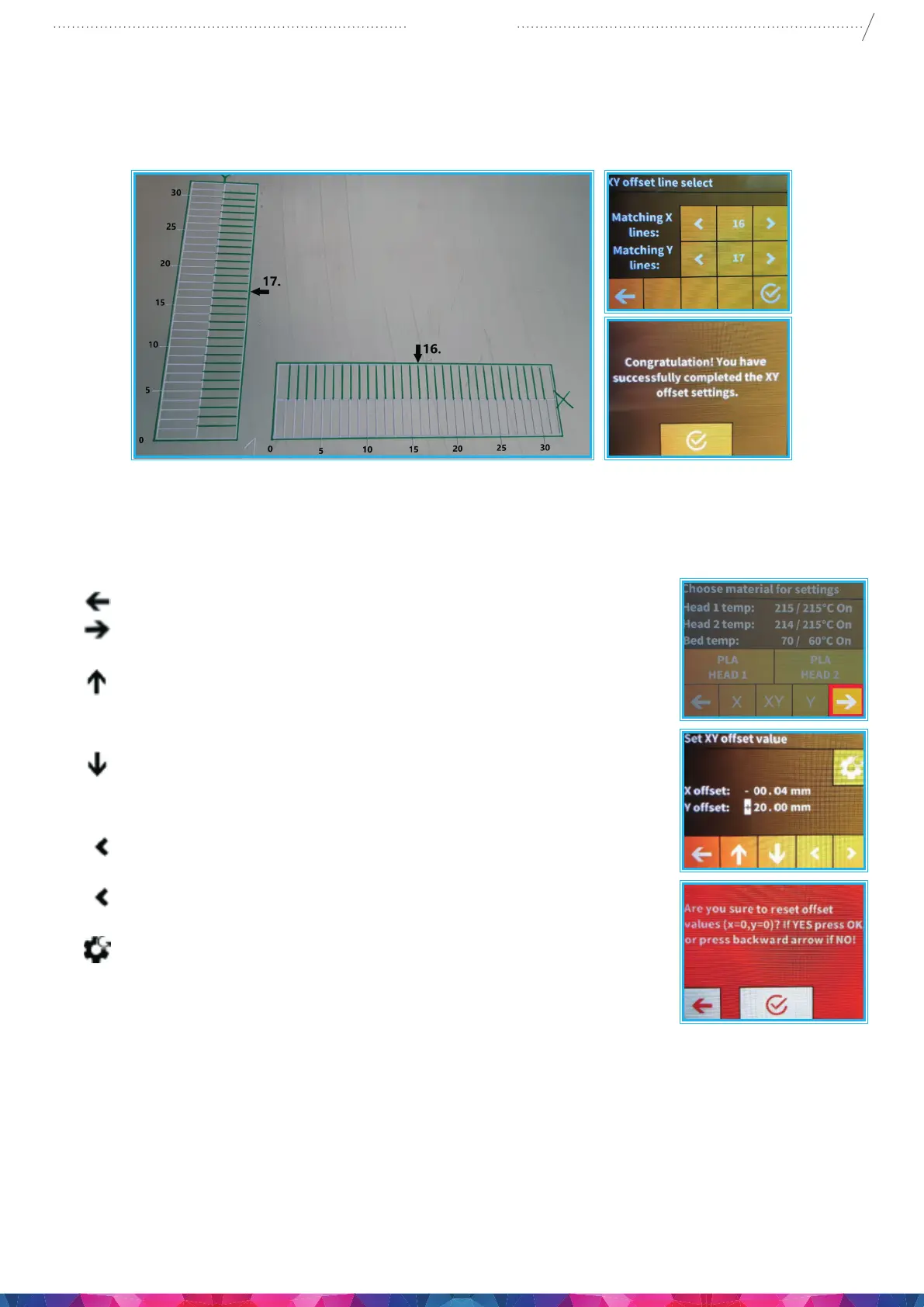
9. When your lines aligned in the 15th, 16th or 17th lines:
• Chose the head’s number in the LCD screen, and wait for the text message. If you see the yellow
congratulation message, the calibration is correct and you can exit to the main menu.
10. When you have completed the calibration the rst time An extra second or third calibration is always
recommended to get the perfect settings.
5.4.4. FMS OPERATION
The lament monitoring system observes the lament ow during printing. If the printer detects a jam
during printing, it will try to resolve it on its own. If it is unable to resolve the jam, then an error message
will appear on the display, the message will appear in the application, and the printer will also send an
email message. Please note, the wi should be set up correctly rst.
• Left arrow : you can step back to the X-Y main menu.
• Right to ne tune the X,Y calibration settings in the Set the X,Y
oset page.
• Up arrow: you can enlarge the number’s value.
X oset +1 Moving the lines to the right with 1 mm.
Y oset +1 Moving the lines to the up with 1 mm.
• Down arrow: you can reduce the number’s value.
X oset -1 Moving the lines to the left with 1 mm.
Y oset -1 Moving the lines to the down with 1mm.
• Left arrow head: you can move between selected number
groups you wish to change
• Right arrow head: you can move between selected number groups
you wish to change
• Reset icon: you can reset the values.


 To Next Page