35
CraftBot 3
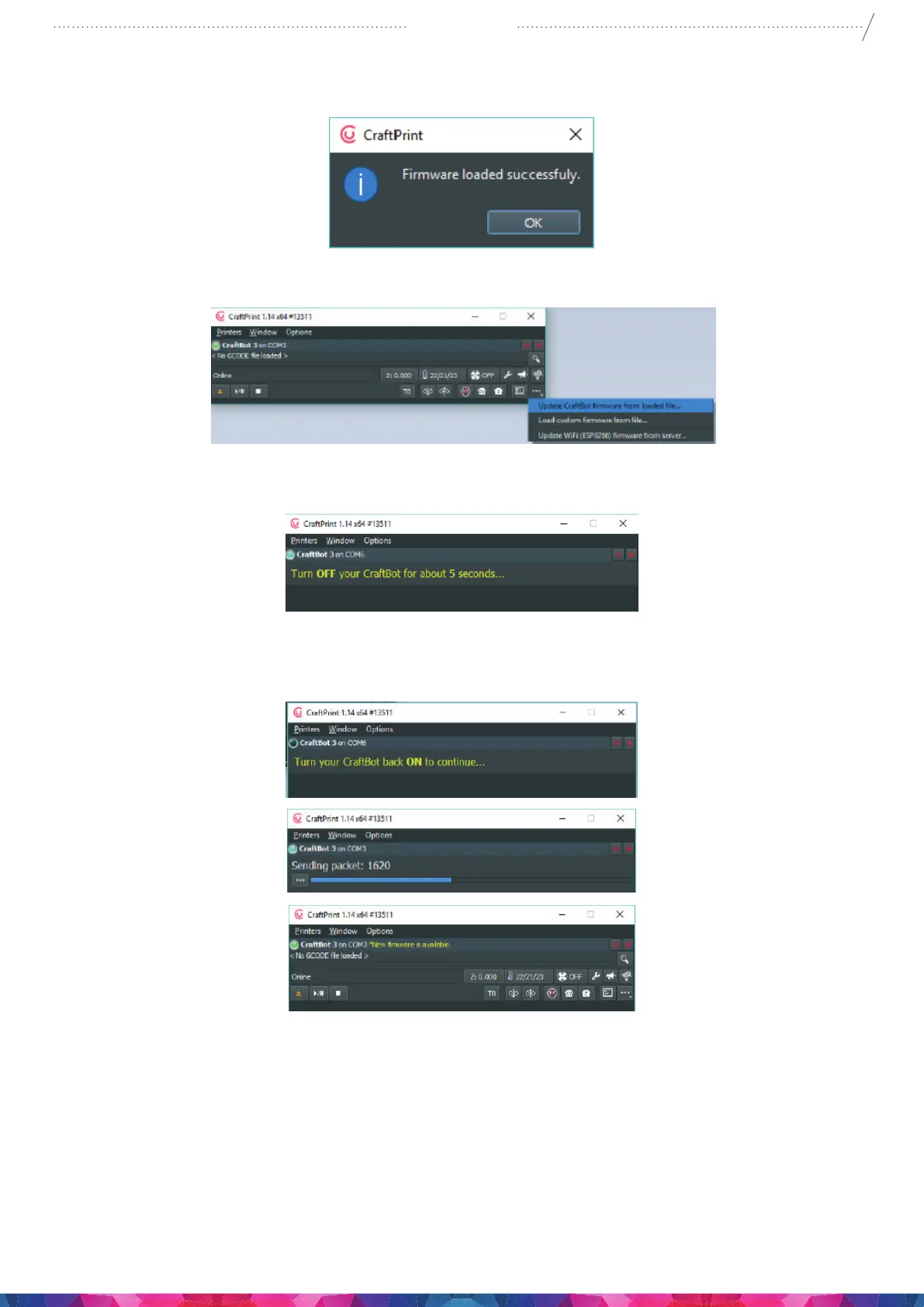
8. On successful load you will get a conrmation message, click OK!
9. Open again the “…” menu and select Update CraftBot rmware from loaded le…
10. When asked please turn o the printer at least 5 seconds.
11. Turn the printer back on and wait until the update nished
12. When the update has nished, power cycle the printer once again. (o/on) and Check the pr3Dator
rmware version on the printer LCD screen, select > settings icon and go to the 1st page.
13. Update is done.


 To Next Page