OPERATOR’S MANUAL
13
SECTION 1
USERS
The TorqueStar Opta can store up to 10 User names each
with a password. Users from this list can log in to the Opta
(see page 13).
Adding a new user
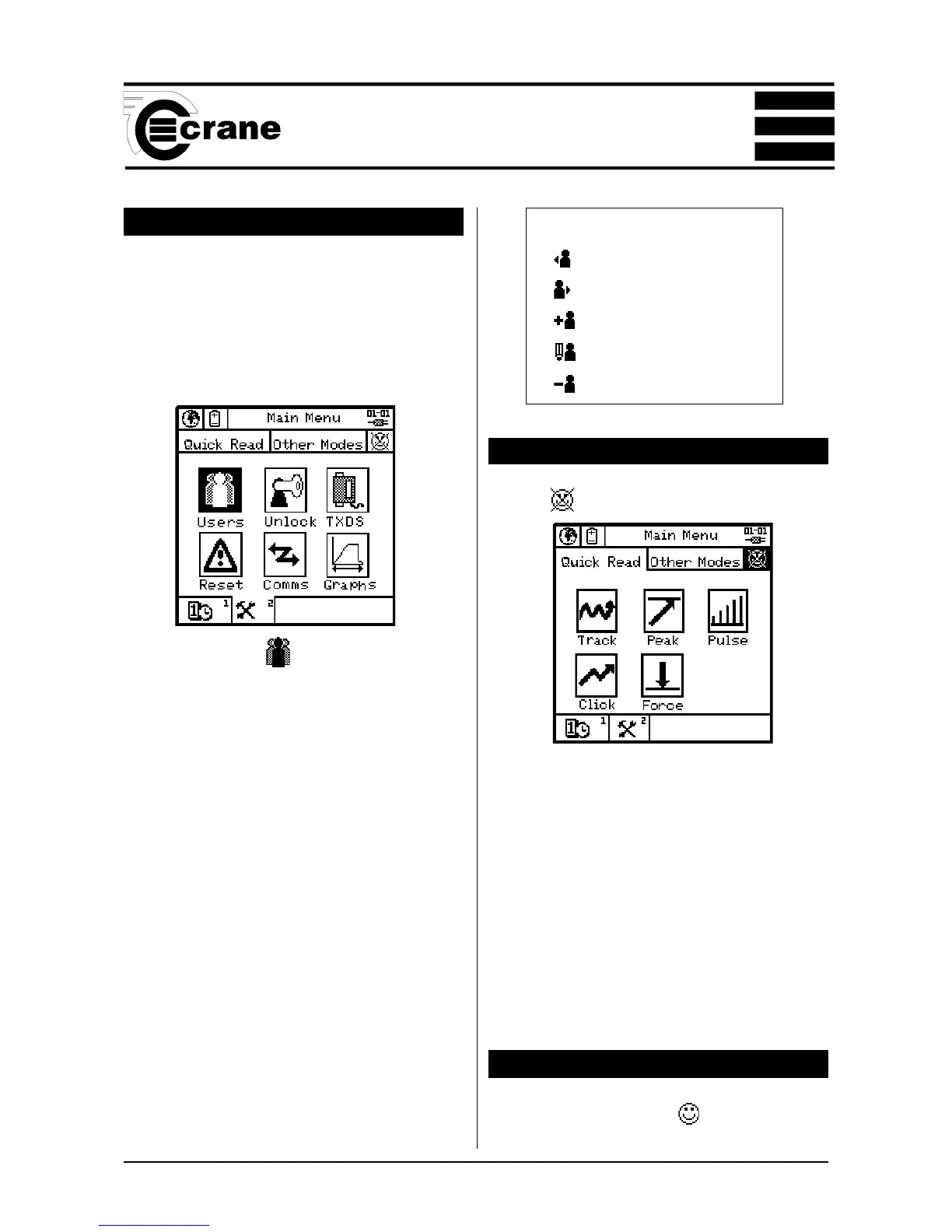
From the Main Menu screen, select the Tools screen.
Highlight the Users icon
.
From the Users screen, select Add User.
Key in the name using the keypad (press each key the
required number of times until the correct letter is displayed
then pause briefly before moving to the next letter) When
the name is correct, press ENTER.
Repeat this process for the required password.
Repeat to add more users as necessary.
When users are present, they can be viewed using the
Previous User and Next User functions.
Users can be edited by keying in the amended details as for
new users.
Users can be deleted by selecting the Erase User Icon. The
screen will then prompt ‘delete user?’
Press ENTER to Confirm
NOTE:
Only when there are no users, or the first user on the list is
logged in, can changes be made to the user list.
A user must be logged in to record data against Jobs or use
the Scan Setup mode.
LOGGING IN
Select the icon.
The screen will prompt ‘Press Enter to log in’ .
The screen will display a list of users. Highlight and select
the required user.
At the prompt, key in the user’s password and ENTER.
Note: Text is case sensitive.
The screen will now display the user’s name and the log in
time and date.
Either move to another screen or select the Logout icon to
log out.
LOGGING OUT
From the Main Menu, select the icon. Then select the
Logout Icon.
Icons used in the Users Menu
Previous user
Next user
Add user
Edit user
Erase user



 To Next Page