OPERATOR’S MANUAL
21
SECTION 1
VIEW STATISTICS
The View Statistics screen shows the following information
for the last group of readings taken:
x - (x-Bar) - for both Torque and Angle (if applicable)
R - for both Torque and Angle (if applicable)
s - (sigma) - for both Torque and Angle (if applicable)
To change the size of the samples from which the statistics
are based, highlight and select the figure Key in the required
number (between 0 and 200) and ENTER.
Note: Entering a figure of 0 will base the statistics over all
readings.
Select Option to include readings marked for a fault and
again to exclude them.
PLOT READINGS
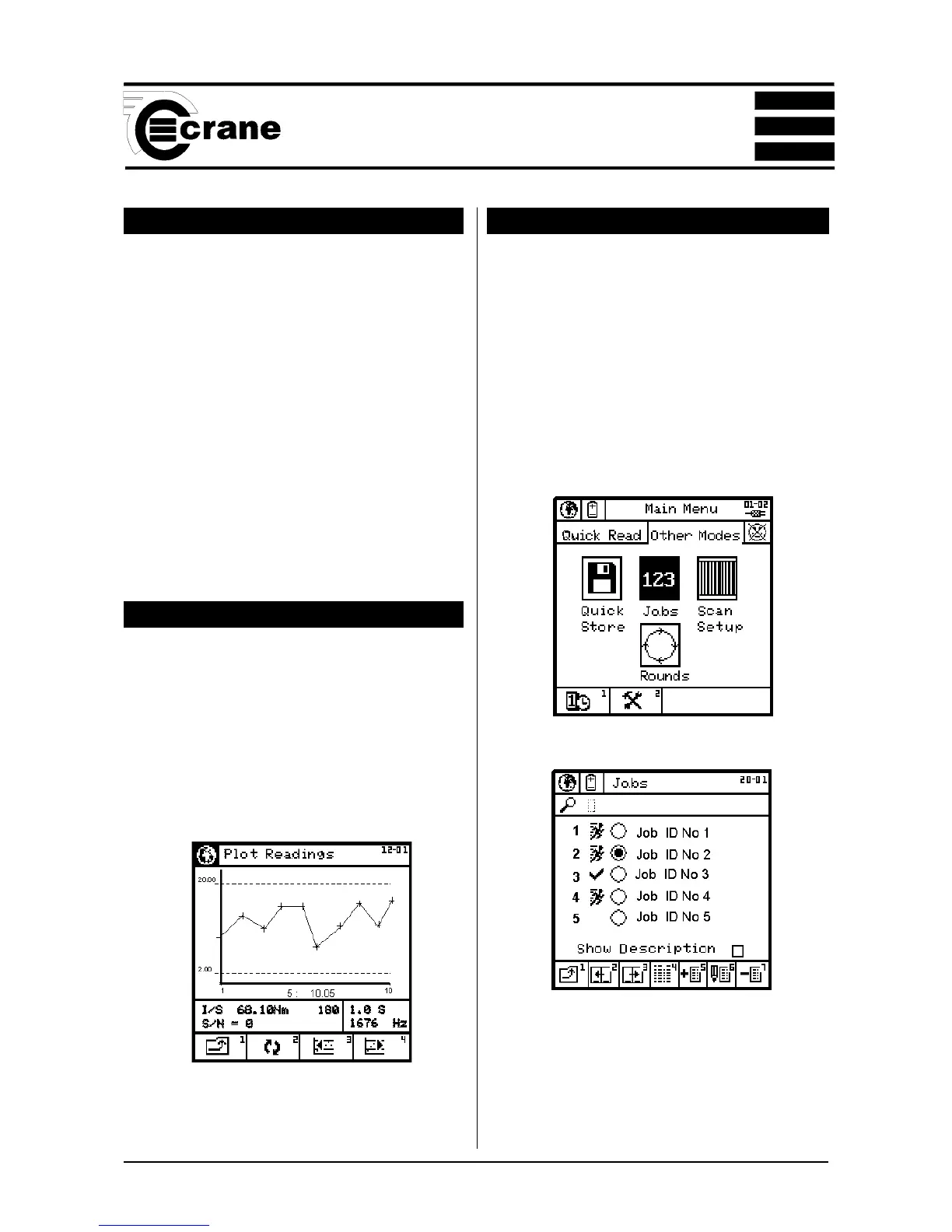
From the Quick Store mode select View readings.
From the View Readings screen, select Plot the Readings.
The Plot Readings screen will appear showing the plot and
the Upper and lower limits.
Scroll the plot to the right to view any points not able to fit on
to the screen or Scroll to the left.
Select Icon to toggle between Torque and Second Parameter
if selected.
JOBS
NOTE: A user must be logged in before any Job can be
performed.
The TorqueStar Opta can store a number of jobs consisting
of 1 - 50 Subgroups, each containing up to 1 - 30 samples.
These are stored with an optional user’s comment for
subsequent sequences of readings.
To access the Jobs mode
From the Main menu - Other Modes screen, select the Jobs
icon.
The Jobs screen will appear.
The list shows up to 5 jobs per screen up to a maximum of
275 jobs.
NOTE: If the Show Description box is checked select and
each page will show a single Job plus the description. Select
the box again to clear and return to normal listing.



 To Next Page