OPERATOR’S MANUAL
29
SECTION 1
UNLOCK FEATURE
Each Opta is supplied with a Certificate of Authenticity which
shows a software activation code (4 blocks of 4 digits) and a
list of the features available to the machine.
If the Opta has been reset, the code will have to be re-
activated to unlock the Opta and allow it to use all its features.
To unlock the Opta, from the main menu select the Tools
menu.
Select the Unlock icon.
The activation code will appear on the screen with an
arrow below the first digit.
The display will now show the communications screen.
For Information on using Opta Comms software, see the
Opta Comms Manual.
COMMUNICATIONS
The Opta can be connected to a Windows based PC to
upload and download data using the Opta Comms software
available from Crane.
Connecting to a PC
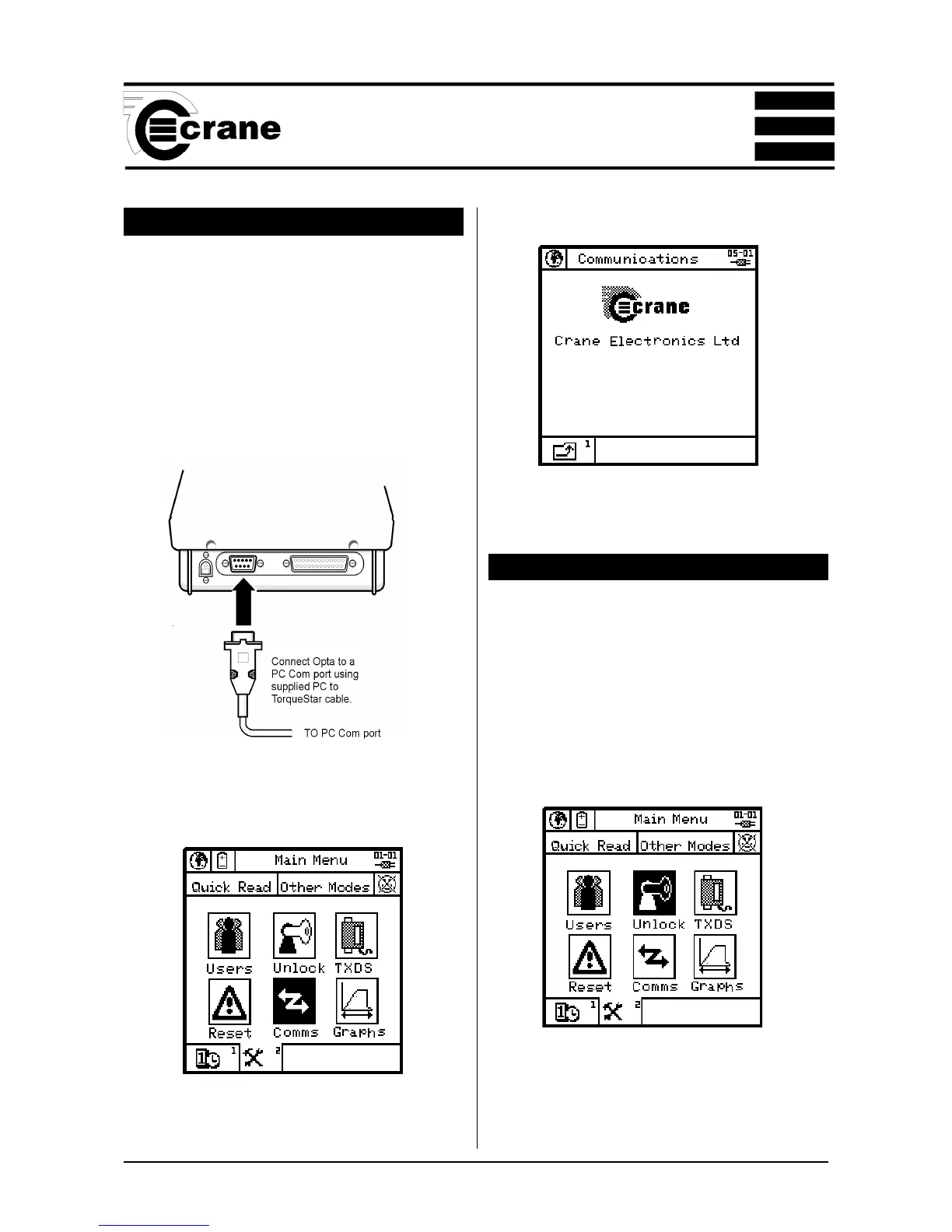
Using the PC to Torquestar cable, connect the Opta to the
PC COM port .
To activate Comms mode, from the Main Menu select Tools.
Select the Comms icon.



 To Next Page