OPERATOR’S MANUAL
30
SECTION 1
Use the
and keys to move the arrow across all of
the digits in turn, and the
and arrow to cycle
through the alpha numeric characters to input the correct
digits until the code displayed is the same as the one on the
certificate.
Options available:
Activate the Unlock Code.
The software is now unlocked. Features marked with a tick
are available to the user.
List Features
Return to Previous Screen
NOTE :
Any items not ticked in the list may be encountered during
operating the Opta as greyed out items. When attempts are
made to access these icons, an alert message will appear
advising the user that this item is currently unavailable. It is
possible for the user to upgrade to include these options by
contacting Crane Electronics Ltd. An update activation code
can be supplied to enable the user to access these features
without the need to return the Opta to the factory.
GRAPHS
TorqueStar Opta allows the selection of the maximum
duration of the Trace function.
Select the time required to suit your application.
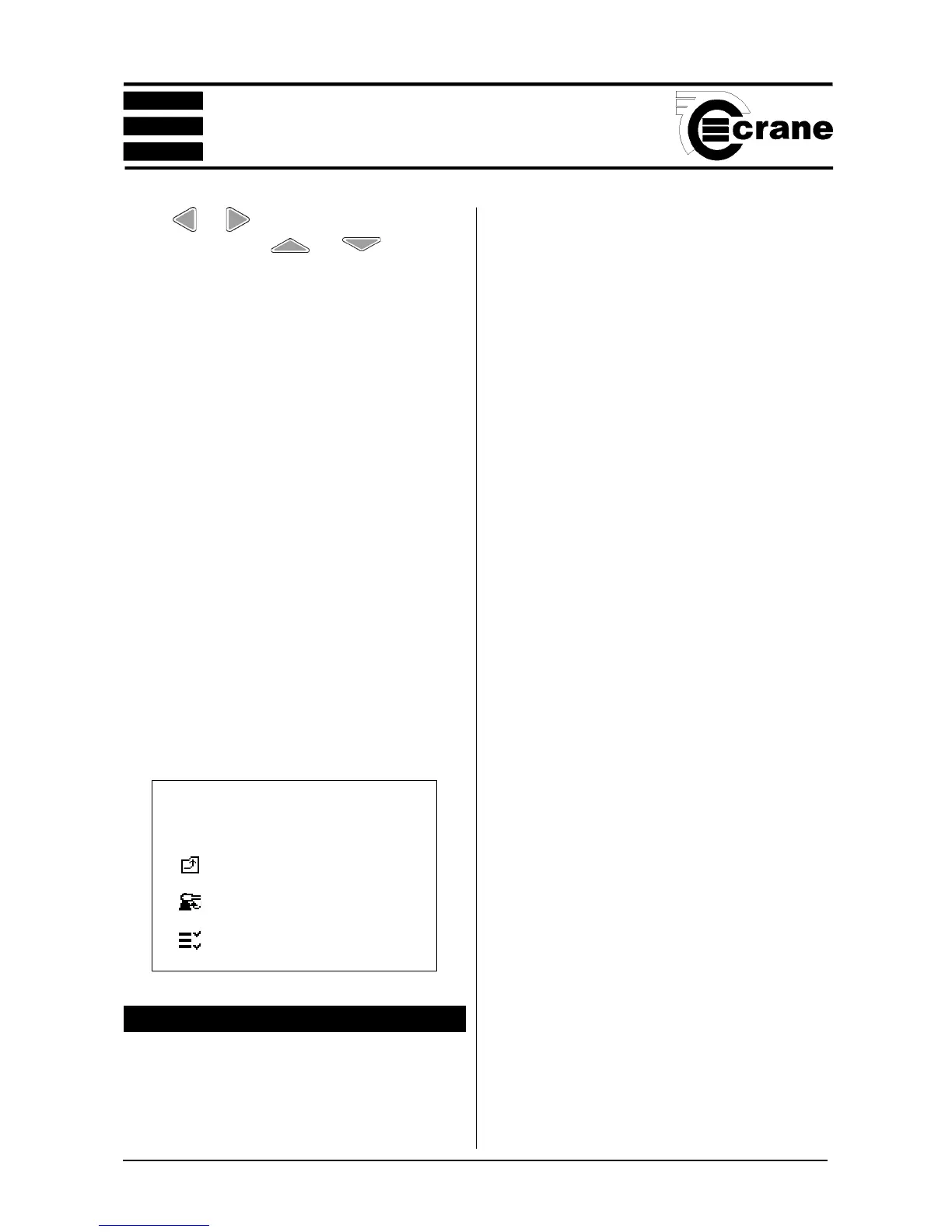
Icons used in the Unlock screen
Return to previous screen.
Activate unlock code
List features



 To Next Page