OPERATOR’S MANUAL
22
SECTION 1
Access the Reading Status screen for a particular reading.
Screen will prompt to ‘Select fault’
Options are No Fault, Stripped Thread, Double Hit, Blind
Hole, Crossed Thread, Other Bolt Cause or Operator
Error. Select an option . This option enables user to mark
a particular reading to be ignored for the purpose of analysis.
Screen will prompt ‘Select Action’ .
Options are; Do Quality Check, Replace Bolt, Report,
Investigate or Other Actions.
Change the Autostore option.
In the default mode, with the symbol showing, all readings
are saved automatically. Changing the symbol will cause
readings not to be saved unless the ENTER button is
pressed. The prompt will now read ‘Store Reading’. Pressing
the ENTER button will store. Pressing the CANCEL button
will ignore the reading and allow the user to continue.
A tick or cross appears on the screen to confirm the action
taken.
View a list of the torque readings stored and their status.
The display will show the torque and secondary parameter
(if any) for the stored readings and their status.
View the statistics for the list of readings.
In the Statistics display toggle between including or excluding
any readings marked for faults as described.
Show a plot for the readings. See page 21.
VIEW READINGS (JOBS)
From Jobs mode select View Readings.
A list of the current readings will appear in a similar format
to the one shown in Quick Store, with the addition of the
Subgroup number, the date and time, the transducer serial
number and the Job name.
Scroll down the readings to access any not able to fit on to
the screen. Scroll left and right to view their values.
Options Available
View readings (see page 22).
Add a new Job (see page 23).
Edit a Job
Delete a job
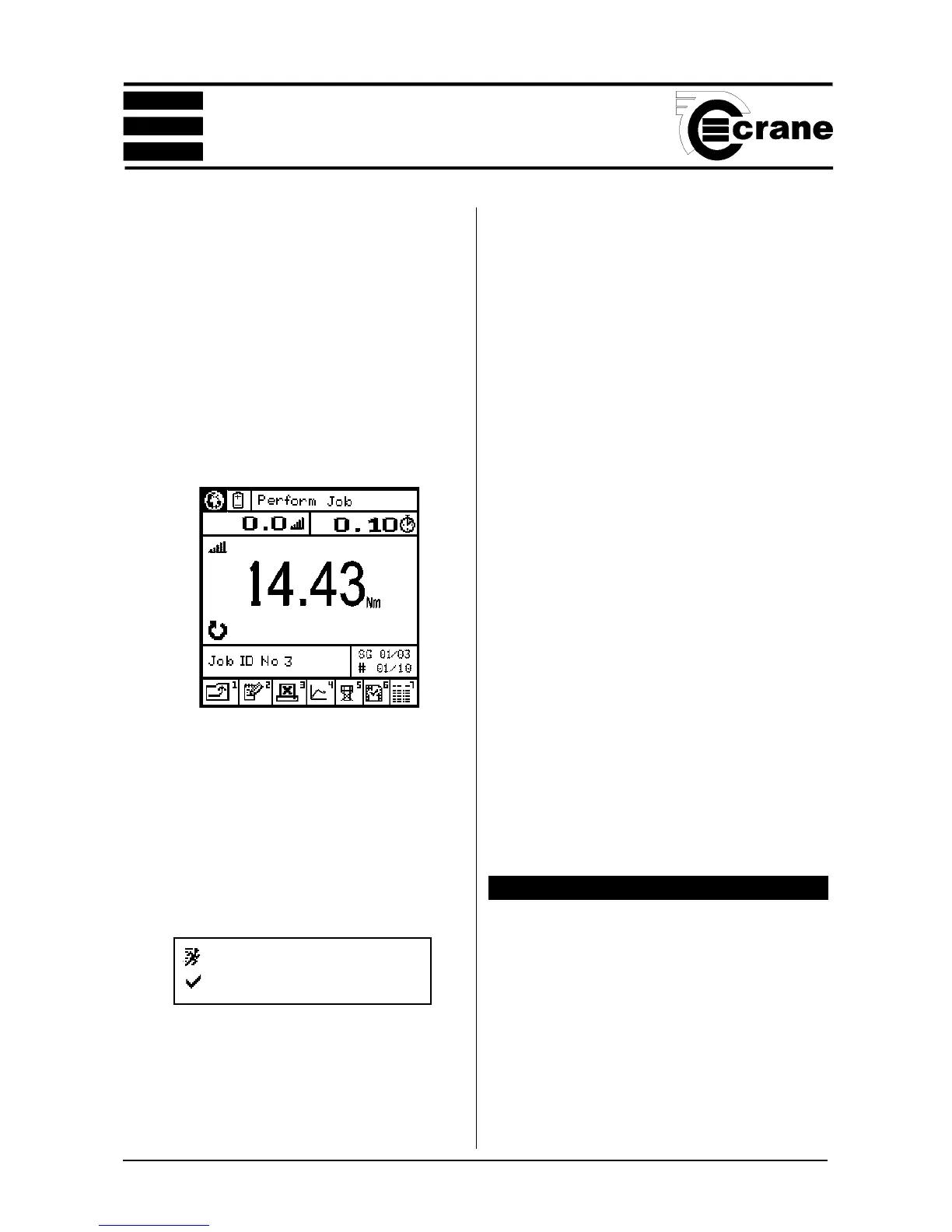
Select the required job. The Perform Job screen will now
appear ready to accept a series of readings. This is similar
to the Quick Store screen with the addition of the Job name,
the subgroup number, and an additional option for adding a
comment to jobs and subgroups.
As the readings are taken, the number of readings will be
counted until the target figure is reached. The number of
subgroups within the job will also be counted. The Opta
beeps twice afer each reading and 3 times when the end of
each group has been counted.
The following icons appearing next to Jobs in the list indicate
the following:
Options Available
Add a comment to the job.
Toggle sending data to the printer (see page 10)
View the plot trace (see page 16)
= job in progress.
= job has been completed.



 To Next Page