BevMax_Media_Programming_10_6_10 Page 39 of 106
08/15/2013
3. Combo Vends – Press the 3 Key to bring up a screen.
Press the 3 Key will bring up a screen listing two options.
Press the 1 Key will toggle the setting in a window
between Value and Percent.
This will set the way the discount is used, either a set
monetary amount or as a percentage of the purchase.
Press the 2 Key will bring up a screen allowing you to create a new combo group.
The 1 Key is the save button for your Combo. If
you fail to save the combo you create, your work
will be lost!
1. Press the 1 Key will Add New Combo once you have created it. If you do not
use this Key to SAVE YOUR WORK after you are done with all the other
Keys, your work will be lost!
Note: this functionality is available as long as you have selections assigned to the combo groups.
2. Press the 2 Key will toggle the active setting in the window between 2 and 3 Number of Groups in the
Combo Promotion.
This setting determines the number of groups of products that will be involved
in the Combo.
A. The 2 setting will involve two groups of products.
Example – (Chips, Candy Bar)
B. The 3 setting will involve three groups of products.
Example – (Chips, Candy Bar, Soda)
If 3 setting is selected, an additional line will appear further down in your screen.
It will have the title of “Edit Group 3” and show the number selected as do the
other two groups. The numeric Keys for the functions below will also shift to reflect the additional line.
3. Press the 3 Key will open a window that will allow you to enter a Discount Percentage for the promotion
using the numeric Keys.
Press the OK Key to accept the new number.
4. Press the 4 Key will toggle the active setting in the window for Discount All between Yes and No.
A. Selecting YES will apply the discount to each of the items in the
Combo.
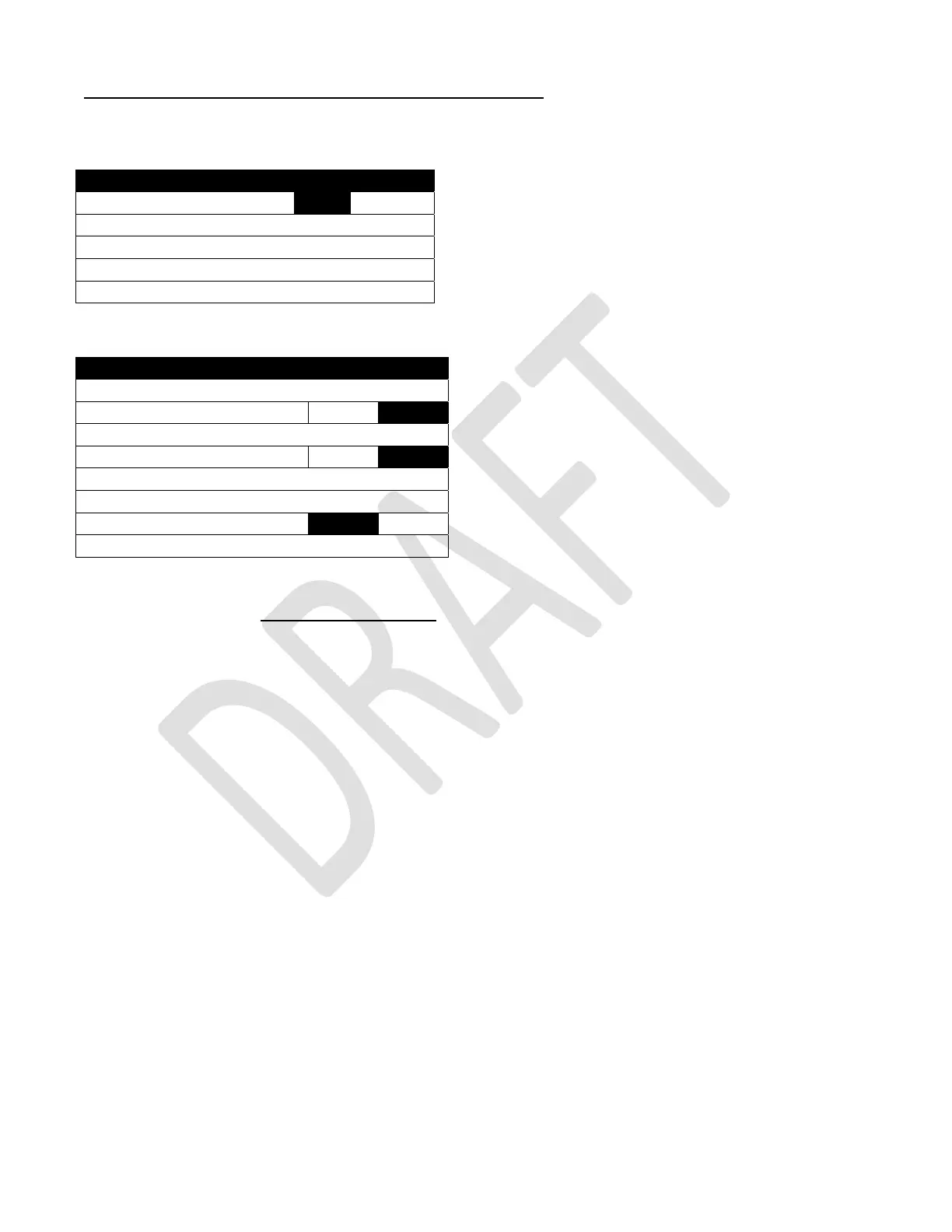
Combo Vends
1) Discount Type Percent
2) Add New Combo >
3) Delete Promotion >
4) Edit Promotion >
5) Combo Vend Selection >
Add New Combo Promotion
1) Add New Combo Groups Not Selected>
2) Number of Groups in 2
3) Discount Percentage 0
4) Discount All No
5) Edit Group 1 0 Selected>
6) Edit Group 2 0 Selected>
7) Enable Custom Message Yes
8) Message (only visible when 7 is set to Yes)


 To Next Page