BevMax_Media_Programming_10_6_10 Page 62 of 106
08/15/2013
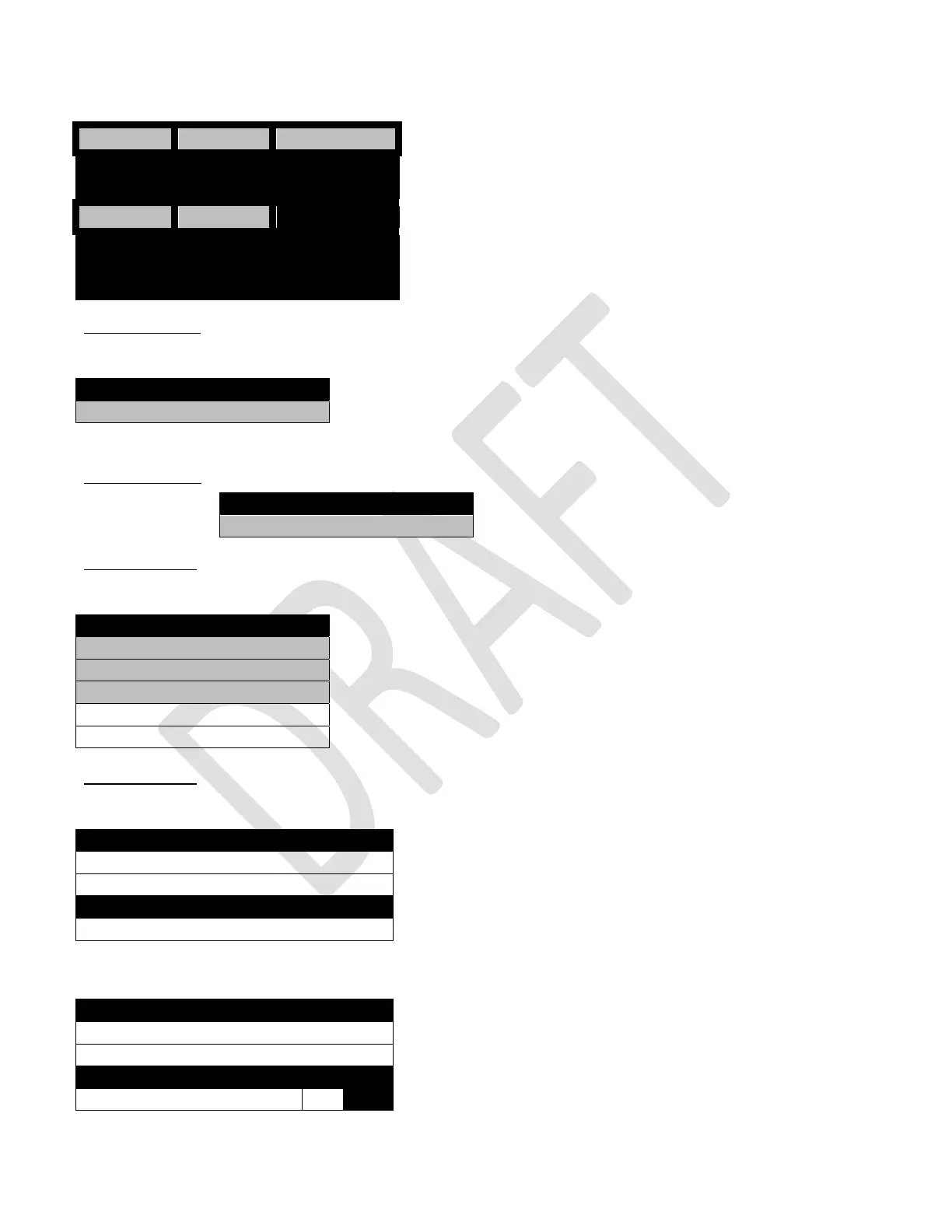
Entering a manufacturing code of 5,5,5,5 will bring up a screen used in the factory for set up and testing.
This feature is meant for Factory use only and should not be used in the field.
Use the numeric Keys to choose an option.
Choosing an option will bring up the first screen for that
option.
Press the 1 Key will bring up a screen with the option to restore factory config and clear all Databases.
Press the X Key to return to the Menu Screen.
Press the 2 key will bring up a screen with the option for Keypad Test. Press the X Key to return to the
Menu Screen.
Press the 3 key will bring up a screen with five options. #4 and #5 are added options. Press the X Key
to return to the Menu Screen.
Press the 4 key will bring up a screen listing the options and functions for Factory
Setup and Screen Brightness.
Use the numeric Keys to choose an option.
Choosing an option will bring up the first screen for that
option. Press the 1 Key will scroll forward through the
available options of settings to adjust. Press the 2 Key will
list any errors registered. Press the 3 Key will enter the
option shown and allow adjustments as explained in other
sections of the programming information. Press the X Key to move backward 1 step in the menu.
Press the 1 Key will scroll forward through the available
options of settings to adjust. Press the 2 Key will list any
errors registered. Press the 3 Key will toggle the option
setting shown from No to Yes. Press the OK Key to save the
setting you wish to use. Press the X Key to move backward
1 step in the menu.
1 2 3
RAM
Clear
Test Security
Codes
4 5
Factory
Setup
Final
Checkout
RAM Clear
1) Restore Factory Config >
Test
1) Keypad test >
Security Codes
1) Enter PIN >
2) Change Driver PIN
3) Change Operator PIN
4) Change Engineer PIN
5) Change Manufacturer PIN
Factory setup
1) Next Step >
2) Diagnostics >
Screen Brightness
3) Screen Brightness
Factory setup
1) Next Step >
2) Diagnostics >
EVS Compliance
3) EVS Compliant No Yes


 To Next Page