
 Need help?
Do you have a question about the Creality K1C and is the answer not in the manual?
Welcome message and general advice for using the manual.
Critical safety instructions for printer operation and environment.
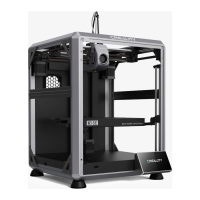
Identifies and labels the main components of the K1C printer.
Detailed parameters of the printer, including dimensions and capabilities.
Lists all items provided in the printer package.
Step-by-step guide for safely removing the printer from its packaging.
Instructions for attaching components like the door handle, air filter, and touch screen.
Steps for installing the material barrel and loading filaments.
Guide for language selection and initial screen configuration.
Walkthrough for initial power-on, network setup, and self-check.
Overview of the main screen, temperature, speed, and mute mode settings.
Navigating and managing print files from local storage or USB drives.
Accessing system settings, network configuration, and help resources.
Detailed steps for initiating a print using a USB flash drive.
Guide to downloading, installing, and using Creality Print for network printing.
Steps for adding devices and managing them within Creality Print.
Instructions for downloading, installing, signing up for, and logging into the Creality Cloud app.
Guide to adding the printer and selecting models for printing via the Cloud app.
Detailed explanation of the extrude and retract functions for filament management.
Using the AI camera with Creality Print for monitoring and abnormality detection.
Viewing time-lapse photography captured by the AI camera via the Creality Cloud app.
Utilizing Creality Print for time-lapse photography settings and viewing.
Guide to regular maintenance for the printer's components and lifespan.
Instructions for lubricating the printer's axes and screw rods.
Information on using and maintaining PEI and textured spring steel print platforms.
Procedures for removing models, cleaning debris, and platform adhesion tips.
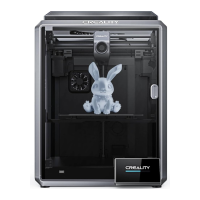
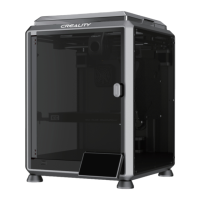
The Creality K1C is a 3D printer designed for users who want to "create reality, achieve dreams" through additive manufacturing. This user manual provides comprehensive instructions for operating and maintaining the printer, ensuring a smooth and efficient printing experience.
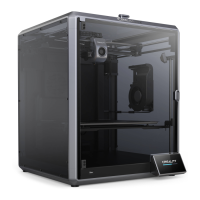
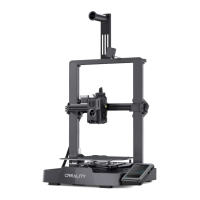
The Creality K1C is a Fused Deposition Modeling (FDM) 3D printer, meaning it builds objects layer by layer by extruding molten thermoplastic material. It is designed to be a versatile tool for various printing needs, from basic models to more complex engineering parts. The printer features a fully enclosed chamber, which is beneficial for printing with materials that are sensitive to temperature fluctuations, helping to prevent warping and improve print quality. The enclosure also contributes to a safer and quieter operating environment.
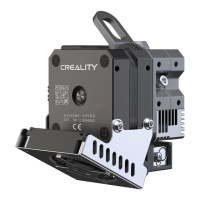
The K1C is equipped with a Sprite Direct Drive extruder, which is known for its strong extrusion force and precise control over filament feeding, making it suitable for a wide range of filaments, including flexible ones. The printer also boasts a maximum nozzle temperature of 300°C and a heated bed that can reach 100°C, further expanding its compatibility with various high-temperature filaments.
For user interaction, the K1C features a 4.3-inch touch screen, providing an intuitive interface for controlling print operations, monitoring progress, and adjusting settings. The printer supports multiple printing interfaces, including USB flash disk, LAN printing, and Creality Cloud printing, offering flexibility in how users send their models to the printer.
Advanced features include power loss recovery, which allows the printer to resume printing from where it left off after a power interruption, saving time and material. Filament detection is also integrated, pausing the print if the filament runs out or breaks, and auto-leveling ensures a consistently flat and accurate first layer, which is crucial for successful prints. An integrated camera allows for remote monitoring of the printing process and supports AI-driven features.
The Creality K1C is designed for ease of use, from unboxing to the first print. The unboxing process is straightforward, with clear steps for removing packaging and installing components like the door handle and air filter cartridge. The touch screen connects easily to the base, and users are cautioned to ensure proper power supply settings (115V or 230V) to prevent damage.
Loading filament is made simple with a material barrel and a clear guide to insert the filament into the Teflon tube. The printer's top cover is installed after setting up the buffer strip, and users are advised on when to remove or keep the transparent cover based on the filament type and chamber temperature to optimize print quality and prevent issues like cracking.
The initial power-on guide includes a language selection, a self-check process that takes about 11 minutes, and a reminder to calibrate the platform regularly, especially after 300 hours of printing or if the platform/nozzles are replaced. This ensures optimal adhesion of the first layer.
The user interface is designed to be intuitive, with sections for "Main," "Prepare," "Files," "Tune," and "Support." The "Main" screen displays real-time information such as nozzle, hotbed, and chamber temperatures, along with print progress and remaining time. Users can manually set parameters and select a "Mute Mode" to reduce operational noise. The "Prepare" section allows for extruding or retracting filament, with temperature preheating options to ensure proper material flow.
The "Files" section enables users to manage print models from a local storage, USB drive, or view print history. Models can be multi-selected and copied to a USB flash drive, and print calibration can be chosen to improve print quality.
For network printing, the Creality Print software can be downloaded from the Creality Cloud website or found on the USB flash drive. The software guides users through choosing a language, selecting a printer, importing model files, and slicing them for printing. The device can be added by scanning or manually entering its IP address, allowing for seamless LAN printing.
Creality Cloud printing offers remote control and monitoring capabilities. Users can download the Creality Cloud app, sign up, log in, and bind their device by scanning a QR code. The app allows users to select models, view print details, and initiate prints remotely.
The integrated AI camera enhances the printing experience by monitoring the process and capturing time-lapse photography. It can detect foreign matters on the platform before printing and identify printing abnormalities during the process. Users can activate AI features, adjust sensitivity, and enable first-layer detection or printing pause due to faults. Time-lapse photography can be viewed and exported to a USB flash disk, providing a visual record of the print.
Routine maintenance is crucial for the longevity and optimal performance of the Creality K1C. The manual provides a detailed list of maintenance items and instructions.
The manual also provides contact information for Creality's after-sales service center and directs users to the official website for tutorials and support. It emphasizes that the current interface is for reference only and is subject to change with firmware updates.
 General
| Nozzle Diameter | 0.4 mm |
|---|---|
| Filament Diameter | 1.75mm |
| Build Volume | 220*220*250mm |
| Print Speed | 600 mm/s |
| Max Hot End Temperature | 300°C |
| Supported Filaments | PLA, PETG, TPU, PA, ABS, PC |
| Connectivity | USB, Wi-Fi |
| Printing Technology | FDM |
| Display | 4.3-inch Touchscreen |
| Leveling Mode | Automatic |

 To Next Page