6 • TSR-310: Handheld Touch Screen Remote Supplemental Guide – DOC. 8226D
Configure the TSR-310
Refer to the following sections for information about each TSR-310 setup screen.
Display Setup
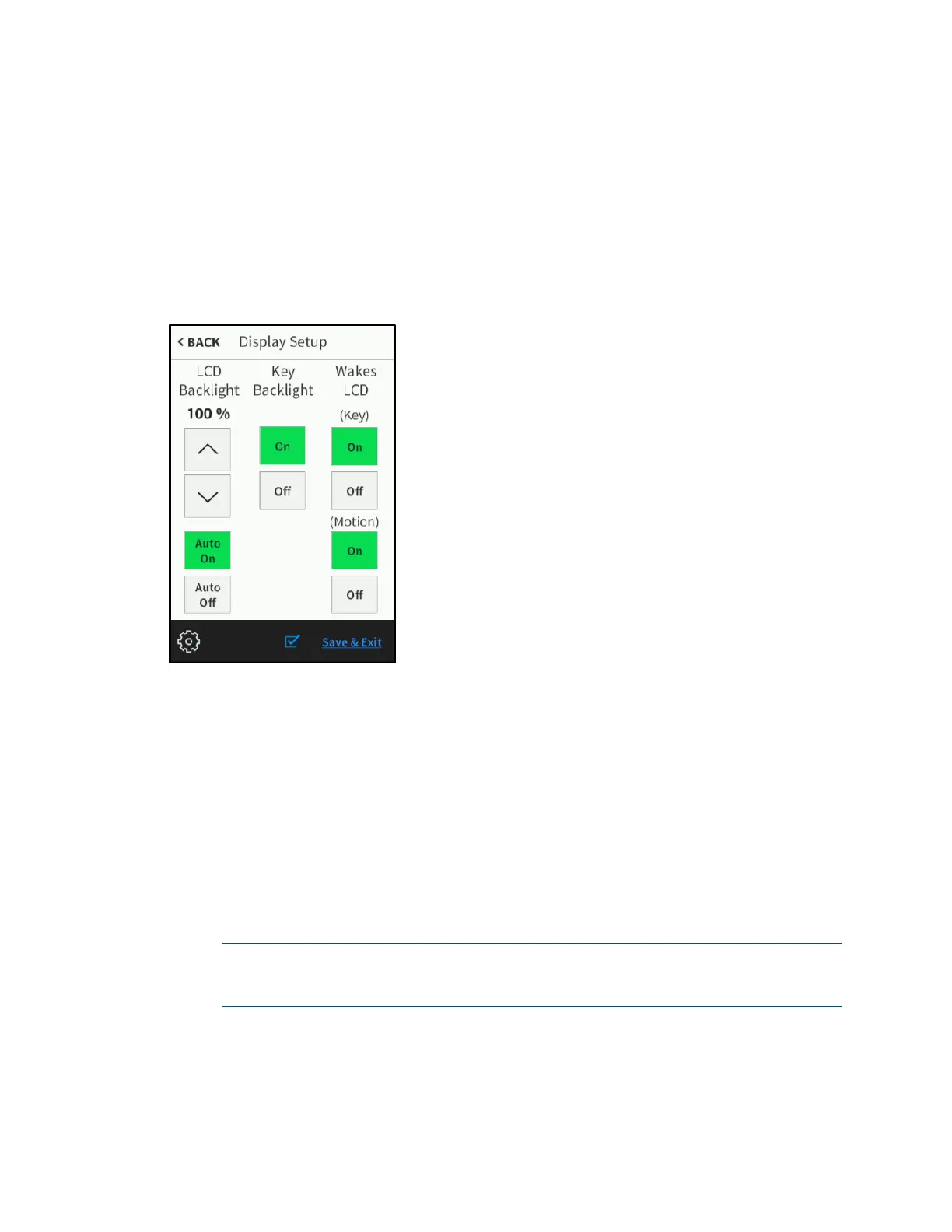
On the setup screen, tap Display Setup to display the Display Setup screen.
Display Setup Screen
Use the Display Setup screen to adjust LCD backlight and hard button backlight
settings:
• If Auto Off is selected below, tap the up and down arrows under LCD Backlight
to raise or lower the brightness level of the LCD backlight from 0 to 100%.
• Tap Auto On or Auto Off under LCD Backlight to turn setting the brightness of
the LCD backlight automatically on or off.
• Tap On or Off under Key Backlight to turn the key (hard button) backlight on or
off.
• Tap On or Off under Wakes LCD (Key) to turn the ability to wake the LCD by
pressing any button on the remote on or off.
NOTE: If Wakes LCD (Key) is set to Off, the LCD wakes only when the power,
microphone, or home buttons are pressed. Refer to the illustration on page 1 for
button locations.



 To Next Page