Cyrus Pre
2
DAC User Instrucons
13
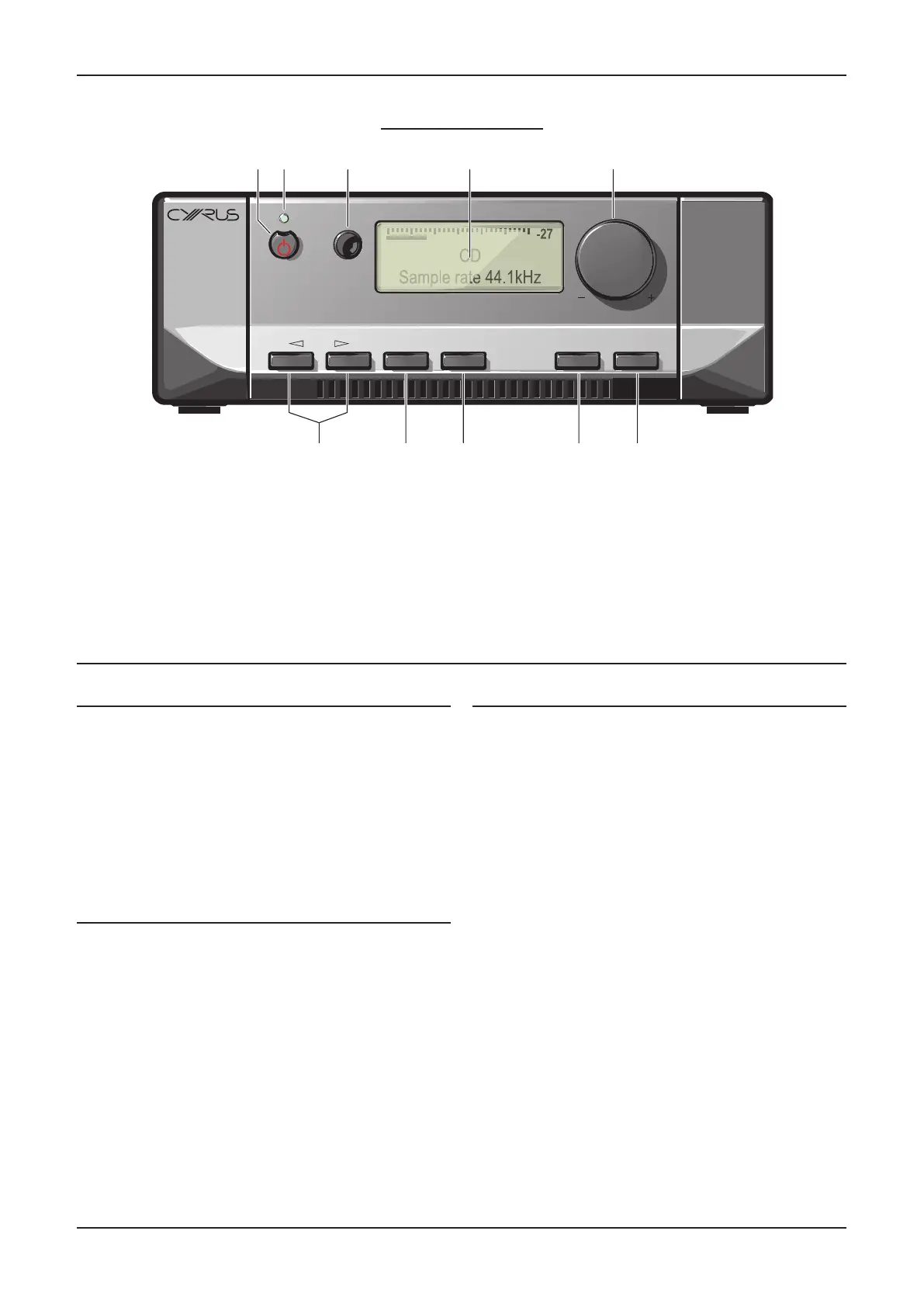
1. Standby switch
2. Standby light
3. Remote eye
4. Display window
5. Level control and setup adjust
OPERATION
6. Setup select
7. Zone 2 select
8. Headphones select
9. Mute select
10. Input select
Power
When power is applied, the STANDBY key a is used for power
control. The Standby light b shows green when the amplier
is operang and glows red when in standby mode.
In regular use the amplier should be connected permanently
to the mains power supply. When le unaended for a long
period (holidays etc) it should be disconnected from the AC
supply.
When the amplier is switched to Standby, all sengs for
input selecon and Volume/Balance are retained.
Selecng an Input
Inputs may be selected from the front panel INPUT SELECT
keys 1) or with the remote control INPUT SELECT keys. Press
the up or down buon to scroll up or down through the
inputs available.
NOTE: A choice of three styles is available for appearance of
the front panel display. These may be selected through the
setup menu. The factory default seng - ‘small input’ display
will also idenfy the sample rate of the selected source
(digital inputs only) and indicate ‘Invalid Audio Format’ for
program material which cannot be decoded (such as mul-
channel digital sound from DVD players).
Selecng the ‘Cyrus AV’ or ‘AV Direct’ Inputs
The ‘Cyrus AV’ and ‘AV Direct’ input names are reserved
only for use with surround-sound decoders. When one of
these inputs is selected, the volume control on the amplier
will lock and the surround decoder input select and volume
controls are used to select a mul-channel source and set
the volume level for the system.
To unlock the volume control and return to playing a stereo
source, select the input you want to play at the amplier.
NOTE:- The Zone 2 select key will funcon when ‘Cyrus AV’
or ‘AV Direct’ are selected.
-27
CD
Sample rate 44.1kHz
MUTE PHONES SETUPZONE 2
INPUT
Pre
2
DAC
a
Key to the front panel drawing



 To Next Page