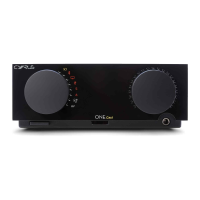
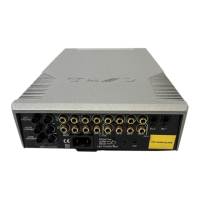
Cyrus Pre
2
DAC User Instrucons
14
Volume and Balance
The level control e performs the dual funcons of volume
and balance.
Volume: In normal mode the level control sets the volume
in 1dB steps. A bargraph and a numeric scale at the top of
the display window show the current volume seng. The
last used volume seng is stored when the unit is set to
standby.
If the volume is set to an abnormally high volume level
(greater than –15dB) before entering standby, the level will
be reduced automacally to a safer level of –15dB for next
use. Similarly, the volume will be reduced to a safer level if
the amplier was muted while set to a high volume seng,
or aer listening to headphones at a high volume seng.
Balance: Press the balance control key on the remote
control to change the mode of the front panel rotary control
e to set Le/Right Balance.
Listening to headphones
To listen to headphones, rst connect your headphones
to the 3.5mm headphone jack on the back panel of the
amplier. Press the PHONES key h. The display will briey
show the legend ‘Headphones On’, the sound will fade down
in the speakers, and fade up in the headphones. To return to
speaker operaon, press the PHONES key h again.
NOTE: The PHONES key h only operates when headphones
are connected to the rear panel socket.
Warning: Excessive sound pressure from earphones and
headphones can cause hearing loss.
Cauon: If you have been listening to headphones at high
volume, be sure to turn the level down before you switch to
normal loudspeaker operaon.
Playing music in Zone 2
As supplied from the factory, the Zone 2 system will always
play the same source as the main system. Changing the
main system source will also change the source playing in
Zone 2.
If required, it is also possible to select a dierent source for
Zone 2 from the main system.
While the Zone 2 indicaon is showing on the display, turn
the rotary control to select a dierent source for Zone 2.
Press the Zone 2 key again to conrm selecon of the input
source displayed.
NOTE: If a digital input is selected for the main system, then
this will be the only digital source selectable for Zone 2. If
an analogue source is playing in the main system, then all
digital sources will be selectable for Zone 2.
NOTE: Input 6 is reserved for connecon to a Tape Recorder,
so is not selectable for Zone 2/Recording purposes.
Zone 2 Output
CD
The balance may be adjusted in 1 dB steps by up to 4dB
toward the le or right channels by turning the level control
or pressing the volume up/down keys on the remote
control.
Aer the 4dB seng, one further step will swing the sound
balance completely to the le or right speaker. This seng
may be useful when checking if the system channels are
working correctly etc.
Mute
Pressing the MUTE Key i will mute the volume to minimum
level without disturbing the exisng volume seng. When
muted the display will show that the volume is muted. Press
the MUTE key again or move the volume knob up to fade
back up to the original volume seng.
-27
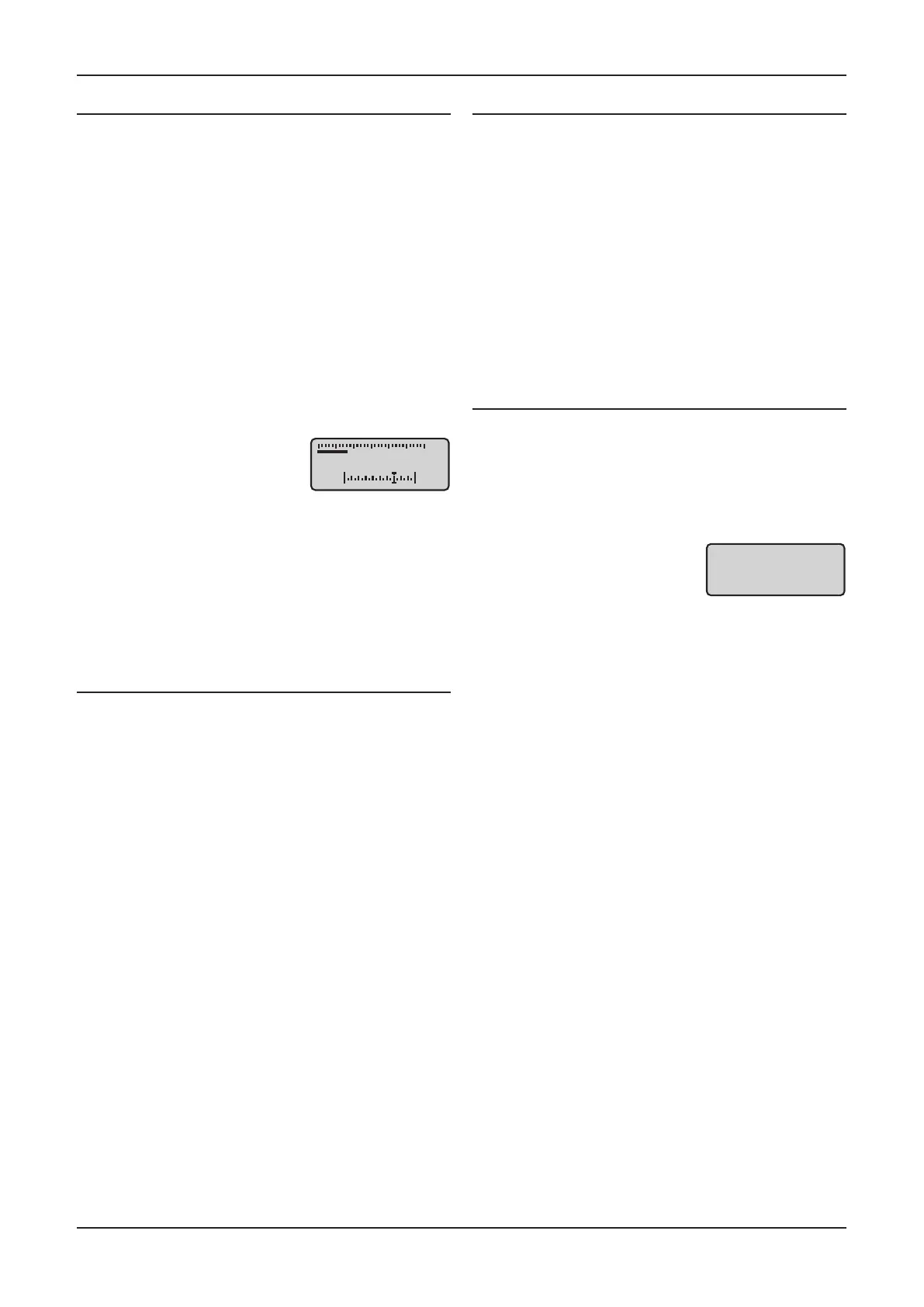
Balance
The volume display will change
to show a graphic display of the
balance seng.
To select a dierent source, press
the front panel Zone 2 key, the
display will show the input source
currently selected for Zone 2.



 To Next Page