EasyManua.ls Logo

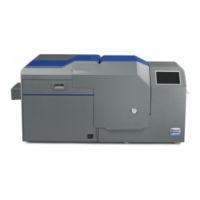
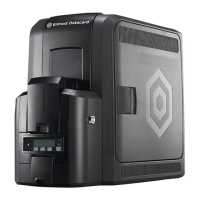
DataCard CR805 - User Manual

DataCard CR805
156 pages
Print Icon
To Next Page IconTo Next Page
Loading...
Datacard
®
XPS Card Printer Driver
User’s Guide
October 2016
Part No. 527280-004, Rev. A

Table of Contents

Other manuals for DataCard CR805

Questions and Answers

  • P
    pearsonmichaelSep 1, 2025
    How to fix opaque areas on DataCard CR805?
    • J
      jeremy55Sep 1, 2025
      If the patch shows opaque areas at the leading edge of the card when using your DataCard Printer, decrease the laminator temperature setting. If the problem continues, contact your service provider for assistance.
  • D
    dmartinezAug 31, 2025
    How to set correct page size for DataCard CR805?
    • B
      barnettandrewAug 31, 2025
      If the page size was not set to the correct size for your DataCard Printer, and you are using the Card Printer Driver, use the page setup feature of your application to set the page size to ISO ID-1 Retransfer.
  • S
    Scott BennettAug 30, 2025
    How to turn off Disable Printing in DataCard Printer?
    • K
      kyleandersonAug 30, 2025
      If the 'Disable Printing' option in the Card Printer Driver is set to 'All', 'Front', or 'Back', open the Preferences, then go to Layout, and then the Advanced tab. Change 'Disable Printing' to 'Off'.
  • D
    David WilliamsAug 29, 2025
    Why DataCard CR805 Printer is not available?
    • P
      Patricia JarvisAug 29, 2025
      If the Printer Properties > Status tab shows that your DataCard Printer is not available, the printer may not be configured with the correct network address. Ensure that the server name or IP address is correctly entered in the Port Settings or Configure Port dialog box on your computer. Also, verify that 'Ready' is displayed on the printer's LCD panel.
  • S
    Shawn CoxAug 28, 2025
    How to resolve temporary communication problem on DataCard CR805 Printer?
    • J
      James StewartAug 28, 2025
      To resolve a temporary communication problem with your DataCard Printer, consider the following: ensure you are not using USB extension cables, as they can cause issues. The recommended USB cable length is 6 feet (2 meters), and it should be rated for USB 2.0 data transmission. If using a USB hub, a self-powered hub is recommended.
  • J
    jonathanhoodAug 27, 2025
    Why PC USB port does not communicate with DataCard CR805?
    • E
      efernandezAug 27, 2025
      If the PC USB port isn't communicating with the DataCard Printer USB port, it might be due to power management settings on your PC shutting down USB communication. To fix this, open Device Manager and go to the list of USB devices. Disable the shutdown option for each hub in the list. Restart your PC for the changes to take effect. If you are using a laptop, allow a few moments after hibernation for USB communication to be enabled. You can also try unplugging and reconnecting the USB printer port. If the problem persists, consider replacing the PC port or the PC. Contact your PC or port vendor for further assistance if needed.
  • S
    Stephanie HansonAug 27, 2025
    What to do if the data cable is damaged on DataCard CR805?
    • B
      brad40Aug 27, 2025
      If the data cable of your DataCard Printer is damaged or frayed, power off the printer. If you have a spare cable, replace the damaged one. Otherwise, contact your service provider to order a new data cable.
  • J
    Jasmin HoffmanAug 25, 2025
    What to do if a print job disappears from the DataCard Printer queue?
    • K
      Krista OrtizAug 26, 2025
      If a print job disappears from the queue of your DataCard Printer without printing, it may be due to the USB cable being disconnected after the job was sent. Reconnect the cable and try the job again.
  • R
    Regina GarciaAug 25, 2025
    How to fix a loose cable on DataCard Printer?
    • L
      Lauren VegaAug 25, 2025
      To resolve a loose cable issue with your DataCard Printer, reconnect the USB cable to both the PC and the printer ports. Then, power the printer off and back on. If the PC and printer still don't communicate, restart your PC.

Summary

Chapter 1: About the Printer Driver

Supported Operating Systems

Lists the Windows operating systems supported by the Card Printer Driver.

Supported Printers

Lists the Datacard and Entrust Datacard printers supported by the driver.

Driver Task Overview

Provides an overview of the tasks performed by the Card Printer Driver after installation.

Printer;Driver Communication

Explains how the printer and driver communicate via USB or network connections.

Chapter 2: XPS Card Printer Driver Installation

Install the Driver

Step-by-step instructions for installing the driver via USB or network.

Update the Card Printer Driver

Process for updating an existing Card Printer Driver installation.

Update the Driver

Procedure for updating the Card Printer Driver to the latest version.

Update a Shared Printer Client

Guidance on updating the driver on client PCs in a shared printer setup.

Connect More Than One Printer

Options for connecting multiple printers to a single PC.

Install Additional USB Printers

Guidelines for installing multiple printers using USB cables.

Use the Card Printer Driver for Secure Printing

Enables secure, encrypted transmission of print commands and card data.

Use Printer Manager to Set Up Secure Printing

Step-by-step guide to configuring secure printing via Printer Manager.

Use Printer Sharing

Enables sharing a printer over a network using Microsoft File and Printer Sharing.

Use Printer Pooling

Enables printing to a group of printers acting as one.

Set Up a Printer Pool

Step-by-step instructions for configuring printer pooling.

Chapter 3: Card Printer Driver Management Tasks

The Printer Properties Window

Allows viewing printer settings and defining printer communication with the PC.

Printer Status Tab

Displays printer status, port type, IP address, and printer information.

Uninstall the Card Printer Driver

Procedures for removing the Card Printer Driver from the PC.

Chapter 4: Card Design Tasks

Design Tasks in Windows Printing Preferences

Specifies default settings for card printing via Printing Preferences.

Disable Printing

Allows sending a card through the printer without printing on it.

Apply a Second Layer of Retransfer Material

Applies an additional layer of retransfer film for durability.

Print Area Tab

Specifies printing and non-printing areas on the card.

Retransfer Printer Print Area Tab

Selects preset masks for CR805 retransfer printers.

Printer Setup for Rewritable Cards

Ensures printer, manager, and driver are set up for rewritable printing.

Card Design for UV Ribbon

Supports color print ribbons with a UV fluorescent panel for security.

Escapes

Formatted text converted to printer commands for operations.

Print Blocking Escapes

Methods to prevent printing and topcoat on specific card areas.

Print Bocking in a Retransfer Printer

Blocks primer on smart card chips and applies inhibitor to magnetic stripes.

Magnetic Stripe Escapes

Formats magnetic stripe data when application cannot.

Apply a Second Retransfer Layer Escape

Applies a second layer of retransfer film for added durability.

Embosser Escape

Specifies font and position for embossed/indented data.

Magnetic Stripe Fonts

Provides fonts to format magnetic stripe data when escapes are not used.

Chapter 5: Installation Troubleshooting

Troubleshoot the Card Printer Driver Installation

Addresses common issues preventing successful driver installation.

USB Installation Troubleshooting

Solves problems related to installing the driver via USB connection.

Network Installation Troubleshooting

Solves problems related to installing the driver over a network connection.

Appendix B: Windows Server 2008 and 2012 Printer Sharing

Set Up the Host PC for Printer Sharing

Configures the host PC for printer sharing on Server OS.

Install the Card Printer Driver on the Client PC

Installs the driver on client PCs for Server OS sharing.

DataCard CR805 Specifications

General IconGeneral
BrandDataCard
ModelCR805
CategoryPrinter
LanguageEnglish

Related product manuals