41
Troubleshooting
Built-in diagnostics
Your monitor includes a built-in diagnostic tool to help you identify whether the screen abnormality is due to an issue with the monitor
itself or with your computer and video card.
To run the built-in diagnostics:
1. Ensure that the screen is clean (no dust particles on the surface of the screen).
2. Press the joystick button to launch the OSD Main Menu.
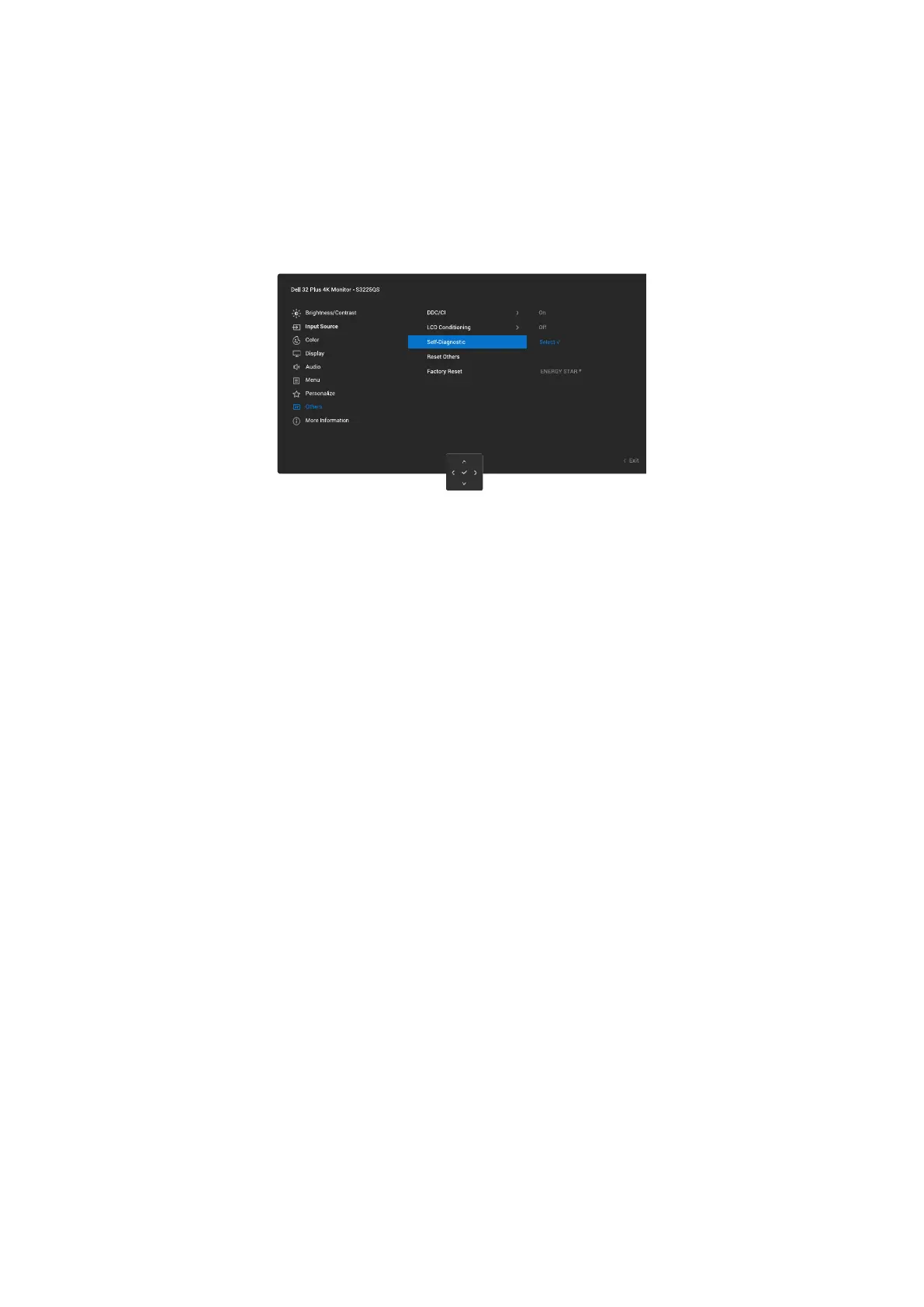
3. Move the joystick button to select Others > Self-Diagnostic to initiate the self-diagnostic process.
Figure 46. Built-in diagnostics
4. When initiated, a gray screen appears. Inspect the screen for abnormalities.
5. Switch the joystick button. The color of the screen changes to red. Inspect the screen for abnormalities.
6. Repeat step 5 and inspect the screen when it displays the colors green, blue, black, and white followed by the on-screen text.
7. The test is complete when the text screen appears. To exit, click the joystick button again.
If you do not detect any screen abnormalities upon using the Built-in diagnostics tool, the monitor is functioning properly. Check the
video card and computer.




 To Next Page